Overview
A product package is a single product in StockUnify made up of several component products. It is useful for selling kits or bundles without tracking component stock by hand.
Here’s how it works:
You create the package in StockUnify.
It syncs to ServiceM8 as one item.
When the package is added to a ServiceM8 job, StockUnify expands it back into its components.
StockUnify deducts stock from those components automatically.
Important: Always create packages in StockUnify, not in ServiceM8. If a package is created directly in ServiceM8, StockUnify won’t recognise it as a package when the job syncs back, and component stock won’t be deducted.
Step 1: Create a product package in StockUnify
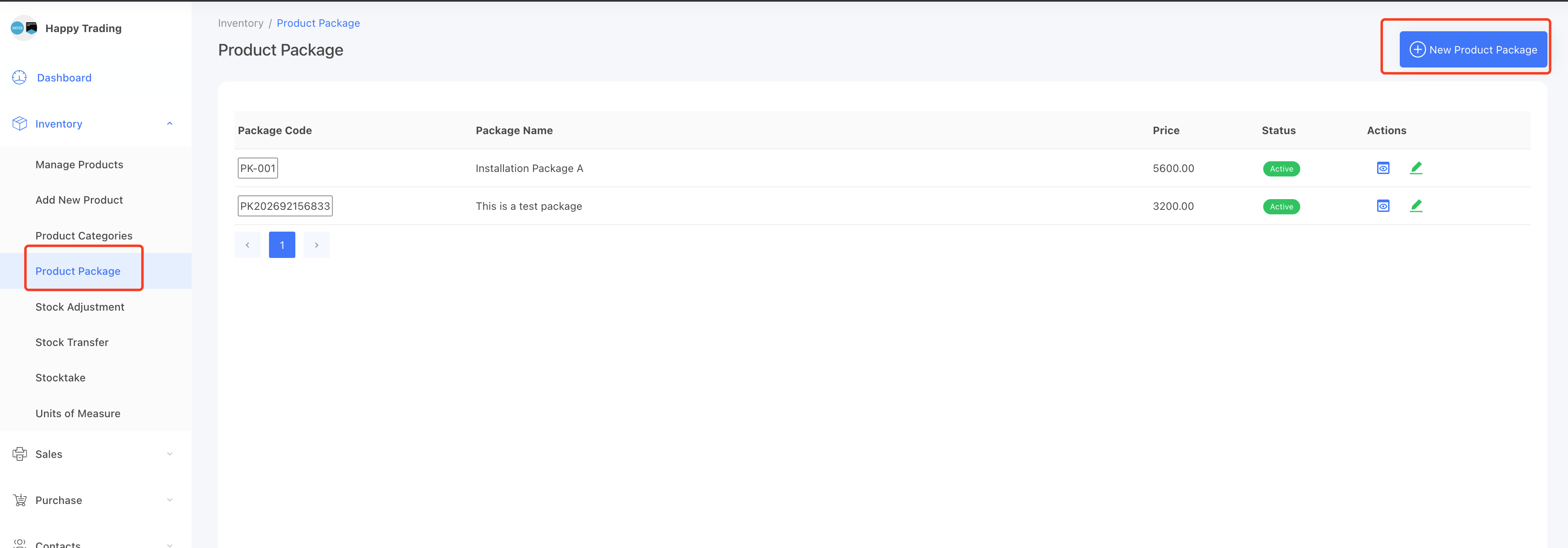
Go to Inventory → Product Package.
Click New Product Package.
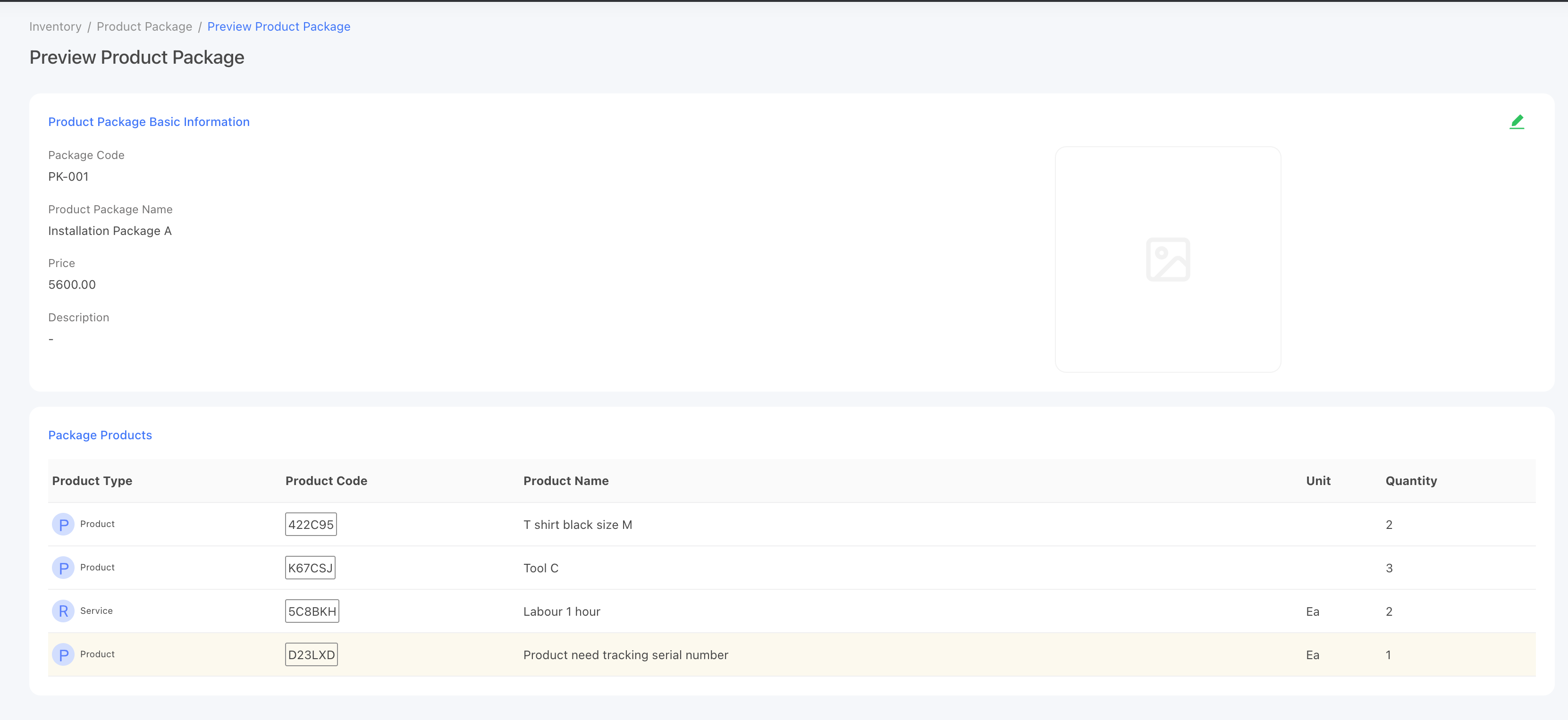
Enter the package details and add its component products and quantities.
Save.
If Sync products to ServiceM8 is turned on, creating or editing a package automatically syncs it to ServiceM8. The package’s name, code, and price are sent across, just like any other product.
Step 2: Add the package to a ServiceM8 job
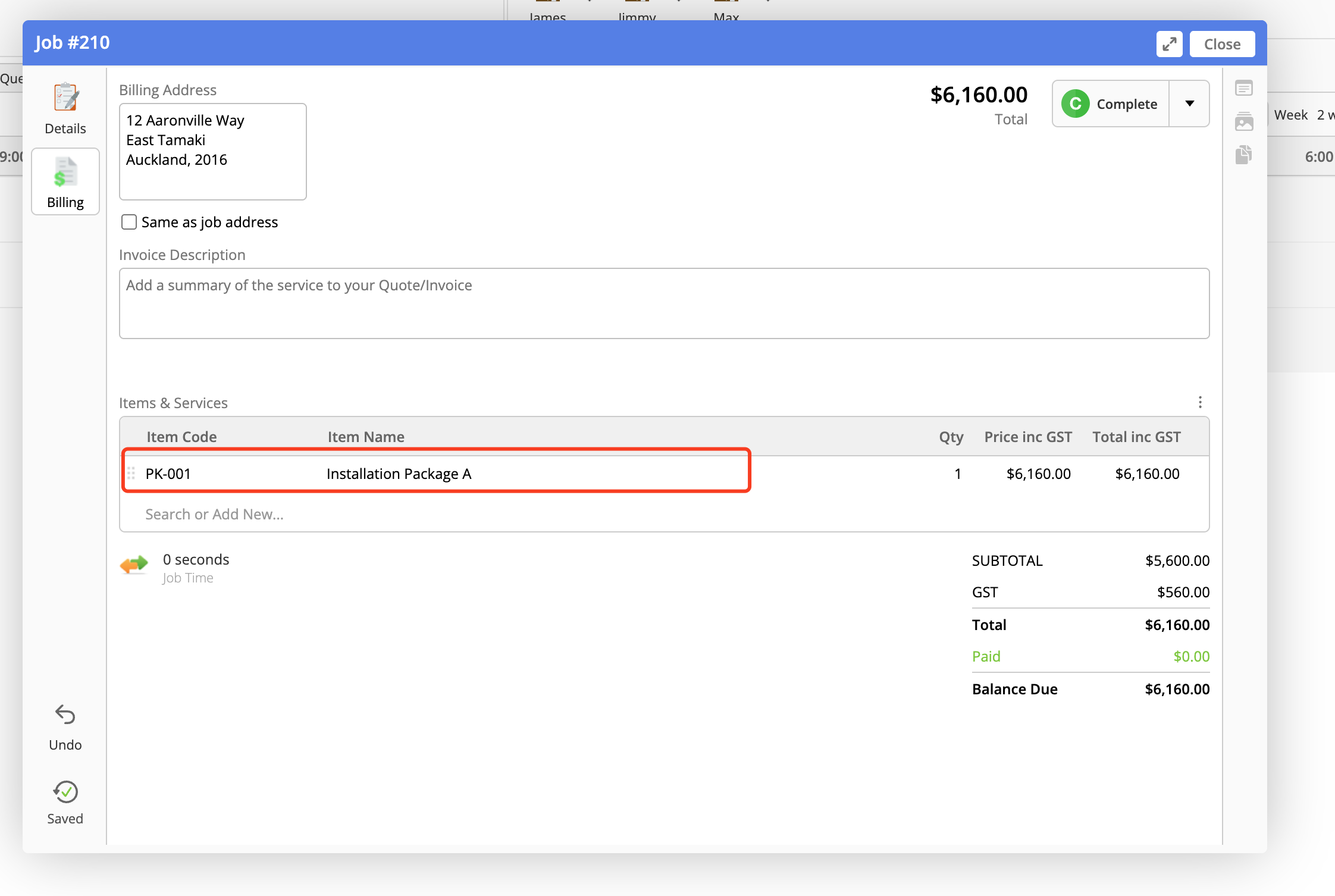
Once the package has synced, add it to a job in ServiceM8 as you would any other item.
Step 3: How the job syncs back to StockUnify
When a job containing a package syncs to StockUnify, the package is recognised and automatically expanded into its component products on the sales order.
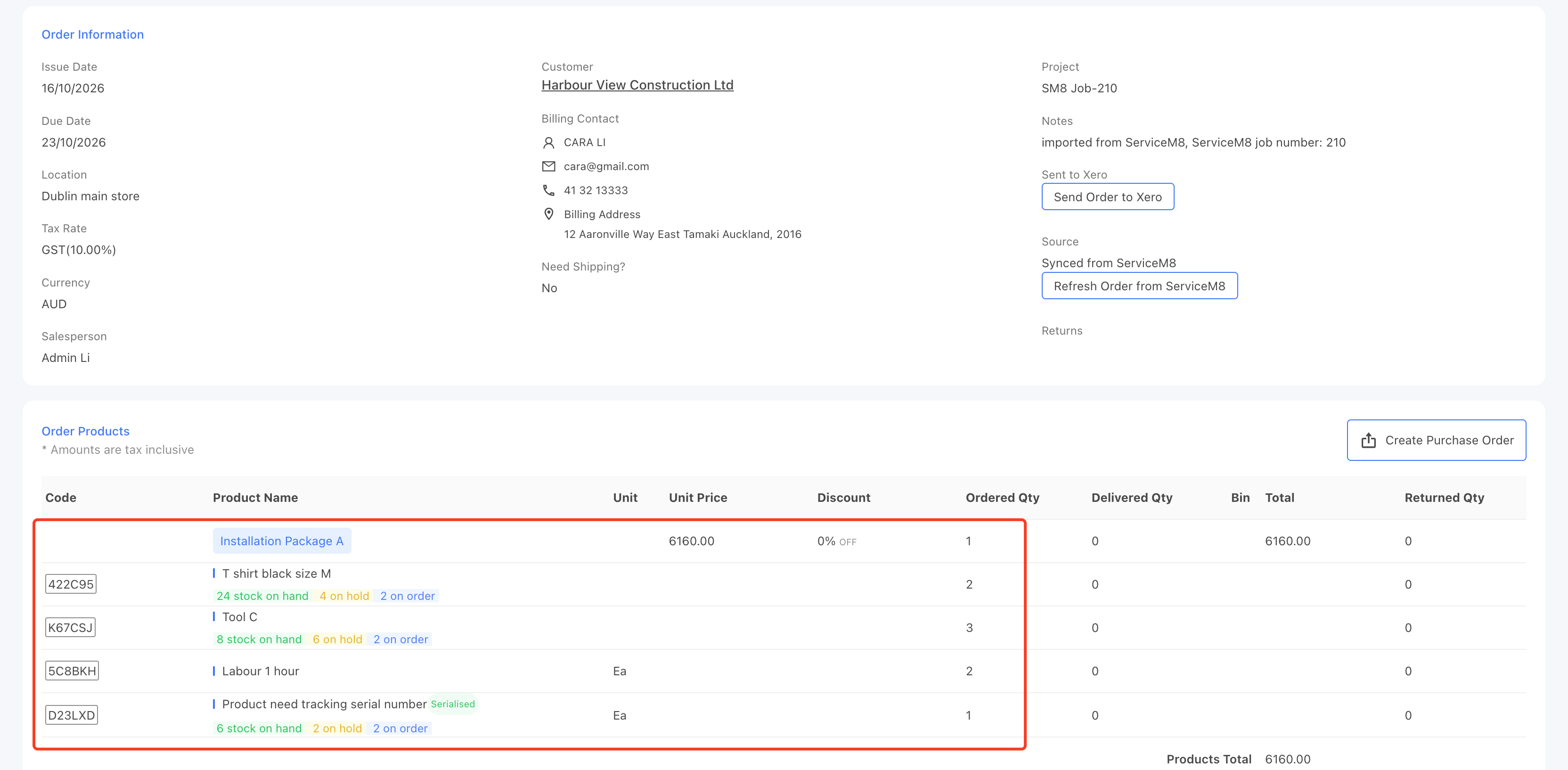
Stock impact
Packages don’t hold stock of their own. Stock is tracked only at the component level. T
Fulfillment
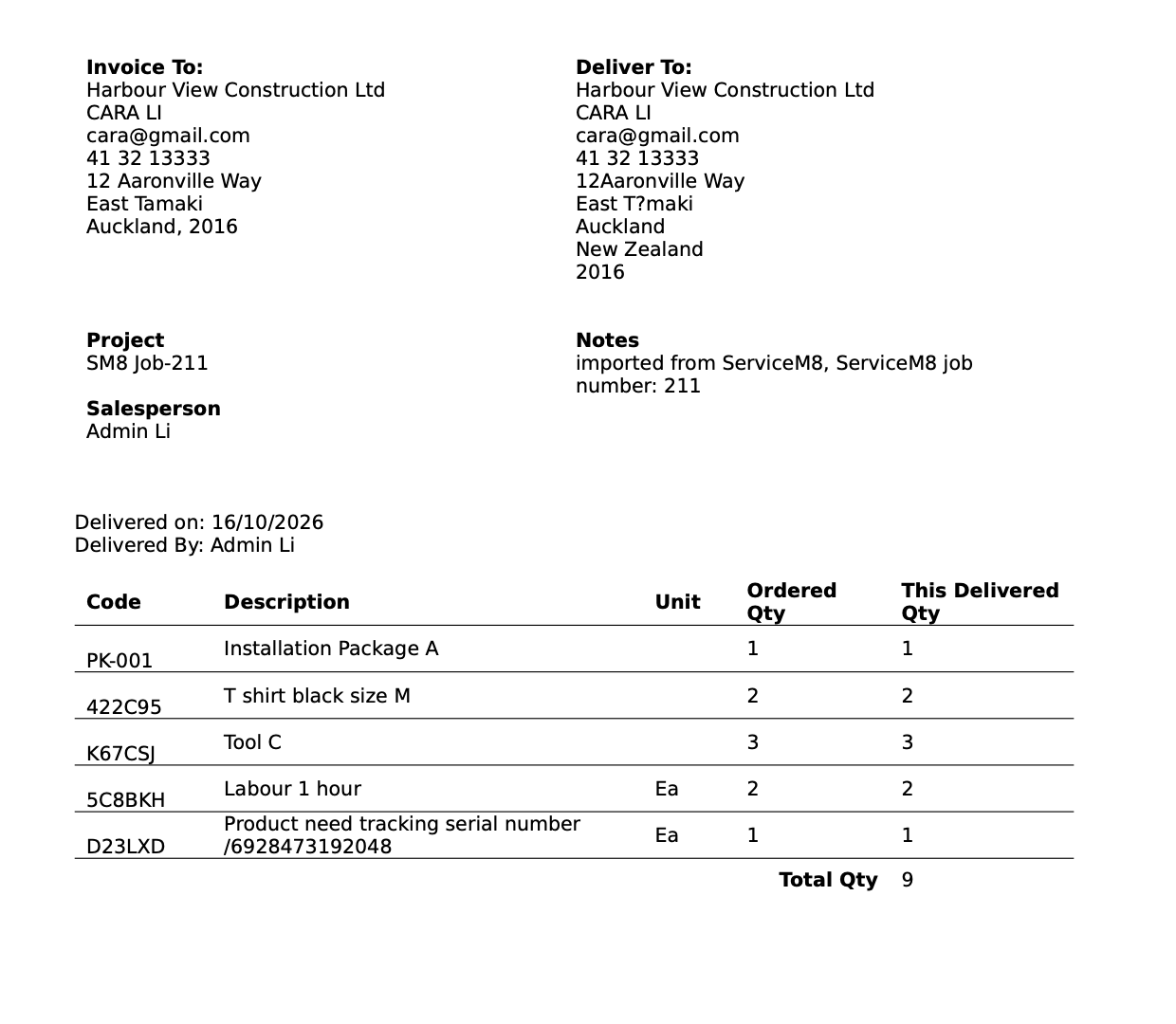
When the order is delivered in StockUnify, the fulfillment record is pushed back to ServiceM8. The delivery note lists every component item delivered as part of the package.
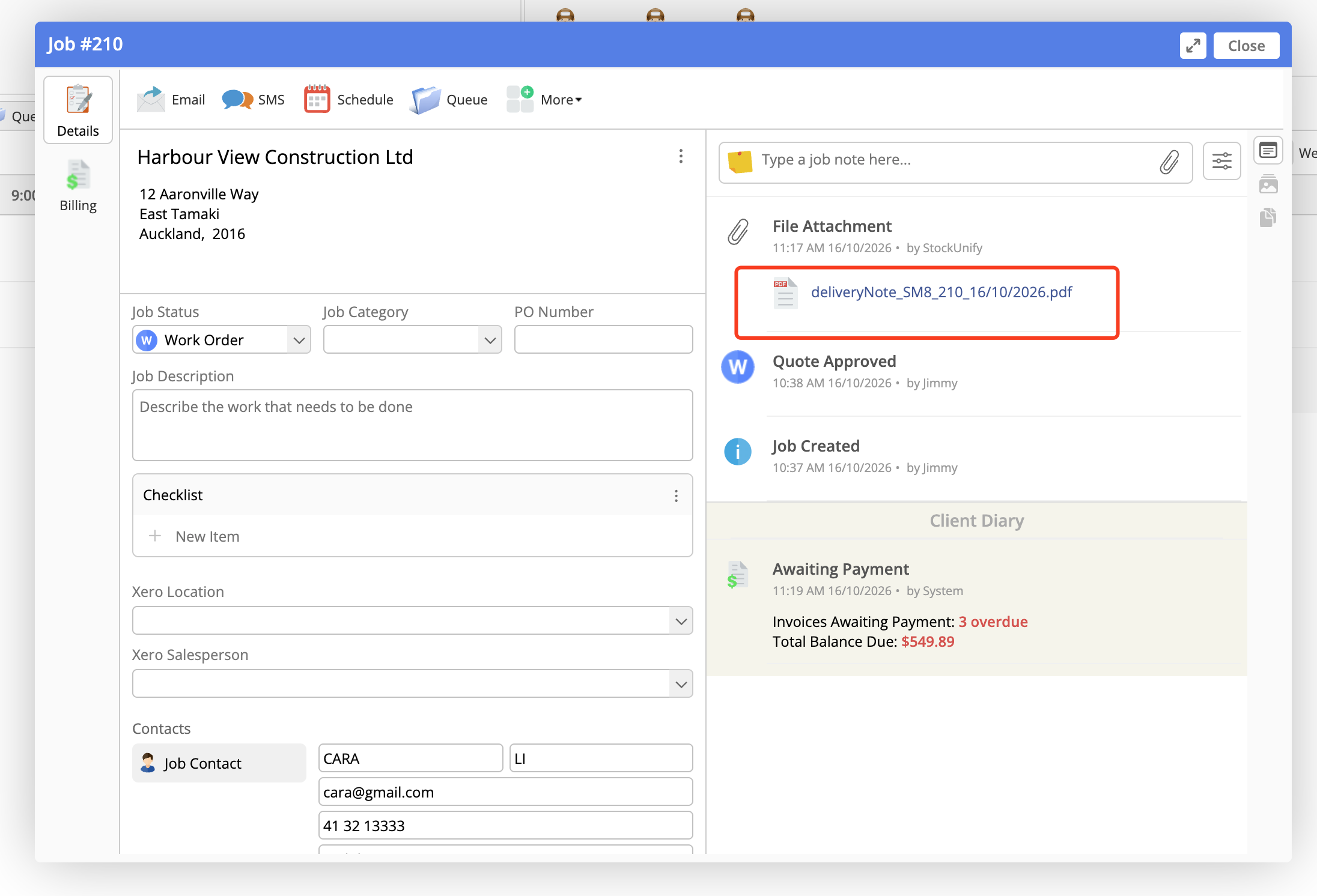
On the delivery note, it will show all the delivered items in this package(bundle).