Prerequisites
Before connecting, please ensure the following requirements are met:
- You have an active ServiceM8 account.
- You have an active StockUnify account. If you do not have one, please sign up here.
How to Connect
You can connect ServiceM8 with StockUnify using either of the following methods:
1. Connect from the ServiceM8 Add-on Store
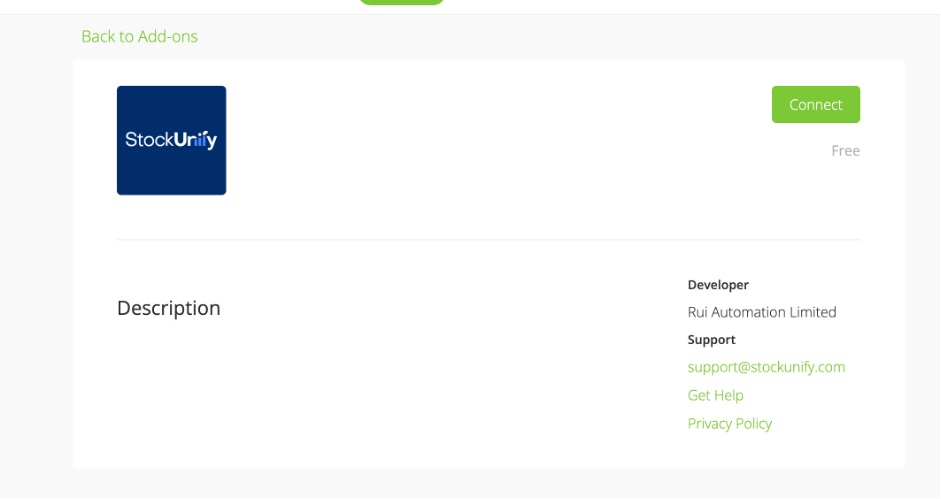
Locate the StockUnify Add-on in the ServiceM8 Add-on Store and click "Connect".
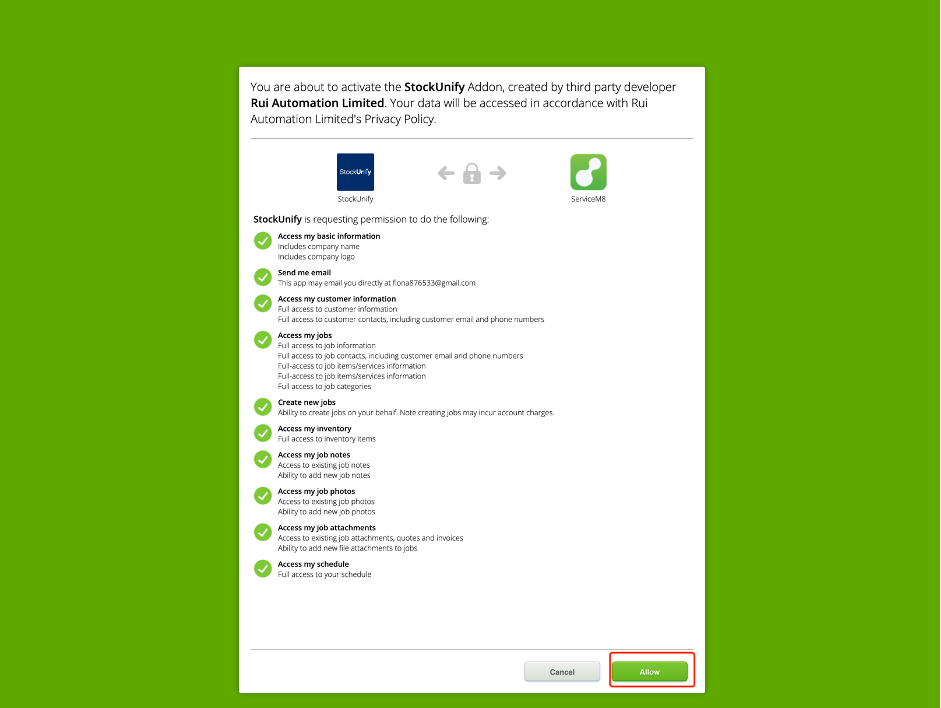
You will be redirected to StockUnify. Follow the on-screen prompts to authorise and link your ServiceM8 account with StockUnify.
2. Connect from StockUnify
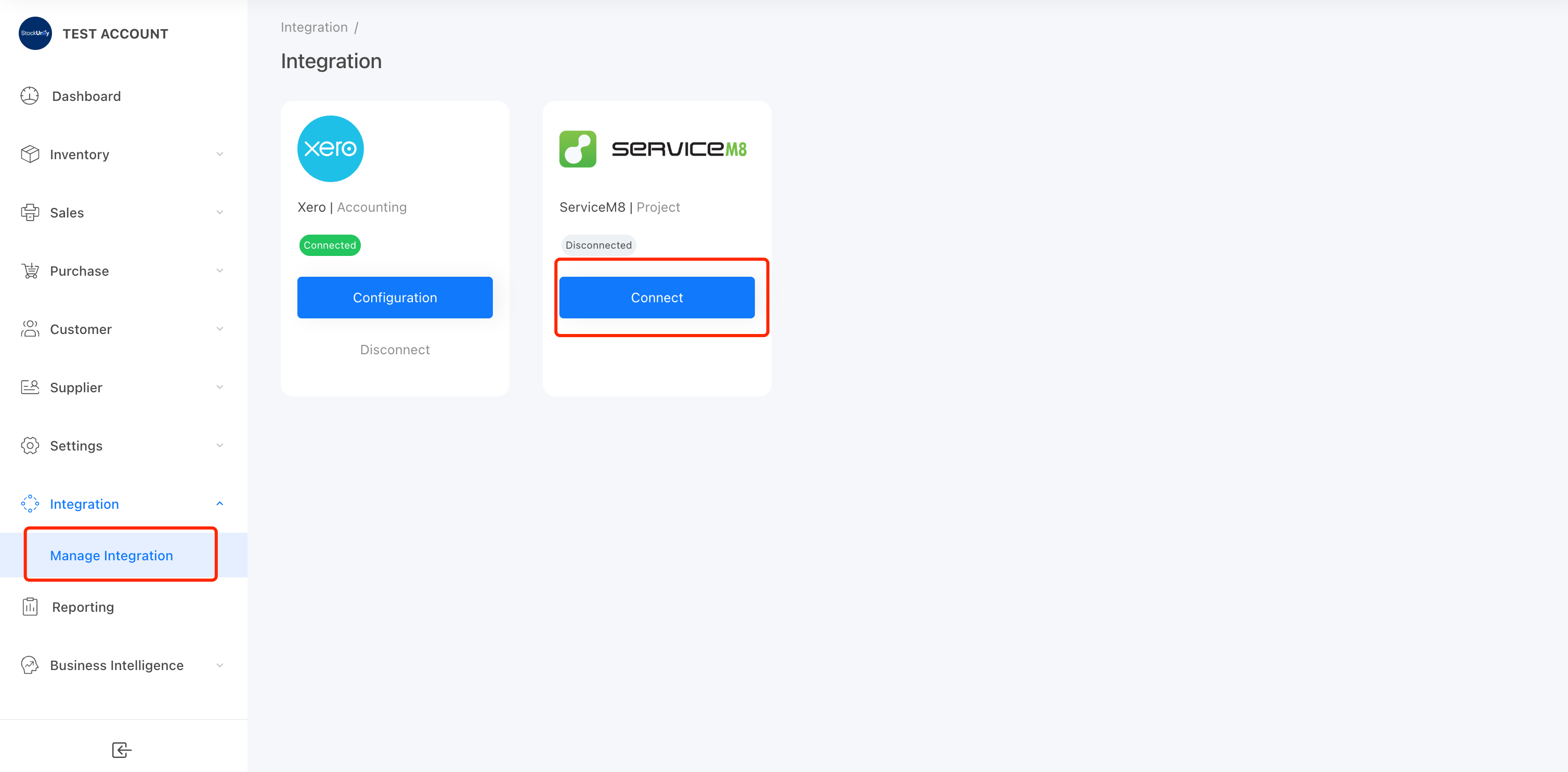
Log in to your StockUnify account and navigate to Settings → Manage Integrations from the side menu.
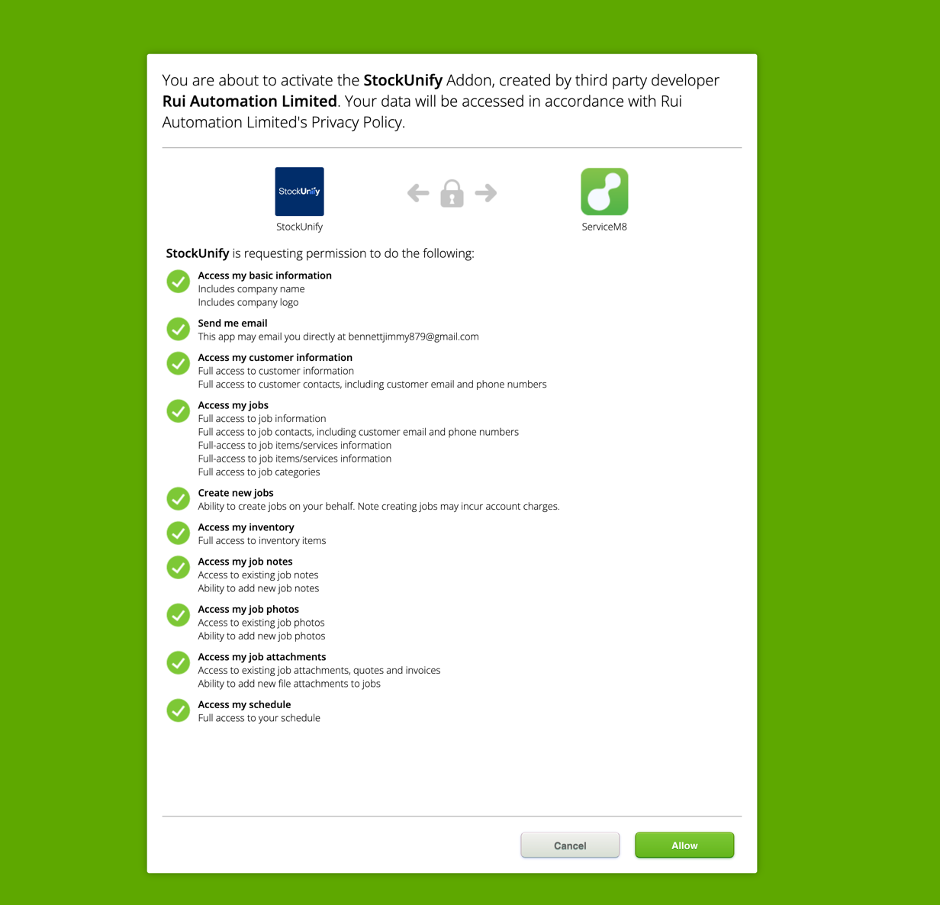
Locate the ServiceM8 integration card and click "Connect". Follow the prompts to authorise and link your ServiceM8 account.
Configuration
Once the connection is successfully established, configure the integration settings based on your business requirements.
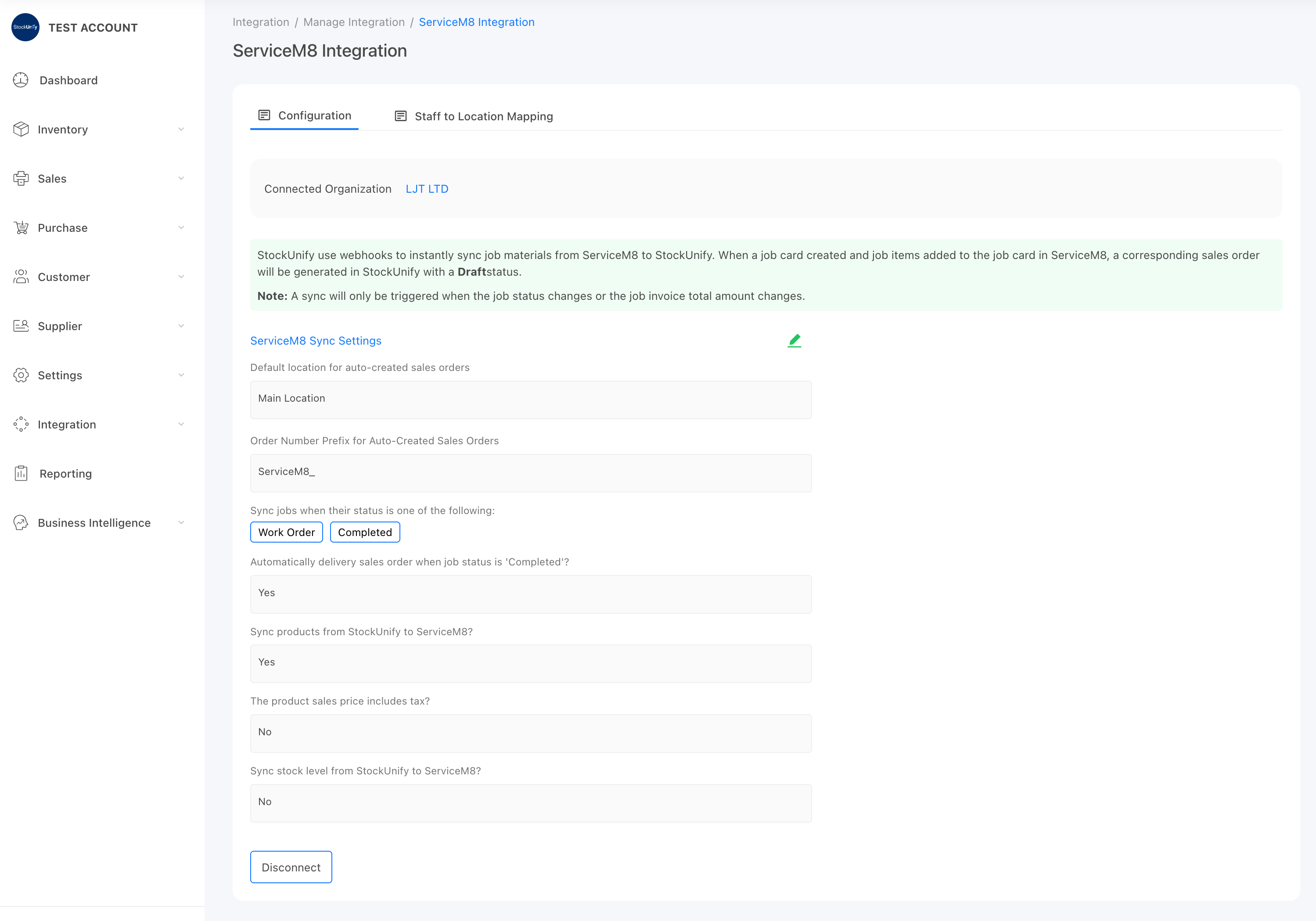
Default Location
Set a default location for sales orders created from ServiceM8 jobs. If staff-to-location mapping is configured, the system will prioritise the mapped location instead of the default location.
Order Number Prefix
By default, sales orders generated from ServiceM8 will use the format "ServiceM8_ + Job Number". You can customise the prefix as needed to match your internal numbering system.
Job Status Trigger
Choose which job status will trigger the creation of a sales order in StockUnify.
For example, if only "Completed" is selected, a sales order will only be created when a job is marked as completed in ServiceM8. Jobs in other statuses will not trigger syncing.
Automatically Deliver Sales Orders When Job is Completed
If enabled, when a job is marked as "Completed" in ServiceM8, the corresponding sales order in StockUnify will be automatically delivered.
This means stock will be deducted automatically.(only when all items have sufficient stock and are not batch-tracked or serialised)
Sync Products from StockUnify to ServiceM8
If enabled, any new or updated products in StockUnify will be synchronised to ServiceM8 automatically.
Sync Stock Levels to ServiceM8
If enabled, stock level updates in StockUnify will be synced to ServiceM8 in real time.
Staff to Location Mapping
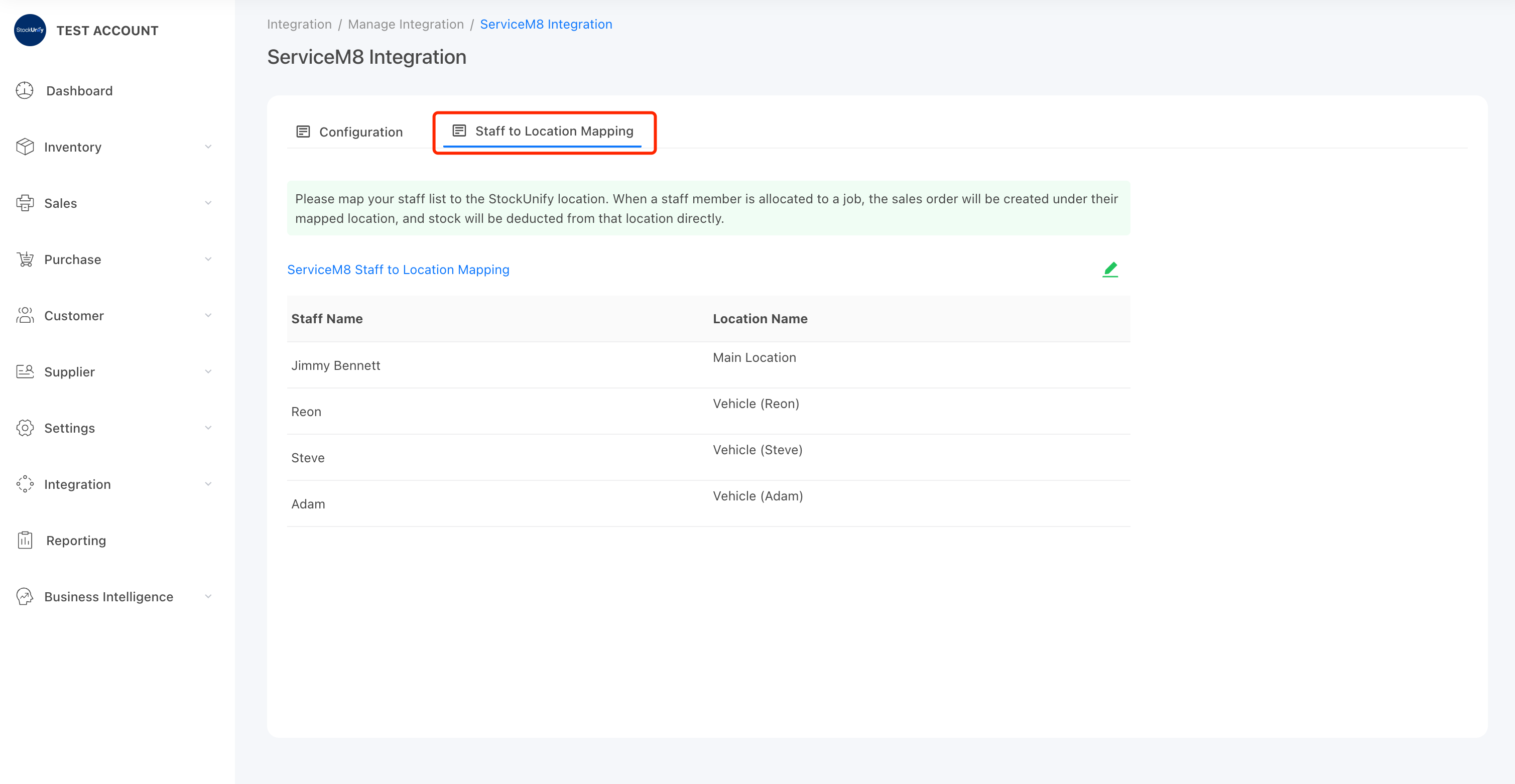
Map ServiceM8 staff members to StockUnify locations. Once mapped, Sales orders generated from jobs will use the staff's assigned location
Combined with the auto-deliver feature, this allows you to:
- Track stock held in staff vehicles
- Monitor usage by staff
- Replenish stock more efficiently
Tip: The staff member who completes the job determines the sales order location.