Overview
Completing an assembly is the step that changes your stock. StockUnify deducts the components (including wastage) from the assembly location, receives the assembled product into the same location, and locks the costs. A completed assembly cannot be edited or deleted, so check the details before you confirm.
Open the Complete Assembly window
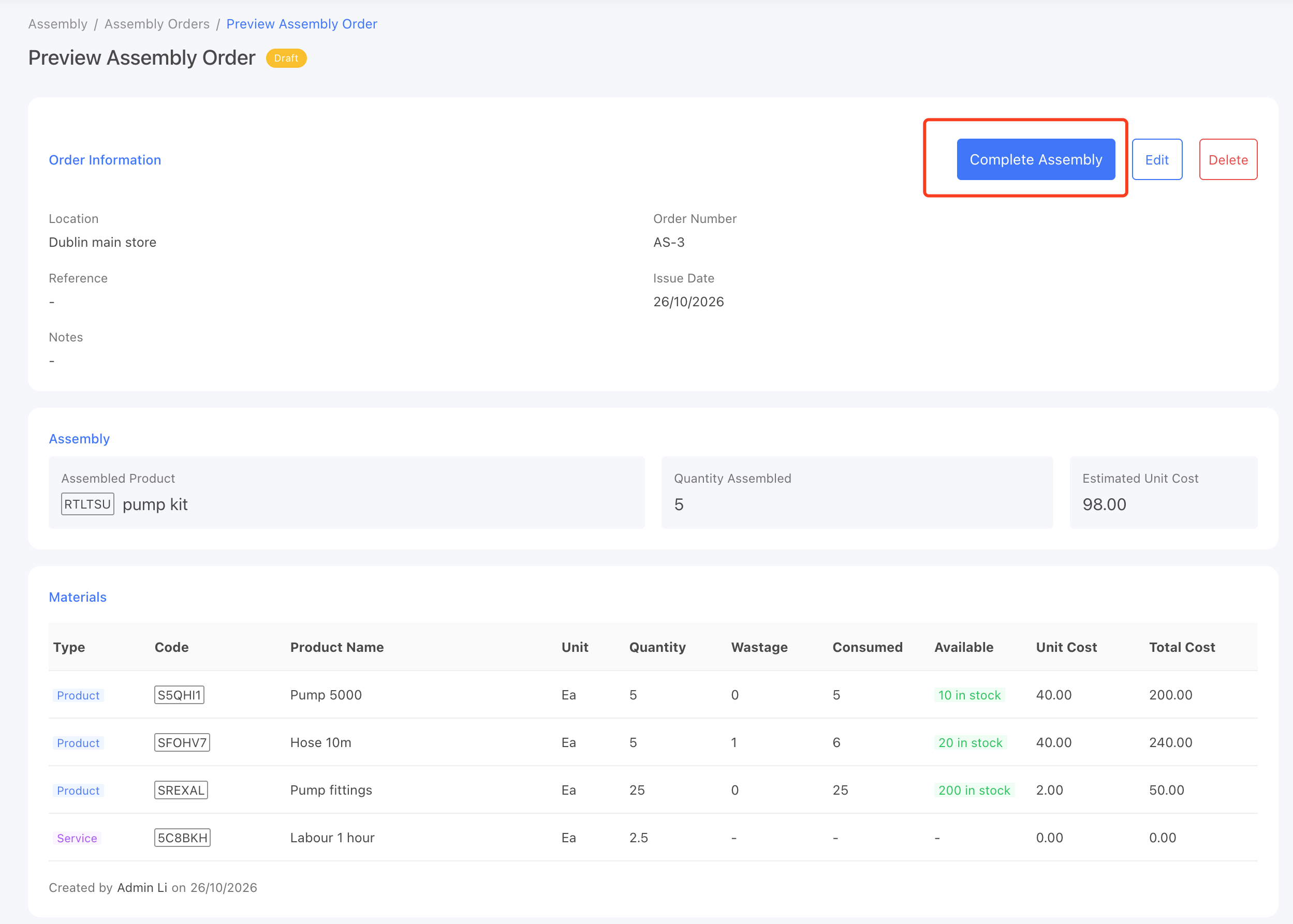
Open a draft assembly order and click Complete Assembly, or click Save & Complete when creating the order. The window always loads the latest stock levels and costs.
Components: serial/batch numbers and bins
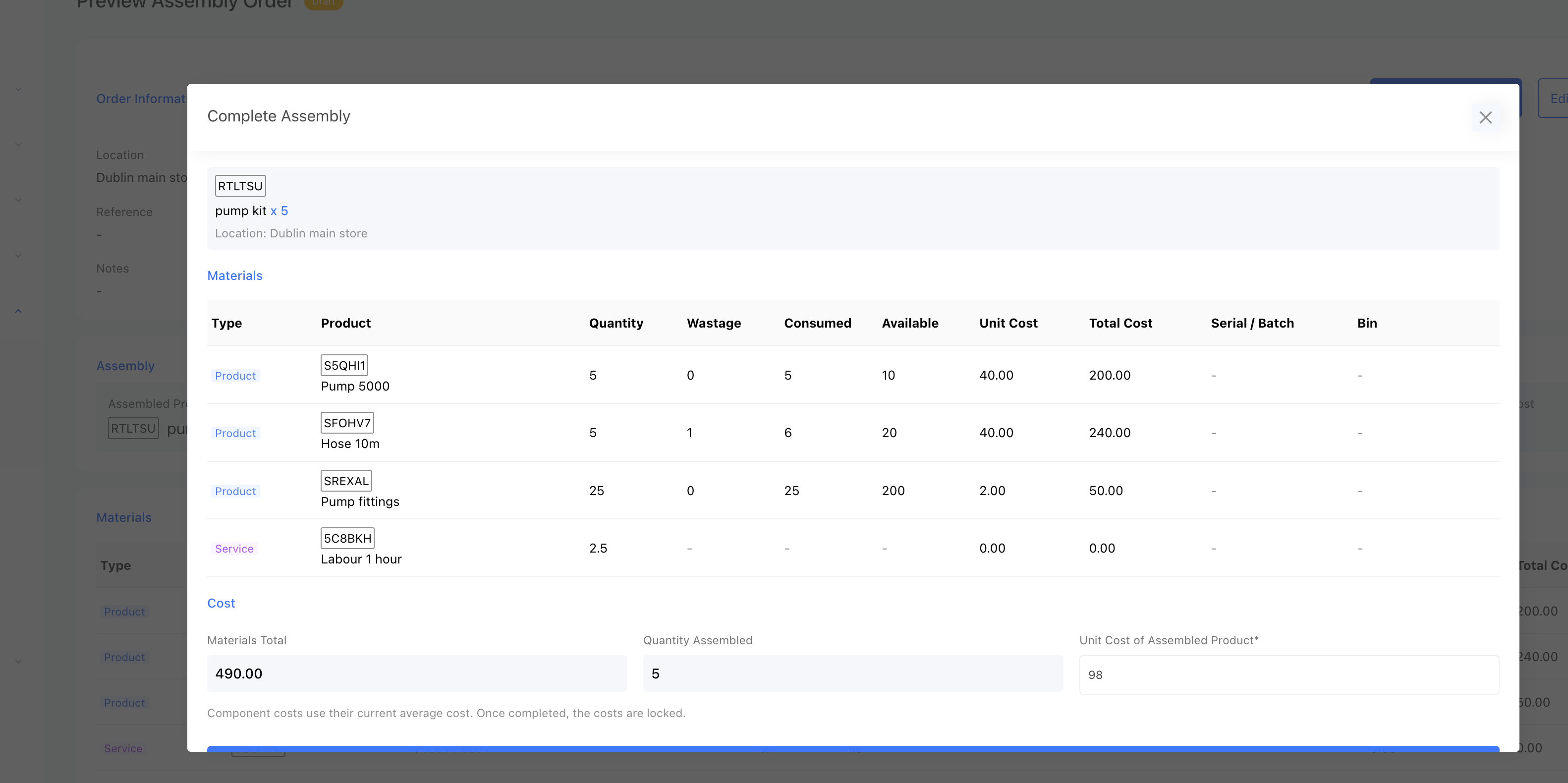
The Materials table lists every line with its consumed quantity, available stock, unit cost and total cost.
Serialised components: click Select Serials and select exactly as many serial numbers as the consumed quantity.
Batch tracked components: click Select Batches and choose how much to take from each batch. The total must equal the consumed quantity.
Bins: if a component is stored in bins at this location, StockUnify allocates the quantity to bins automatically. Click the bin allocation to change it. If the bin quantities don't add up to the consumed quantity, the stock is deducted from the default bin.
Service lines don't need any of these — they only add cost.
Assembled product: serial/batch numbers and bins
At the top of the window, next to the assembled product:
Receive to bins: shown if the product uses bins at this location. By default the stock goes to the default bin.
Serial numbers: for a serialised product, click Add Serials and enter one serial number for each unit assembled.
Batch numbers: for a batch tracked product, click Add Batches and enter the batch numbers, quantities and expiry dates. The total must equal the quantity assembled.
Confirm the cost
The Cost section shows the Materials Total (components + services), the Quantity Assembled and the Unit Cost of Assembled Product.
The unit cost is pre-filled with the calculated cost: (component cost + service cost) ÷ quantity assembled. Component costs use their current average cost at the assembly location.
You can change the unit cost, for example to include a cost that is not in the BOM. A note shows that you are overriding the calculated cost; click Use calculated to go back.
If you leave the unit cost unchanged, the cost is calculated again at the moment you confirm.
For example, assembling 10 units that use 21 components at an average cost of 5.00 (20 + 1 wastage) and 5 hours of labour at 40.00:
Line | Consumed | Unit Cost | Total |
|---|---|---|---|
Component (product) | 21 | 5.00 | 105.00 |
Labour (service) | 5 | 40.00 | 200.00 |
Materials Total | 305.00 |
Unit cost of the assembled product = 305.00 ÷ 10 = 30.50.
Complete
Click Confirm & Complete Assembly. StockUnify checks the stock again before making any change. If any component does not have enough available stock, nothing is changed and a list of the short components is shown, with the required, on hand, on hold and available quantities.
What happens when an assembly is completed
The components (quantity + wastage) are deducted from the location, and the selected serial/batch numbers are consumed.
The assembled product is received into the location at the confirmed unit cost, and becomes part of its average cost. Its serial/batch numbers are created.
The assembled product's latest cost is updated to the unit cost (if greater than 0).
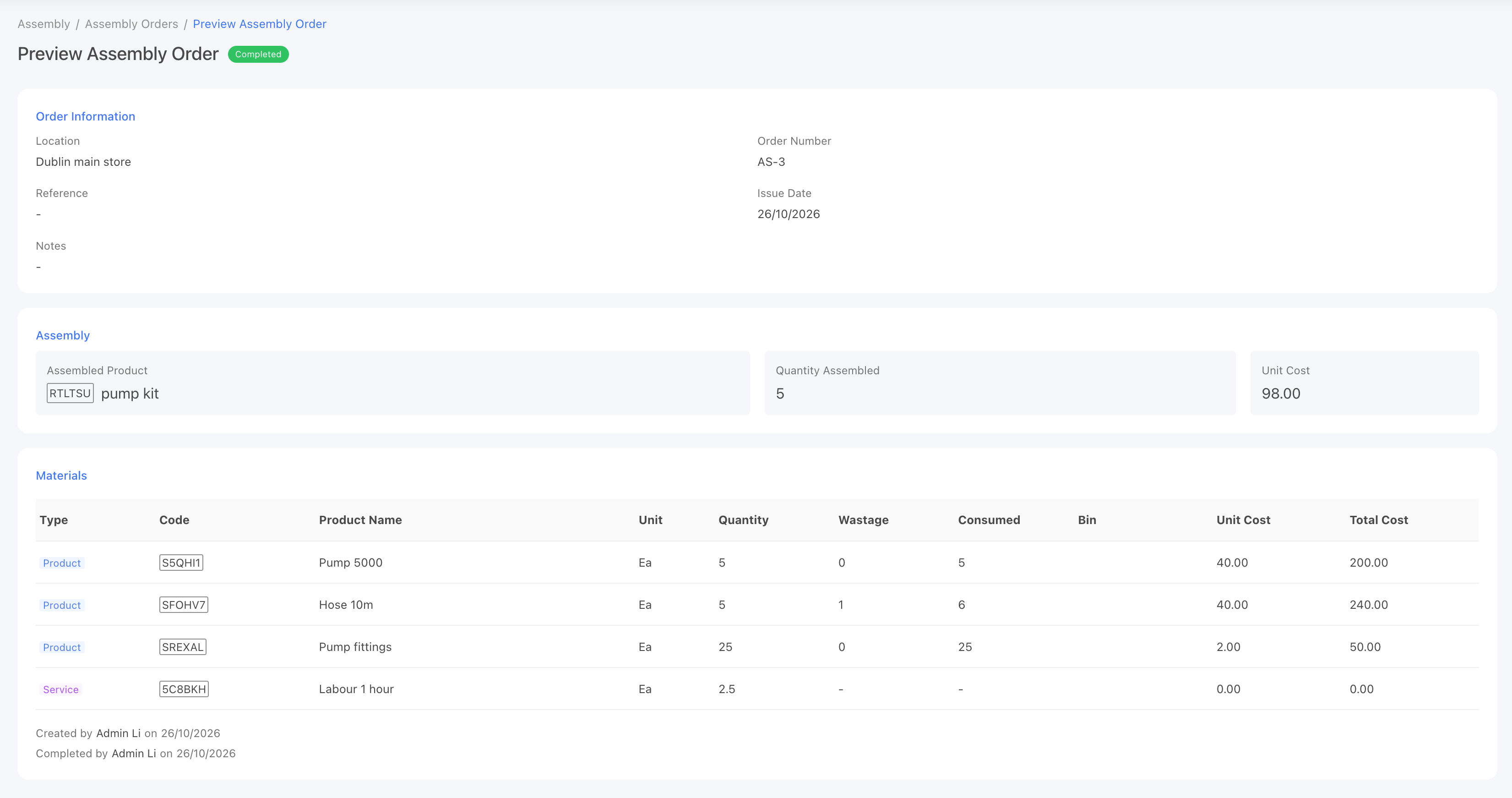
The order status changes to Completed, and the component costs, service costs and unit cost are locked.
Where to find completed assemblies
Assembly order: shows the locked cost of each line, the bins and the serial/batch numbers used, and who completed it and when.
Product details > Transactions: the assembled product shows an "Assembly" record (stock in), and each component shows an "Assembly Input" record (stock out). Click a record to open the assembly order.
Stock logs and the Products Transaction Log report: list the stock movements with the assembly order number.
Tips
Completed assemblies cannot be undone. To reverse a mistake, use a stock adjustment to correct the stock.
Xero tracked items cannot be used. If a product became tracked in Xero after the draft was created, the assembly cannot be completed.
Assemblies do not create any documents in Xero.