Overview
A BOM (Bill of Materials) is the recipe for one unit of an assembled product. It lists the component products used to build it and, optionally, services such as labour or overheads. You set up a BOM once, and every assembly order for that product starts from it.
Each product can have one BOM. Changing or deleting a BOM does not affect assembly orders that have already been created, because each order keeps its own copy of the materials.
View your BOMs
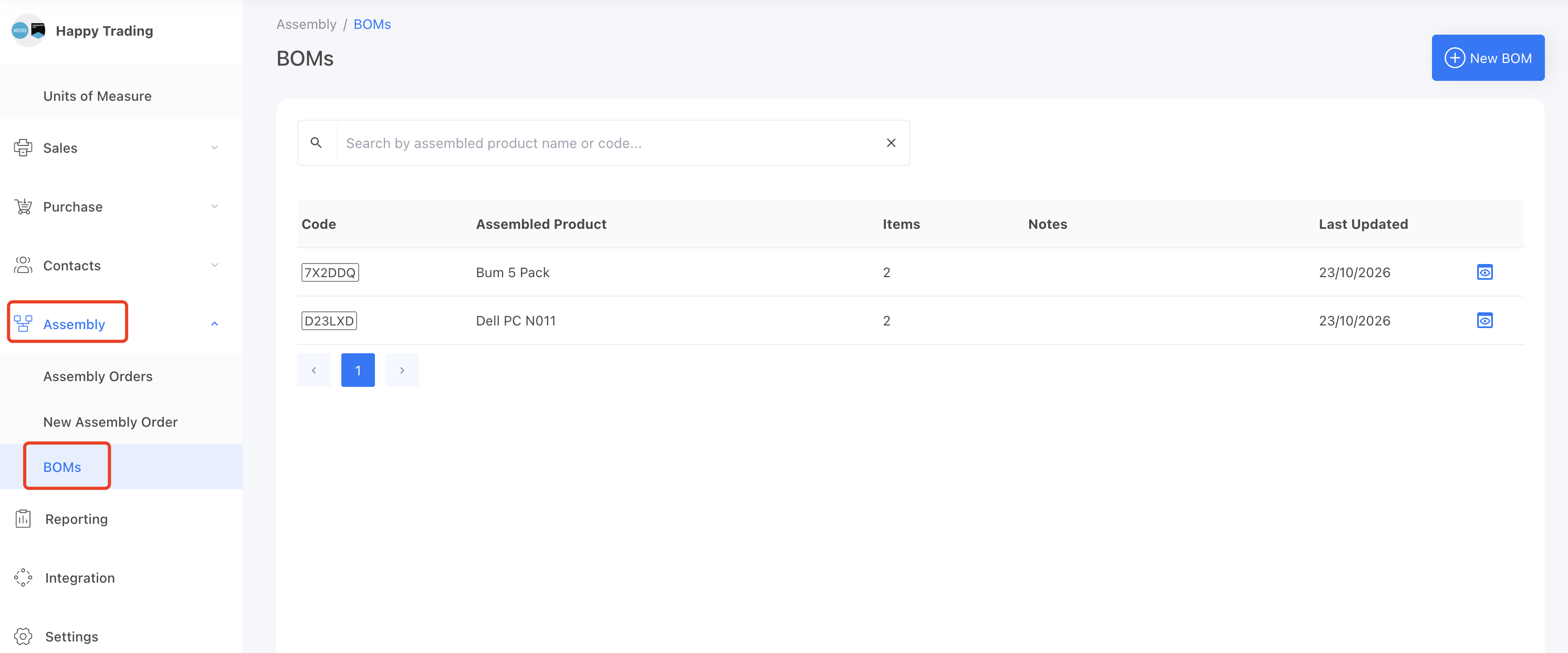
Go to Assembly > BOMs. The list shows every product that has a BOM. Use the search box to find a BOM by the assembled product's name or code, and click a row to open it.
Create a new BOM
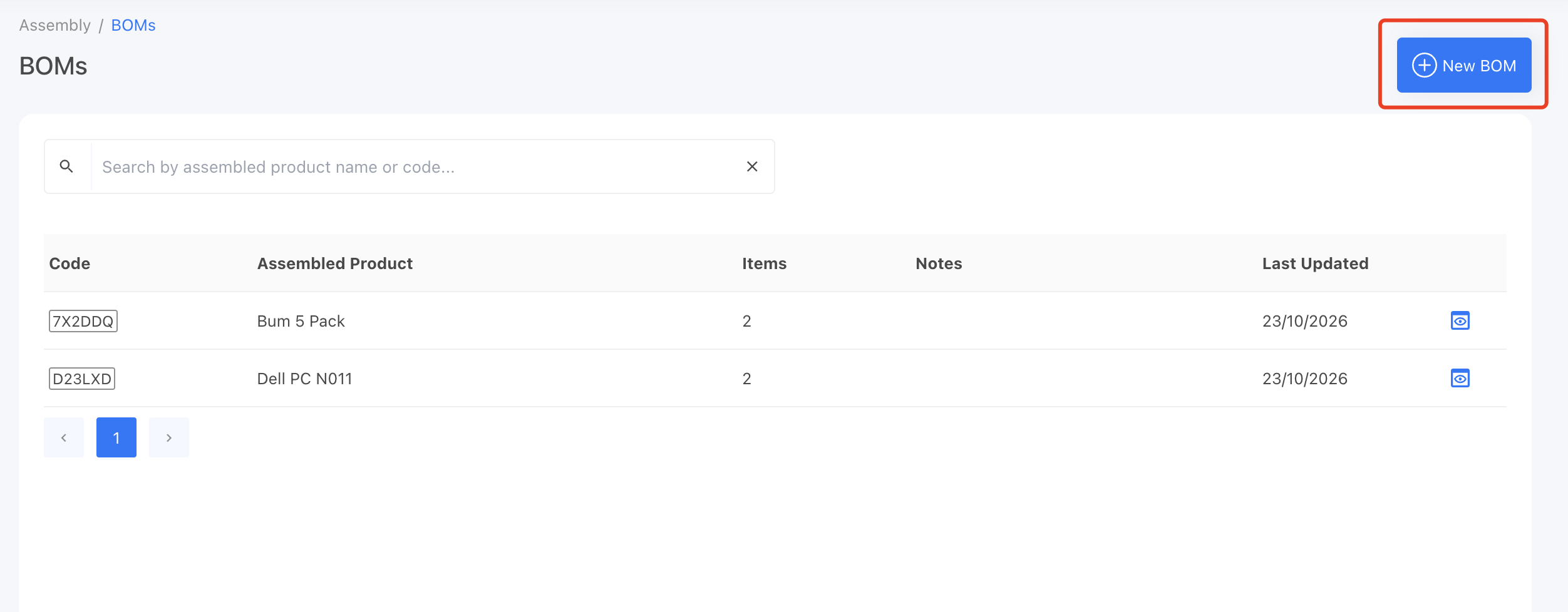
1. On the BOMs page, click New BOM.
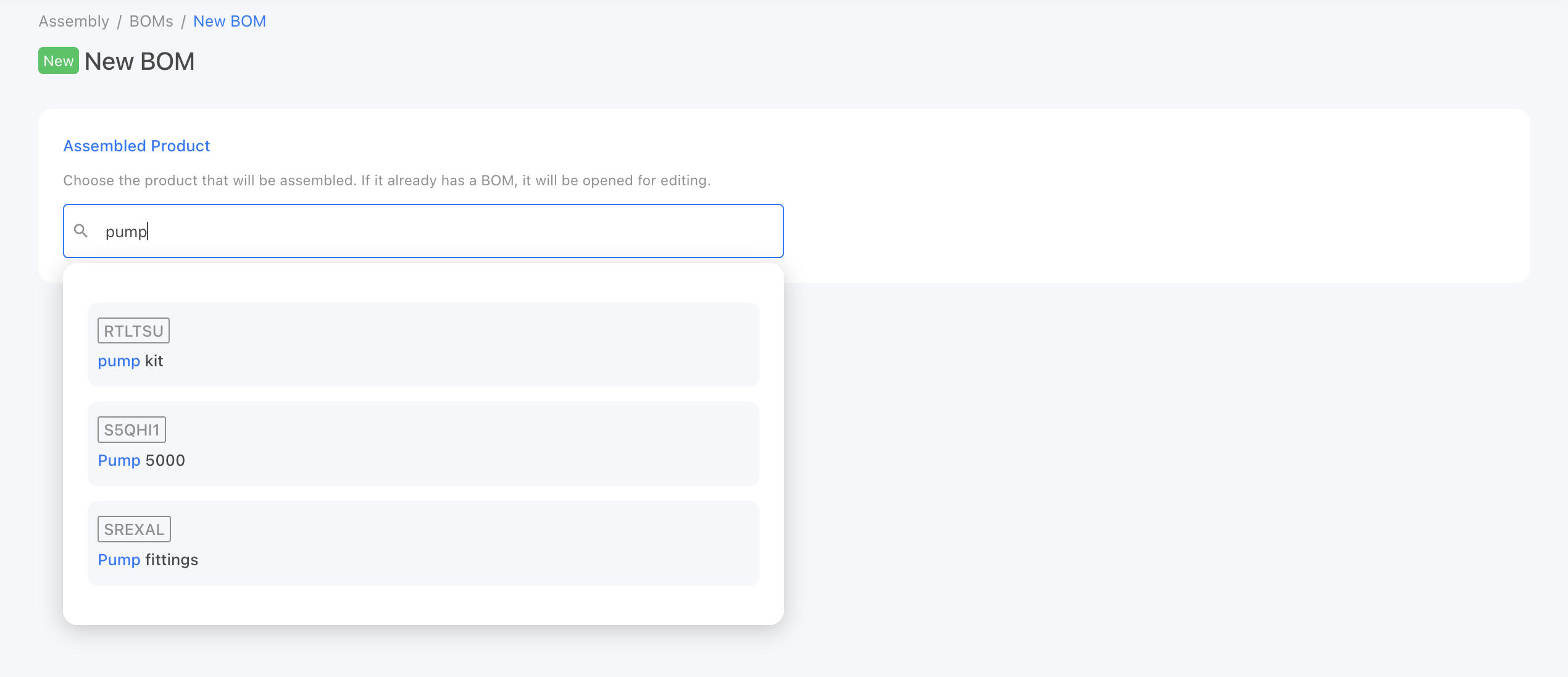
2. Search for and select the product you want to assemble. Only stocked products that are not tracked in Xero can be selected. If the product already has a BOM, it opens for editing instead.
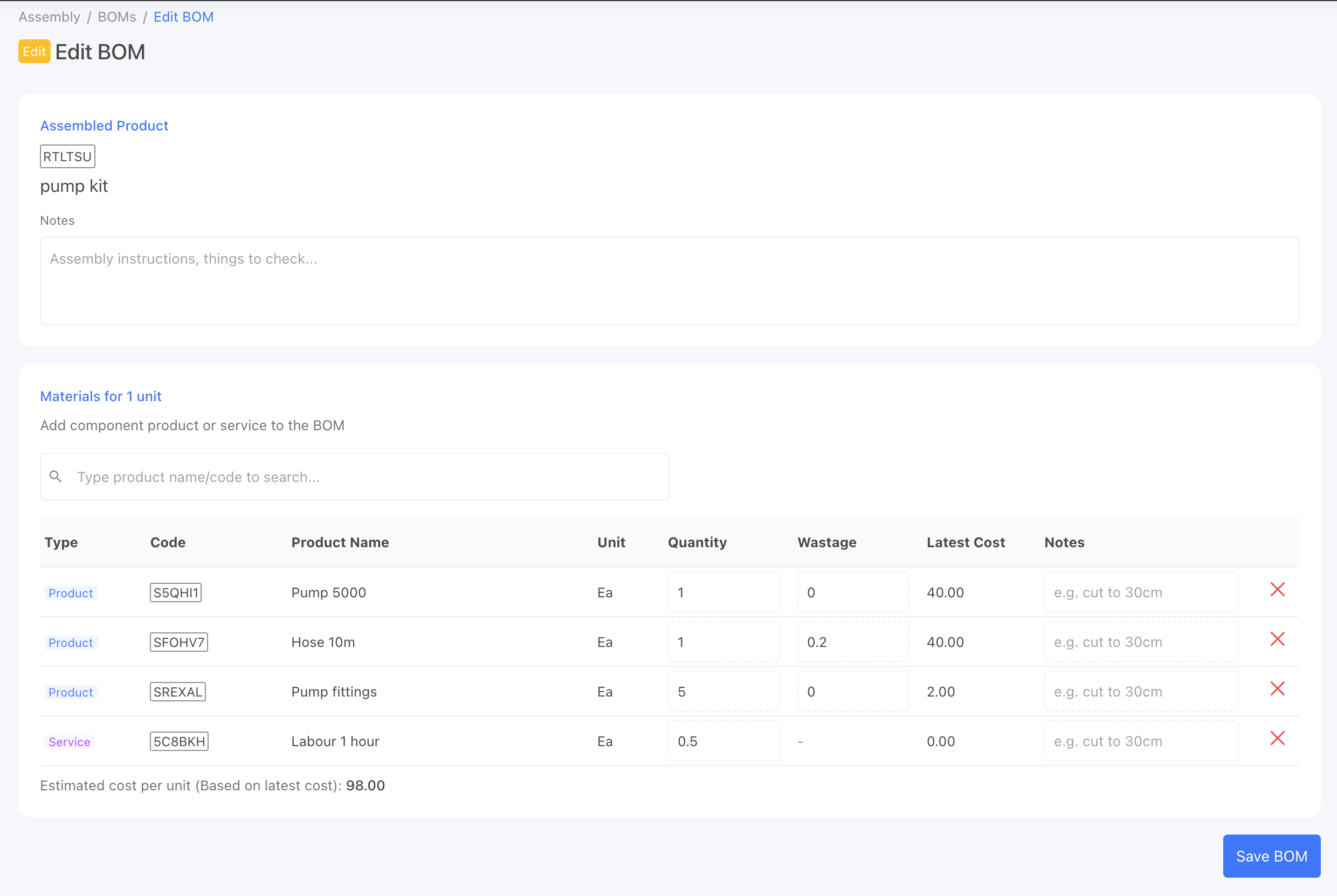
3. Optionally enter Notes for the BOM, such as assembly instructions or things to check. The notes are shown on every assembly order created from this BOM.
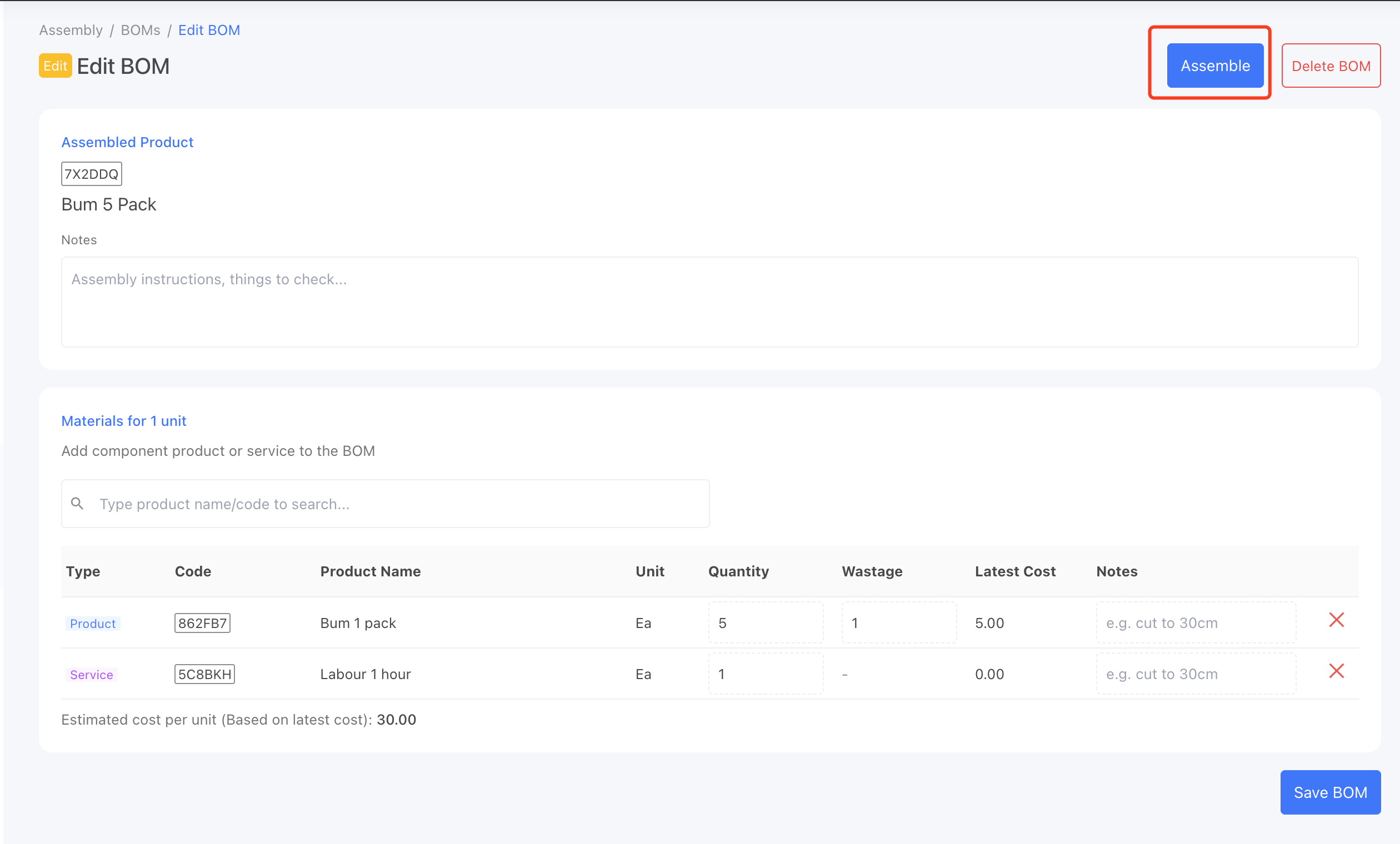
4. In the Materials for 1 unit section, search for a product or service and select it to add it to the BOM:
Stocked products are added as Product lines (components). They are deducted from stock when an assembly is completed.
Service products are added as Service lines, for example labour or packaging work. They don't move stock; their cost is added to the assembled product.
5. For each line, enter quantity, wastage, and optional notes
6. Click Save BOM.
Below the materials table, StockUnify shows an estimated cost per unit based on each item's latest cost. The actual cost is calculated from average costs when an assembly is completed.
Edit a BOM
Open the BOM from the BOMs list, change the notes or materials, and click Save BOM. The changes apply to new assembly orders only; existing draft and completed orders are not changed.
Assemble from a BOM
Click Assemble at the top of the BOM page to create a new assembly order with this BOM already selected.
Delete a BOM
Click Delete BOM at the top of the BOM page and confirm. Existing assembly orders are not affected.
Rules and limits
A BOM must contain at least one product line, and every quantity must be greater than 0.
A product cannot be added to its own BOM, and the same product cannot be added twice.
BOMs cannot loop. For example, if product A uses product B, you cannot add product A to the BOM of product B.
Products tracked in Xero (In Xero, the product is inventory tracked) cannot be used in a BOM.
A product that is used as a component in another BOM cannot be deleted. Remove it from that BOM first.
Tips
Set up labour or overheads as service products (with a cost) so they can be added to BOMs and included in the cost of the assembled product.
Use wastage instead of inflating the quantity, so you can see how much material is lost on each build.
Use BOM notes and line notes for instructions your team needs when building the product.