Overview
An assembly order records one build: which BOM is used, how many units are assembled and at which location. You can save it as a draft while you prepare the materials, then complete it when the build is done. Stock does not change until the assembly is completed.
Create an assembly order
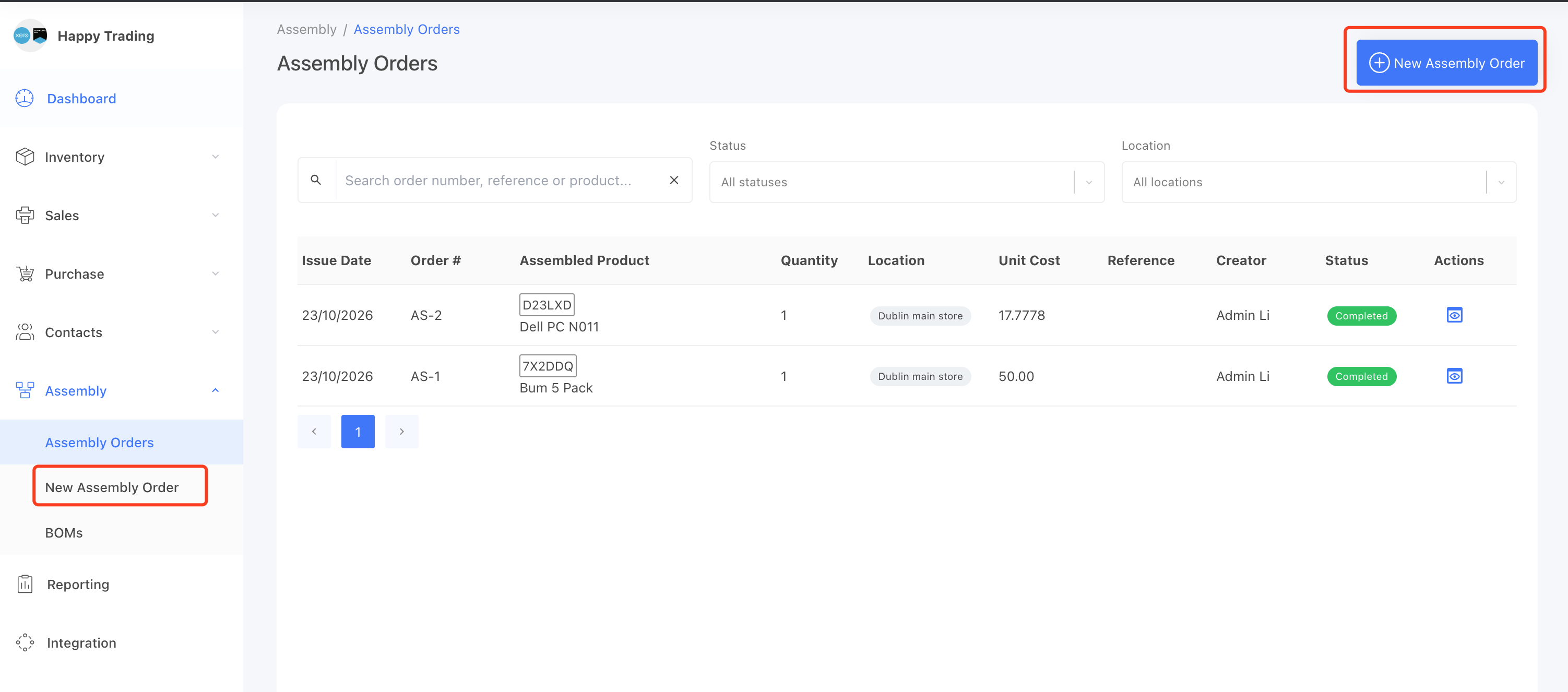
Go to Assembly > New Assembly Order. You can also click Assemble on a BOM page, which opens the form with that BOM already selected.
1. Order information
Fill in the order details:
Location: where the assembly happens. Components are deducted from, and the assembled product is received into, this location. It defaults to the user's default location.
Issue Date and Order Number: the order number is generated automatically (AS-1, AS-2...) and can be changed.
Reference and Notes: optional.
2. Choose the BOM and quantity
Select the BOM of the product you want to build, then enter the Quantity to Assemble. The materials are filled in from the BOM and multiplied by the quantity. If the BOM has notes, they are shown below.
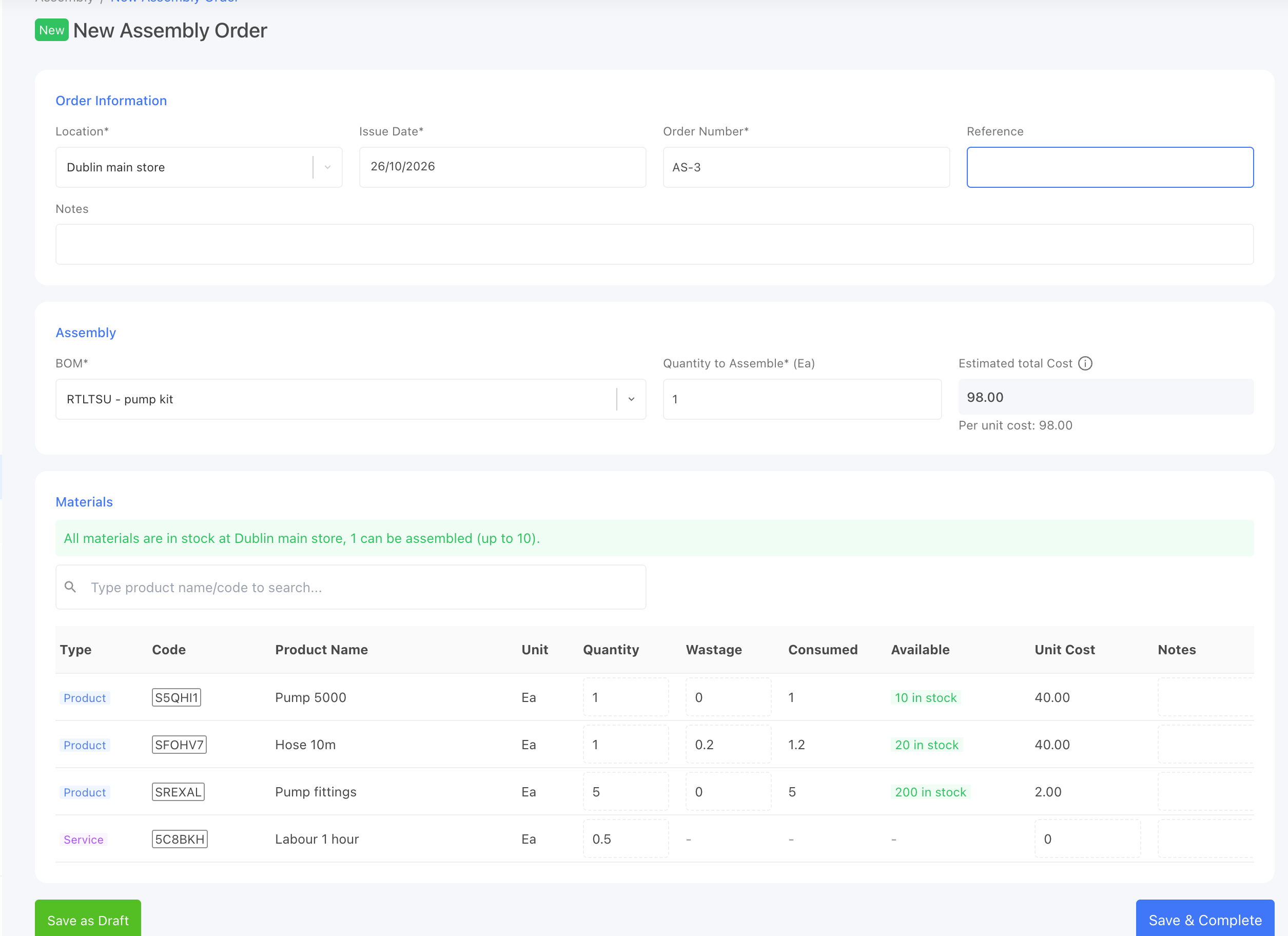
The Estimated total Cost and Per unit cost are based on the current average cost of each component at the selected location, plus the service lines. The final cost is calculated when the assembly is completed.
3. Check the materials and stock
The Materials table lists each line with its quantity, wastage and Consumed quantity (quantity + wastage). For product lines, the Available column shows the stock you can use at the selected location:
Green "n in stock" means there is enough stock.
Red "n (short m)" means there is not enough stock. A reorder button appears next to the product so you can add it to the reorder cart.
A summary above the table tells you whether all components are in stock, and how many units can be assembled from the available stock. Changing the location or quantity updates the stock check immediately.
Available stock = stock on hand − stock on hold.
4. Adjust the materials for this order (optional)
Changes made here apply to this order only — the BOM itself is not changed. You can:
Change the quantity or wastage of a line.
Add another component or a service line using the product search above the table.
Change the unit cost of a service line.
Add notes to a line, or remove a line.
If you change a line and then change the Quantity to Assemble, the line is scaled using your new amount.
5. Save the order
Save as Draft: saves the order and opens it. You can edit or complete it later.
Save & Complete: saves the order and opens the Complete Assembly window straight away.
Find and manage assembly orders
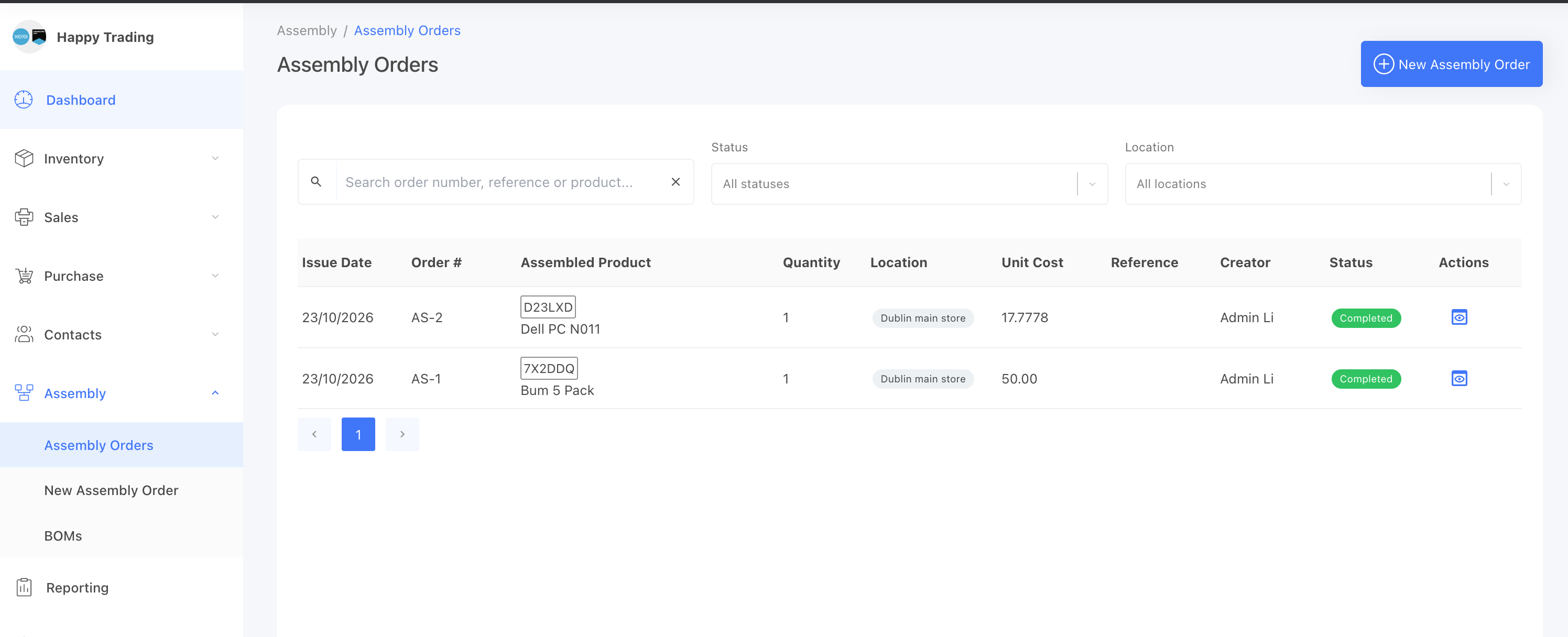
Go to Assembly > Assembly Orders to see all orders. You can filter by status (Draft or Completed) and location, or search by order number, reference, product name or code.
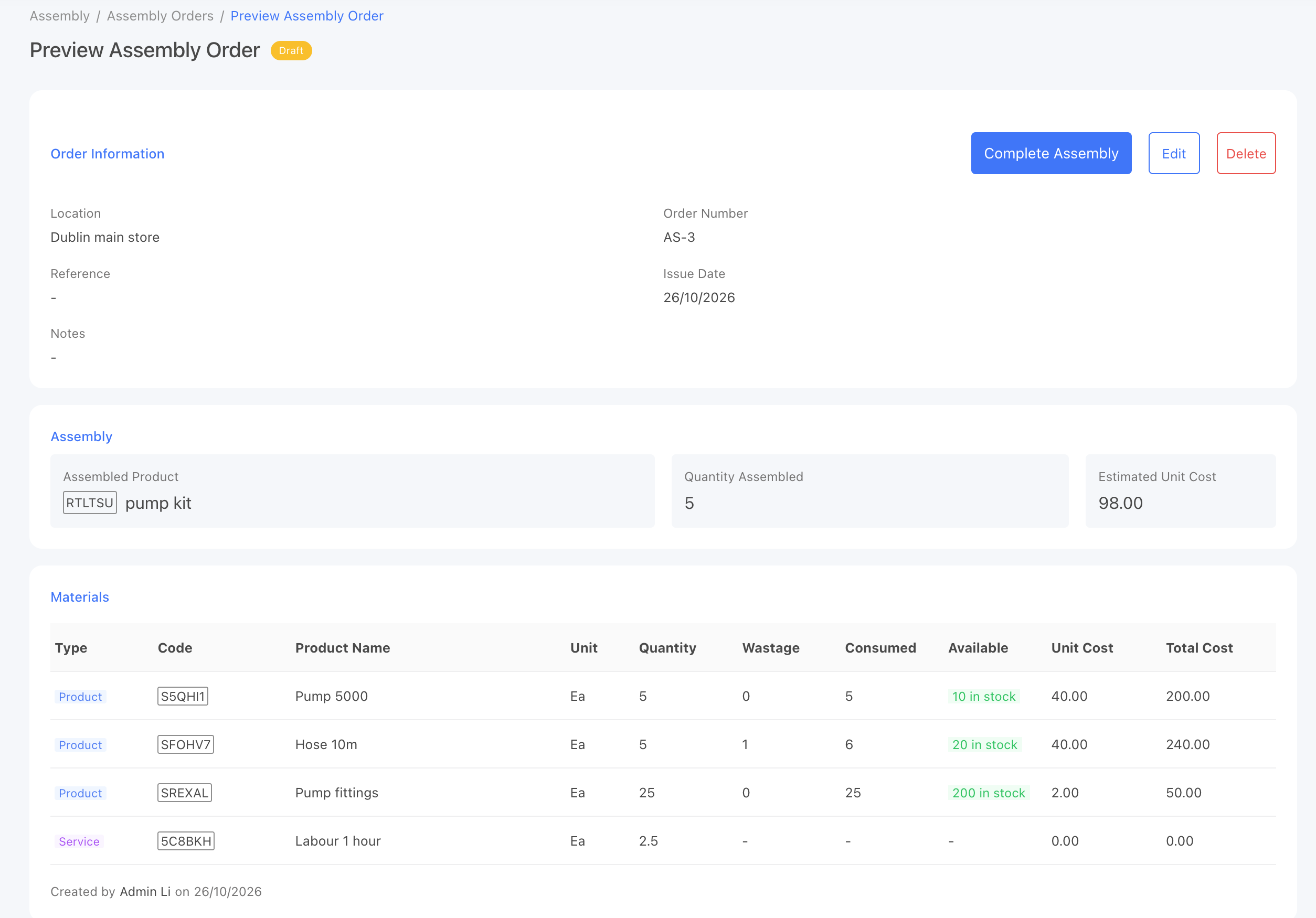
Open a draft order to see the estimated cost and current stock of each component. From there you can:
Edit the order, including changing the BOM, quantity, location or materials.
Delete the draft. Deleting a draft does not affect stock.
Complete Assembly when the build is done.
Tips
If the assembled product is serialised, the quantity to assemble must be a whole number.
For serialised components, quantity + wastage must be a whole number, because serial numbers are used one by one.
Draft orders don't reserve stock. Check the Available column again before completing, especially if the draft was created a while ago.
Only draft orders can be edited or deleted.