Overview
The product import pulls all Shopify products and their variants into StockUnify and builds the SKU mapping table. The import is manual and happens in the background — it runs only when you click Import Products from the Import Data From Shopify tab.
Understand how Shopify products map to StockUnify products
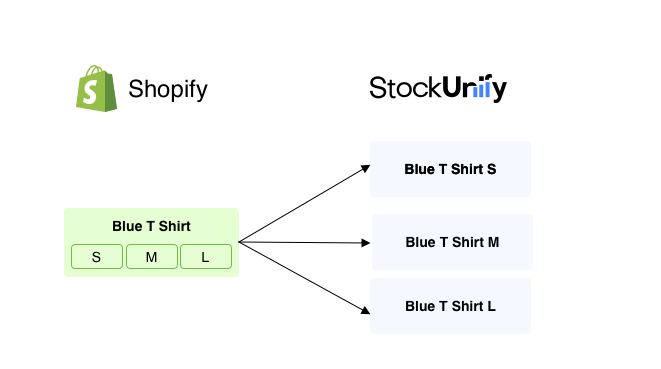
1. A Shopify product may have variants, such as size or color, but a StockUnify product has no variants. When a Shopify product is imported into StockUnify, each variant becomes its own standalone product. Behind the scenes, Shopify identifies each variant by a variant ID (not normally visible in the Shopify admin) — StockUnify maps each Shopify variant to its own StockUnify product ID, so that line items on a sales order can be matched to the correct product when the order comes in.
For example, a Shopify product titled "Blue T-Shirt" with three variants — S, M and L — will be imported into StockUnify as three separate products: "Blue T-Shirt S", "Blue T-Shirt M" and "Blue T-Shirt L". Each of these is then managed and stocked independently within StockUnify.
2. Shopify does not require products to have a SKU, but in StockUnify, SKU (product code) is mandatory and is used as the unique key to match products between the two systems during sync. If a Shopify product or variant has no SKU, it will be skipped during import — you'll need to add a SKU in Shopify before it can be brought into StockUnify.
3. The product import is a manual, one-time (or on-demand) action rather than a continuous sync. After the initial import, any updates to existing product details or any newly added products in Shopify will not appear in StockUnify automatically. To bring these changes across, you'll need to manually trigger another product import from Shopify.
How Shopify product fields map to StockUnify fields
| Shopify Field | StockUnify Field | Notes |
|---|---|---|
| Non-physical products (requires shipping = false) | Service type product | |
| Product/Variant Title | Product Name | For a product with variants in Shopify, the name generated in StockUnify is Product Title + Variant Title. For a product with only Shopify's default single variant, the StockUnify name is just the Product Title. |
| SKU/Variant SKU | Product Code | Used for primary matching. |
| Product Type | Product Category | Matched to an existing StockUnify category by name; if none matches, a new category is created automatically. |
| Sales price | Sales price | Directly mapped. Currency is ignored. |
| Barcode | Barcode | Directly mapped. |
How matching works
StockUnify matches by SKU. The mapping table is the single source of truth for which Shopify variant is linked to which StockUnify product.
If there is no SKU set in Shopify, the product/variant will be ignored during the import process.
Start an Import Products Task
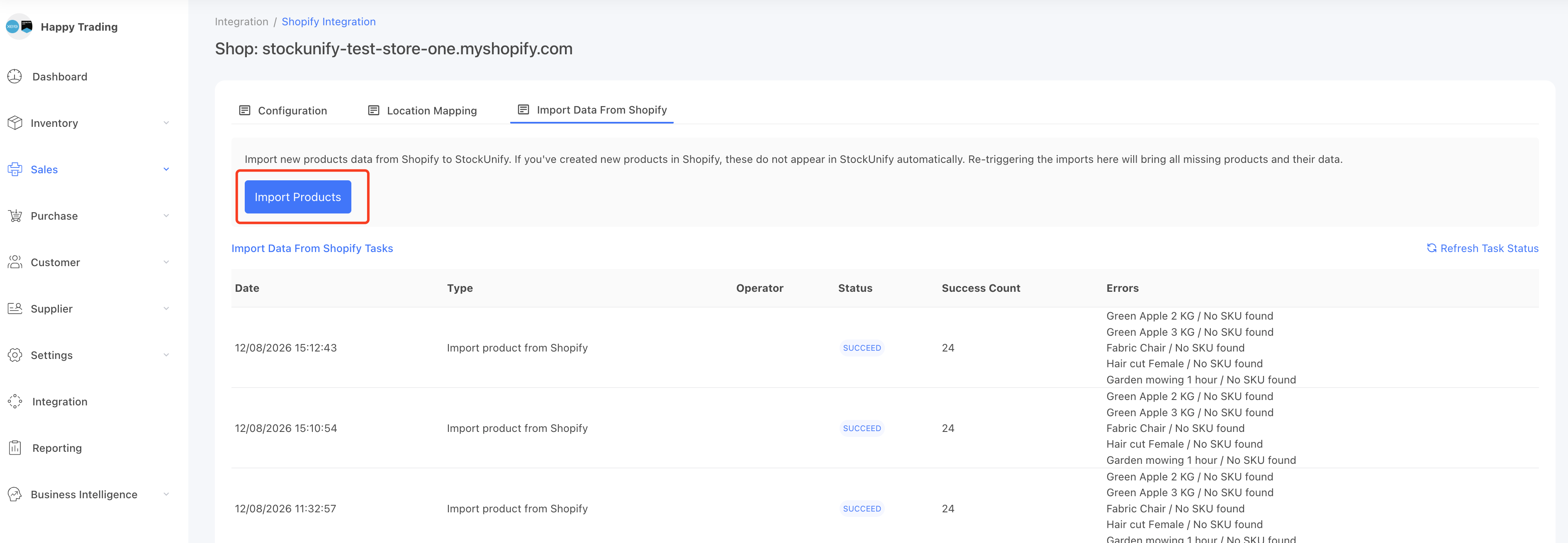
Navigate to the Shopify configuration page, and on the Import Data From Shopify tab, click the Import Products button.
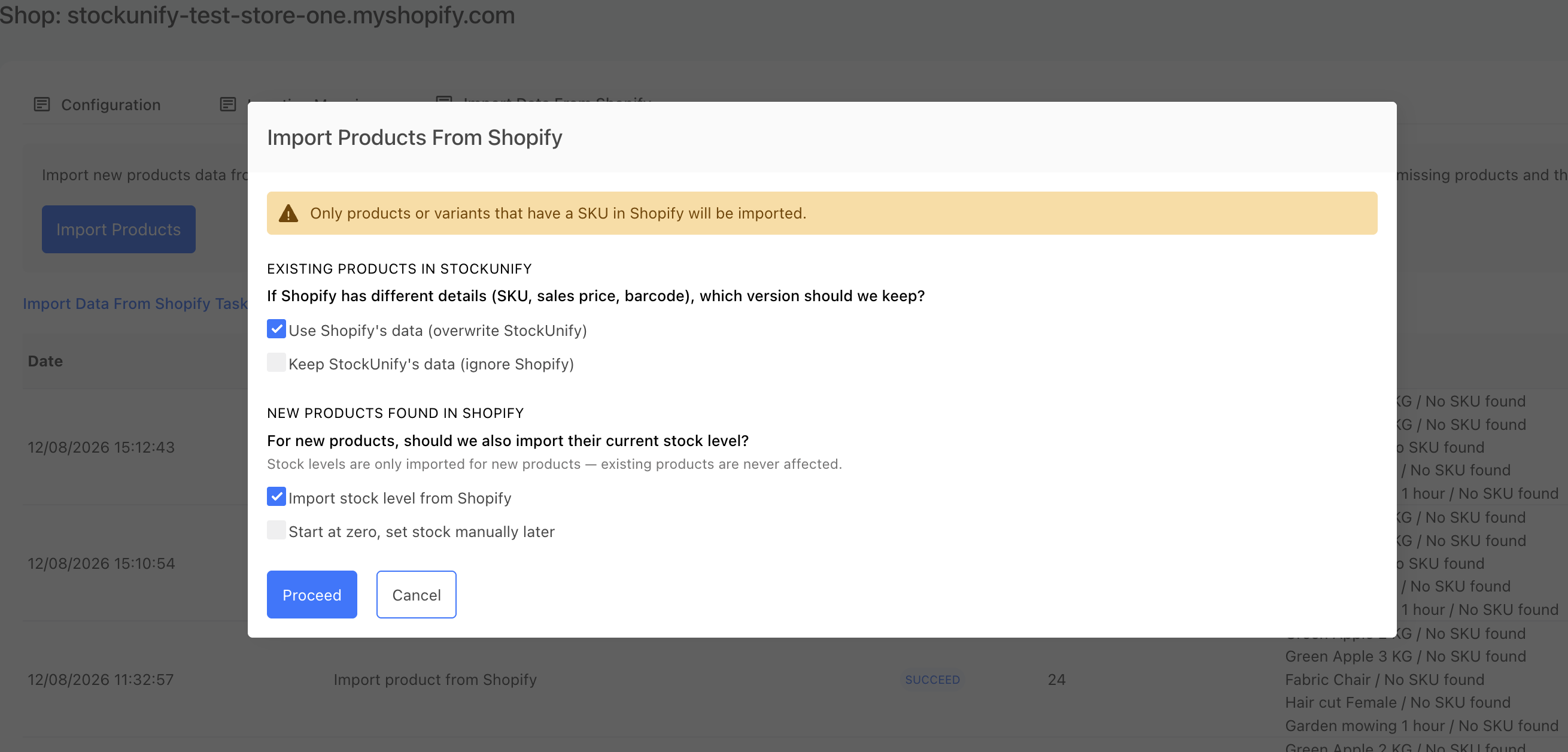
A pop-up window shows up, where you can choose whether to overwrite product details with Shopify's data when a matching SKU is found, and whether to import stock quantity from Shopify. Note that the stock option only applies to products being newly created by this import — it does not update stock on products that already exist and are matched in StockUnify.
Check product link status
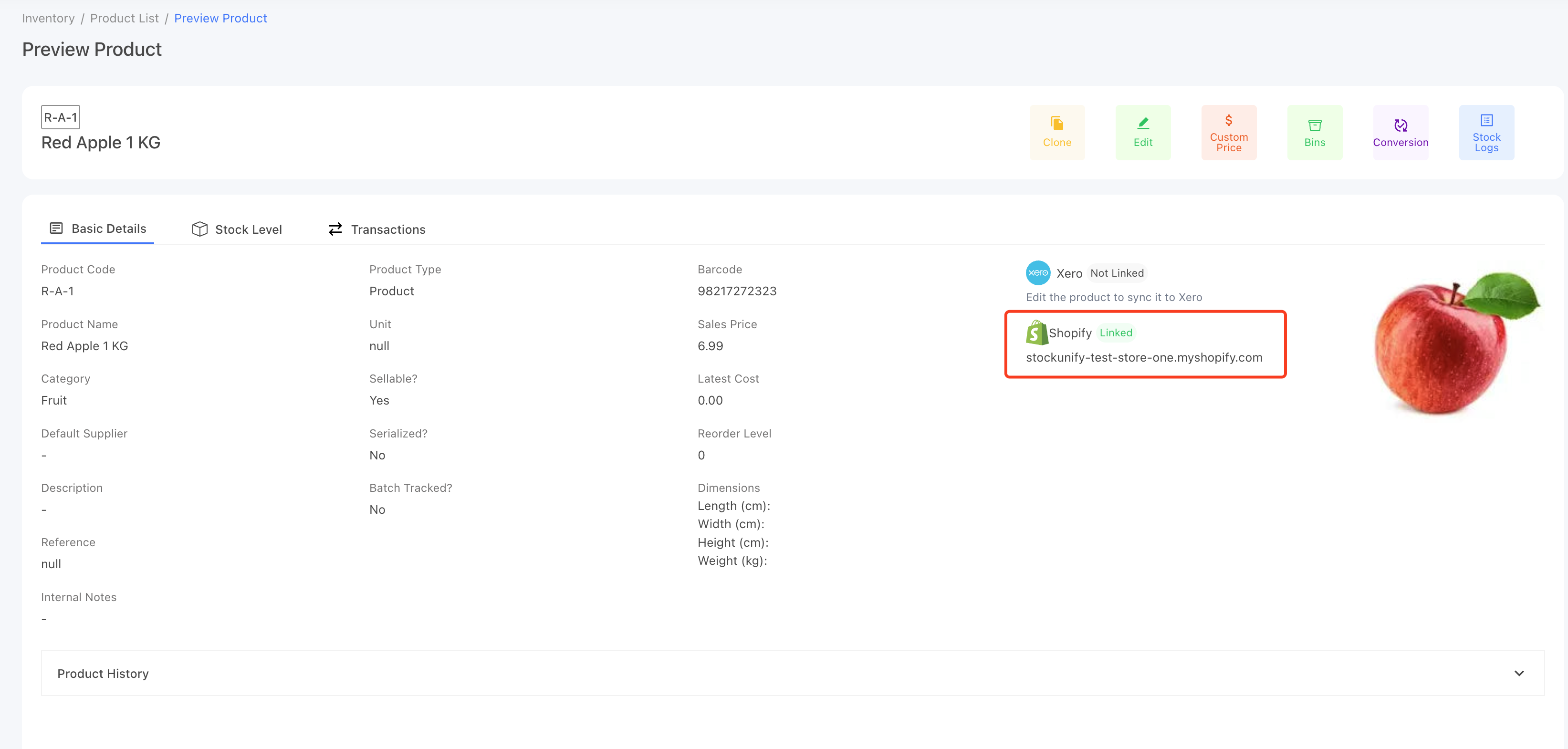
Once the product is imported into StockUnify, you can find its link status on the product details page. If the product is linked, if will shows a "Linked" tag and shows the linked shop name.
Tips
- Only products with Active status in Shopify are imported — draft or archived products are skipped.
- Ensure each product/variant has a SKU set up to prevent it from being missed during import.
- Ensure SKUs are unique in Shopify before importing (remember SKU matching is case-insensitive, so "ABC-1" and "abc-1" count as the same SKU). Duplicate SKUs result in incorrect stock levels and unpredictable order line matching.
- If your product list already exists in both systems, run an import task to match them.