Overview
The Shopify integration connects your Shopify store to StockUnify, allowing orders placed in Shopify to flow directly into StockUnify for fulfillment. StockUnify acts as your central inventory hub — once connected, it becomes the single source of truth for stock levels, and any change to inventory in StockUnify is automatically pushed back to your Shopify store. This means you can manage stock across multiple sales channels without worrying about overselling or manually updating quantities in two places.
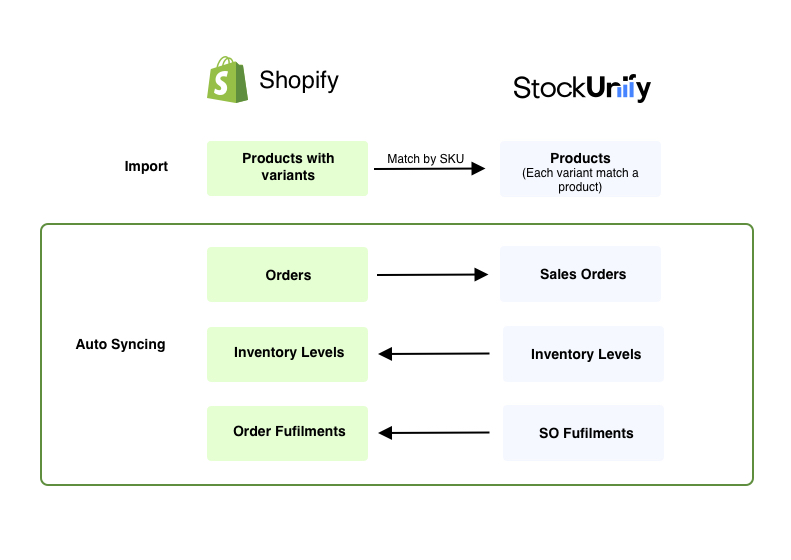
Main stages of the Shopify integration
Setting up the integration involves two phases: a one-time setup phase to connect your store and import your existing product catalogue, followed by ongoing automated sync that keeps your data in StockUnify and Shopify aligned without manual effort.
Connection: Connect your Shopify store to StockUnify by authorizing access through Shopify's API. This grants StockUnify permission to read data from your store (such as products and orders) and write data back to it (such as stock levels and fulfillments).
Configuration: Once connected, configure how the integration behaves — decide whether products, stock levels, and fulfillments should sync to Shopify (each can be switched on or off independently), choose which order payment statuses should be imported, and map your Shopify locations to the corresponding locations in StockUnify. This step ensures stock is tracked against the correct warehouse or store location on both platforms.
Manual data import: Import your existing Shopify products into StockUnify. You can choose whether to also bring in your current stock quantities during this step, or start with zero stock and adjust manually afterwards.
Auto-sync orders, stock and fulfillments: Once the initial import is complete, the integration takes over automatically — new orders are pulled in from Shopify, and any stock or fulfillment updates made in StockUnify are pushed back to Shopify, keeping both systems continuously in sync.
How Shopify products are mapped to StockUnify products
Because Shopify and StockUnify structure product data differently, it's important to understand how items are matched and converted during import:
1. A product in Shopify can have multiple variants (for example, different sizes or colours), but StockUnify does not support variants — every product in StockUnify is treated as a single, standalone item. To bridge this difference, each variant of a Shopify product is imported as its own separate product in StockUnify.
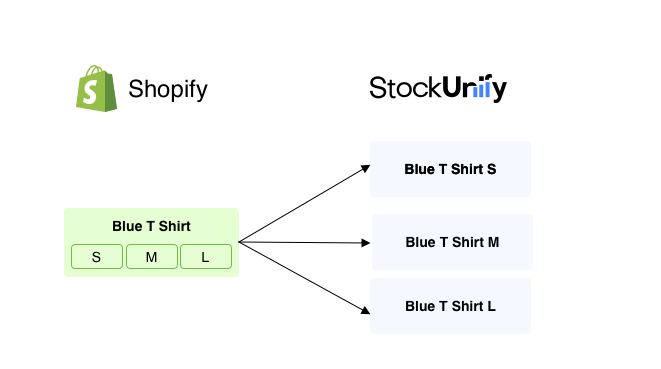
For example, a Shopify product titled "Blue T-Shirt" with three variants — S, M and L — will be imported into StockUnify as three separate products: "Blue T-Shirt S", "Blue T-Shirt M" and "Blue T-Shirt L". Each of these is then managed and stocked independently within StockUnify.
2. Shopify does not require products to have a SKU, but in StockUnify, SKU (product code) is mandatory and is used as the unique key to match products between the two systems during sync. If a Shopify product or variant has no SKU, it will be skipped during import — you'll need to add a SKU in Shopify before it can be brought into StockUnify.
3. The product import is a manual, one-time (or on-demand) action rather than a continuous sync. After the initial import, any updates to existing product details in Shopify, or any newly added Shopify products, will not appear in StockUnify automatically — to bring these changes across, you'll need to manually trigger another product import. The one exception is when a new order comes in for a product that hasn't been imported yet: as long as it has a SKU, StockUnify will automatically import it at that point so the order can still be created.
Sales orders synced from Shopify to StockUnify
Once the integration is active, any new order placed in Shopify with a payment status you've allowed to sync is automatically synced into StockUnify as a sales order — no manual action required. You can choose to allow Paid orders, Pending orders (which covers orders that are authorized, awaiting payment, or partially paid), or both. During configuration, you can also choose whether these incoming orders are created as Draft (for review before processing) or Approved (ready for immediate fulfillment), depending on how much oversight your workflow needs.
Stock levels synced from StockUnify to Shopify
StockUnify is designed to be your source of truth for inventory, so stock updates always flow outward from StockUnify to Shopify. Once the connection is established, any change to stock levels in StockUnify — such as receiving new stock, completing a stocktake, or making a manual adjustment — automatically triggers an update to the corresponding product quantity in Shopify, helping prevent overselling across channels.
Sales order fulfillments synced from StockUnify to Shopify
When a sales order is marked as delivered or partially delivered in StockUnify, the delivery details are automatically synced back to Shopify, where a corresponding order fulfillment is generated. This keeps your customers' order status accurate and up to date on the Shopify side, without any need for manual entry.