Prerequisites
Before connecting, please ensure the following requirements are met:
- You have an active Shopify account.
- You have an active StockUnify account. If you do not have one, please sign up here.
How to Connect
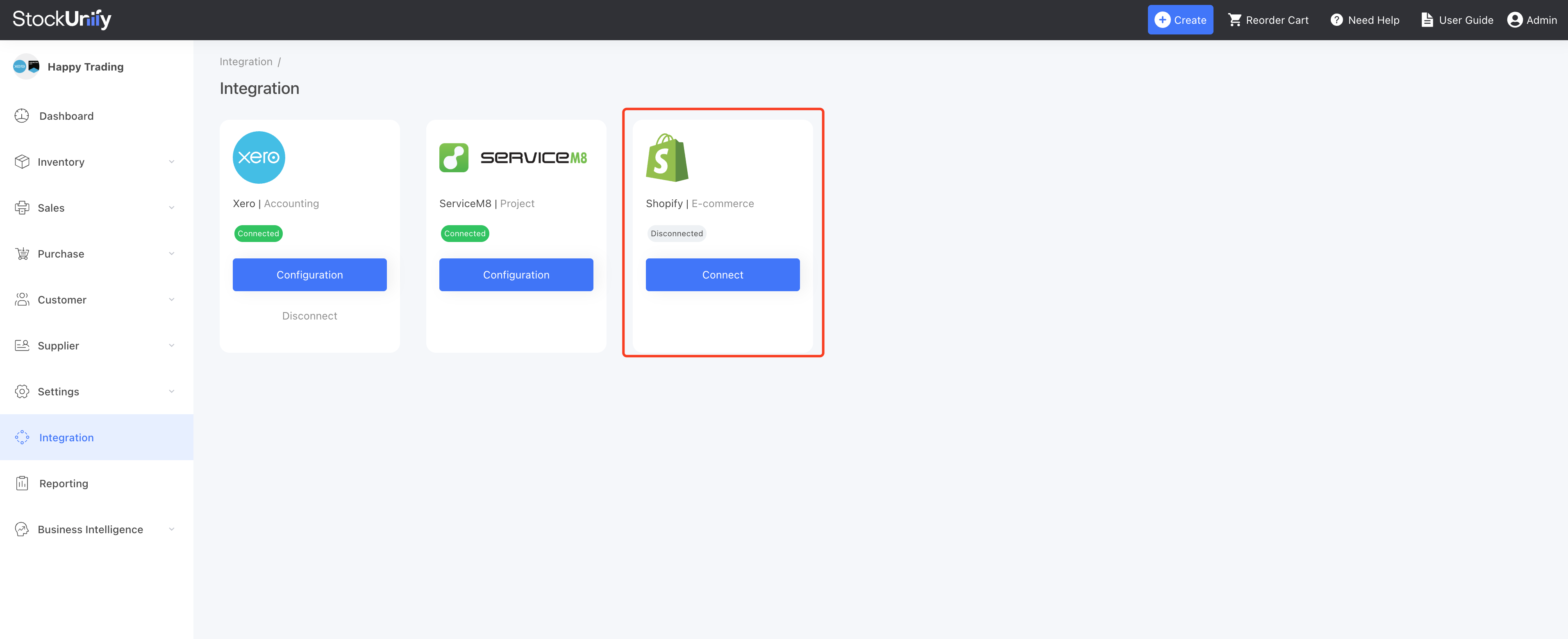
1. Log in to your StockUnify account and navigate to Integration page from the side menu.
2. Locate the Shopify integration card and click "Connect" button.
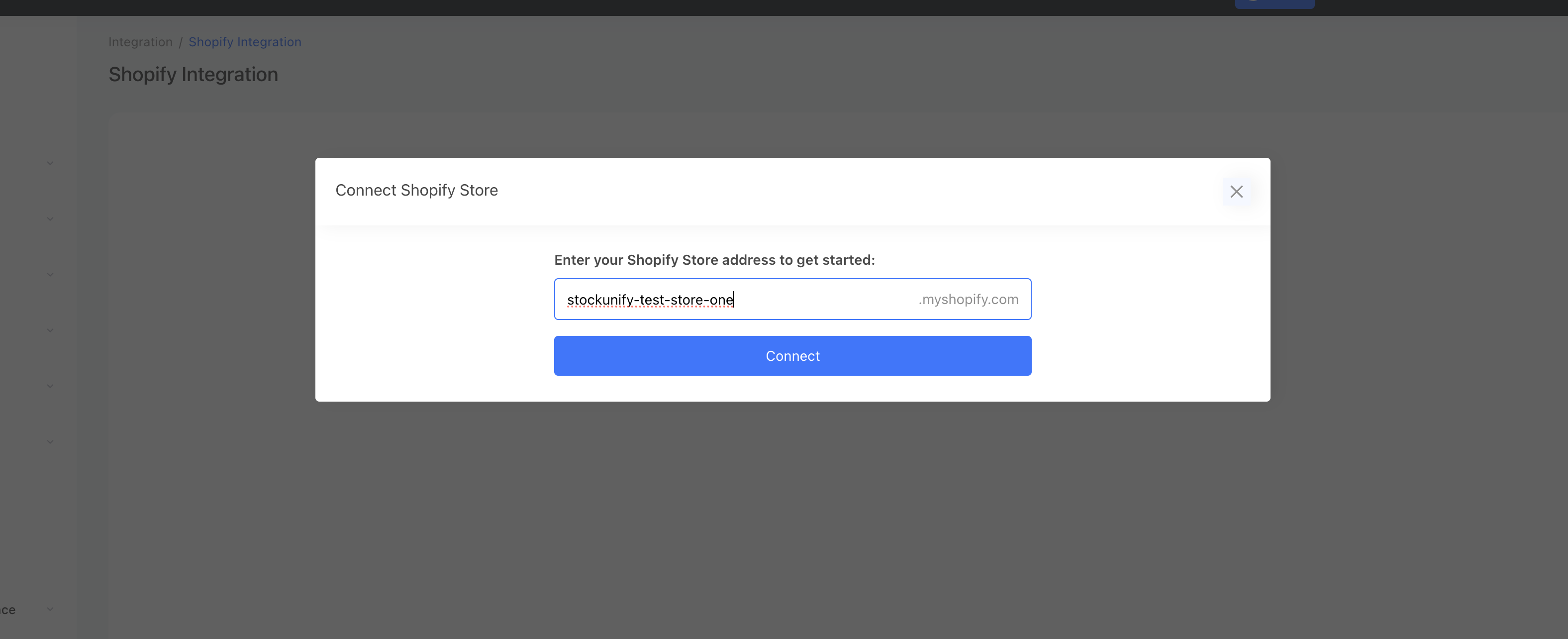
3. Enter your Shopify store name and click "Connect" button.
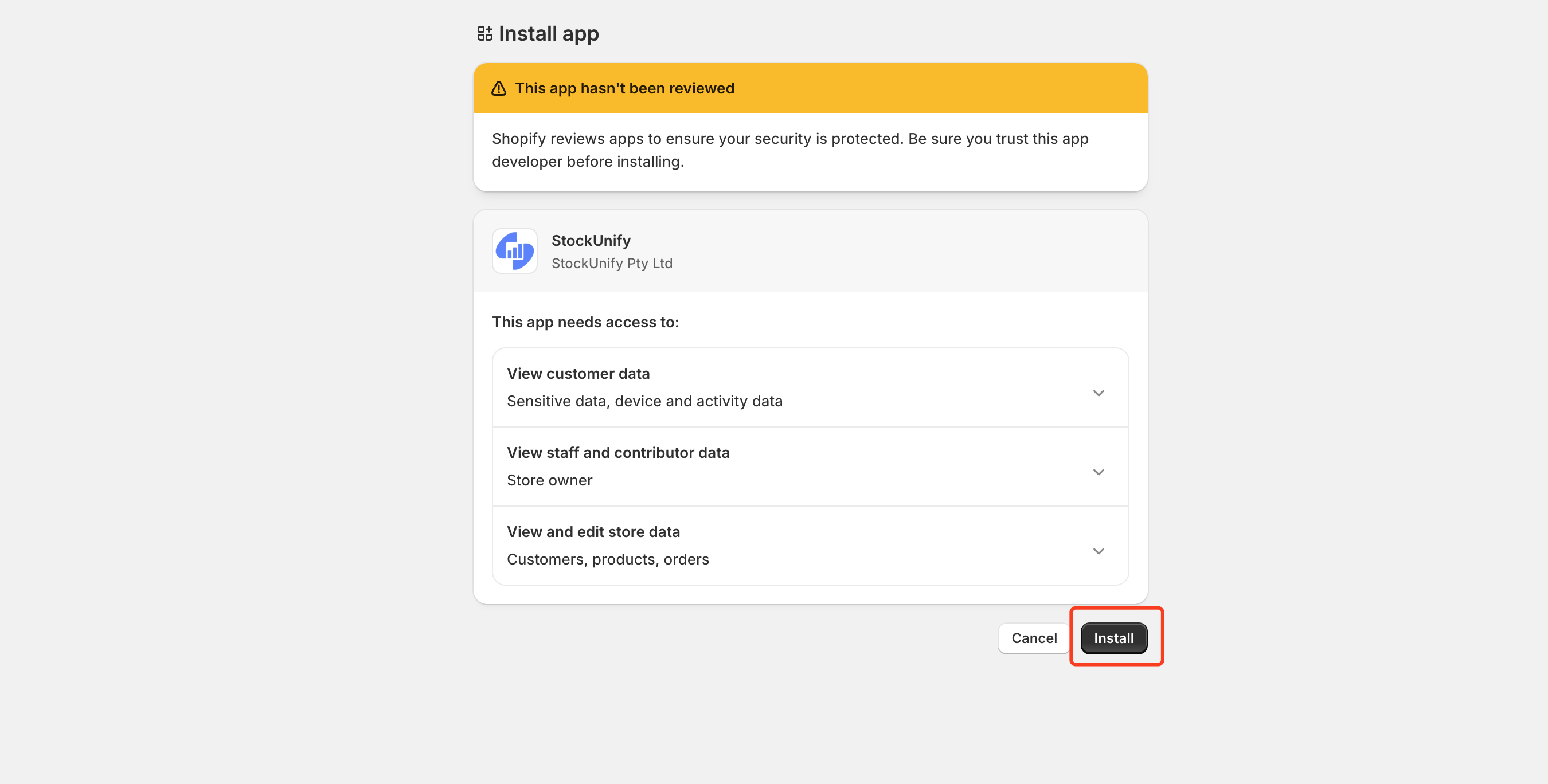
4. Log in to Shopify and click Install.
Configuration
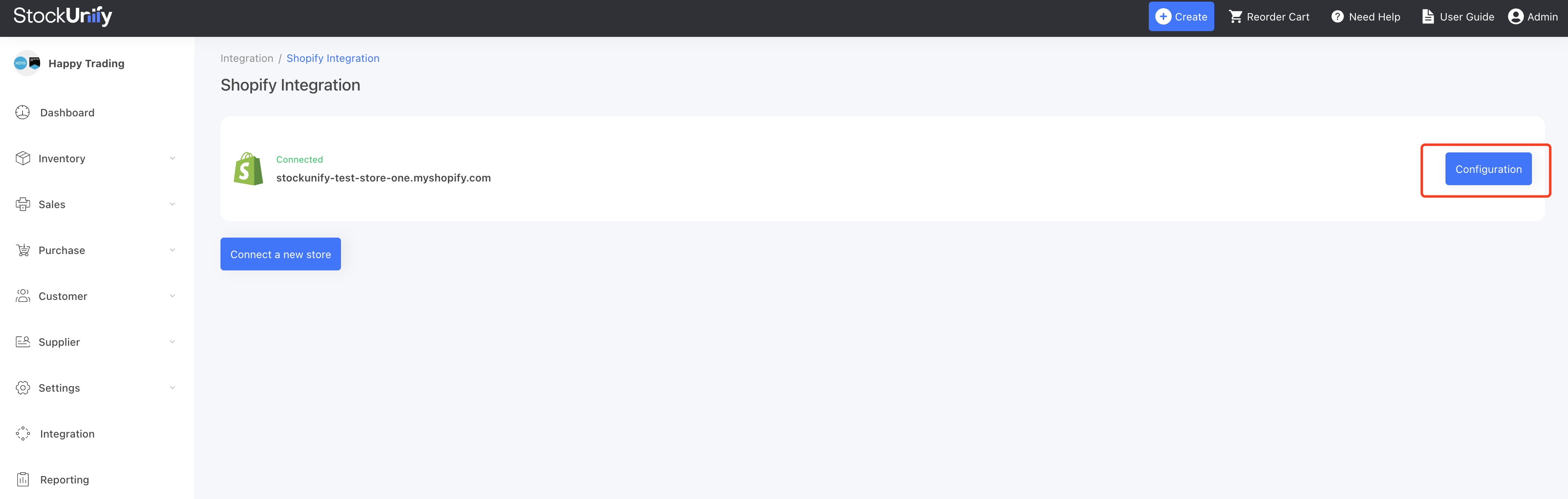
After you install the Shopify app, StockUnify opens a settings page where you decide how products, orders and stock levels are synced between the two systems.
Order Settings
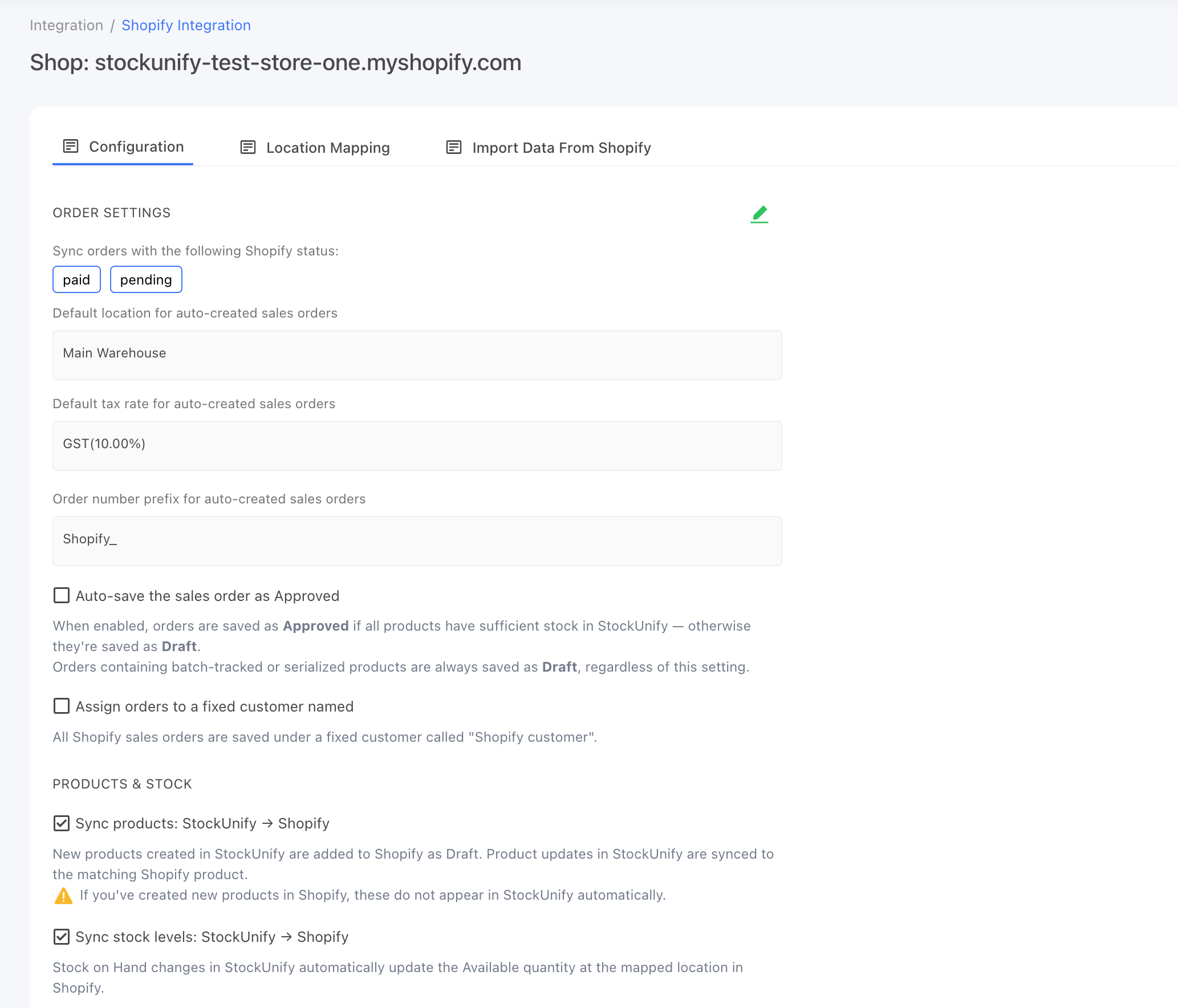
When a new order is placed in Shopify, a corresponding sales order is auto-generated in StockUnify. You can define how that sales order is generated.
1. Order statuses: Choose which Shopify orders sync to StockUnify — Paid only, or Paid and Pending. "Pending" covers orders that are authorized, awaiting payment, or partially paid orders.
2. Default location: Set a default location for created sales orders. The system automatically uses the fulfillment location assigned to the Shopify order; if multiple fulfillment locations are assigned, the first one is used, since a StockUnify sales order only supports a single location. If no fulfillment location can be found on the Shopify order, this default location is used as a fallback.
3. Default tax rate: Set a default tax rate for created sales orders.
4. Order prefix: Set a prefix for the generated sales order number. The order number will be Order prefix + Shopify order number.
5. Save order as Approved: When enabled, sales orders are saved as Approved if all products have sufficient stock in StockUnify, otherwise they're saved as "Back order". When an order is saved as Approved, stock is locked for that order.
6. Assign order a fixed customer: When enabled, all sales orders are saved under a shared "Shopify customer" record instead of being matched or created individually.
Products & Stock
Products and stock are synced in one direction: from StockUnify to Shopify.
1. Sync products: Define whether products created or edited in StockUnify sync to Shopify. When enabled, a new product pushed to Shopify is created in "Draft" status — you'll need to publish it in Shopify before it appears on your storefront; updates to a product that's already linked don't change its existing Shopify status. When disabled, products in StockUnify are not pushed to Shopify at all.
2. Sync stock: Define whether stock quantities sync from StockUnify to Shopify. When enabled, stock quantity changes in StockUnify are automatically pushed to Shopify.
Fulfillment
Fulfillment is synced in one direction: from StockUnify to Shopify.
When a sales order is delivered or partially delivered in StockUnify, a corresponding fulfillment is synced to Shopify.
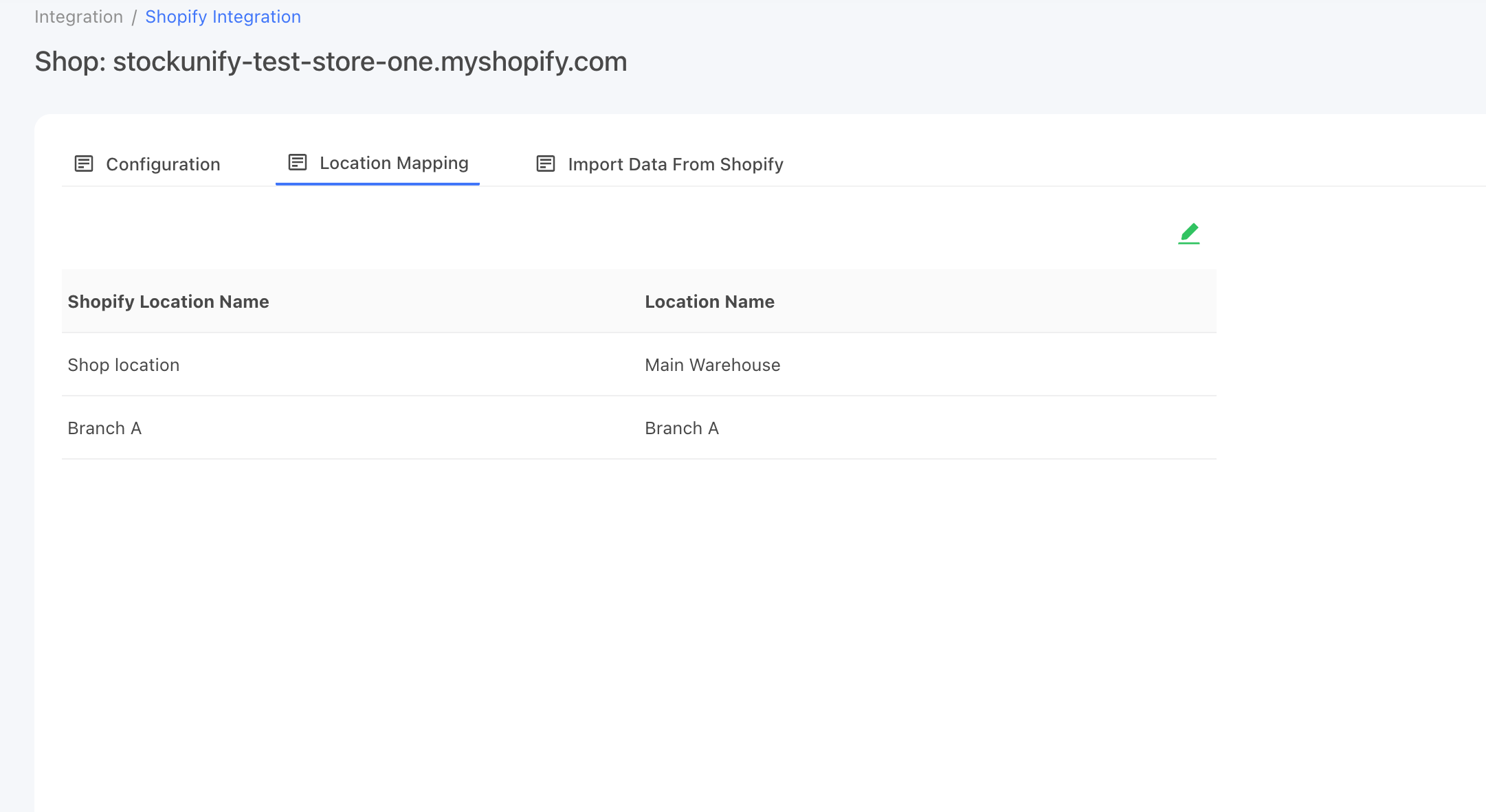
Location Mapping
Map Shopify locations to StockUnify locations. Once mapped, stock levels and order fulfillments are synced between the correct StockUnify and Shopify locations.