Navigate to the [Integration] -> [Manage Integration] menu, You will see the Xero card.
If you registered StockUnify from the Xero App Store, you will see it shows connected.
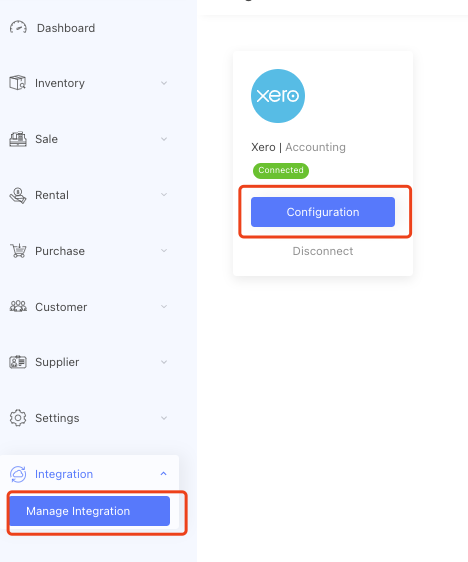
Click the [Configuration] Button, follow the How to map Xero account and migrate stock from Xero instruction to finish account mapping.
If you registered from the StockUnify website, you will see the Xero card showing a connect button, click the [Connect] button, and it will bring you to the connection screen.
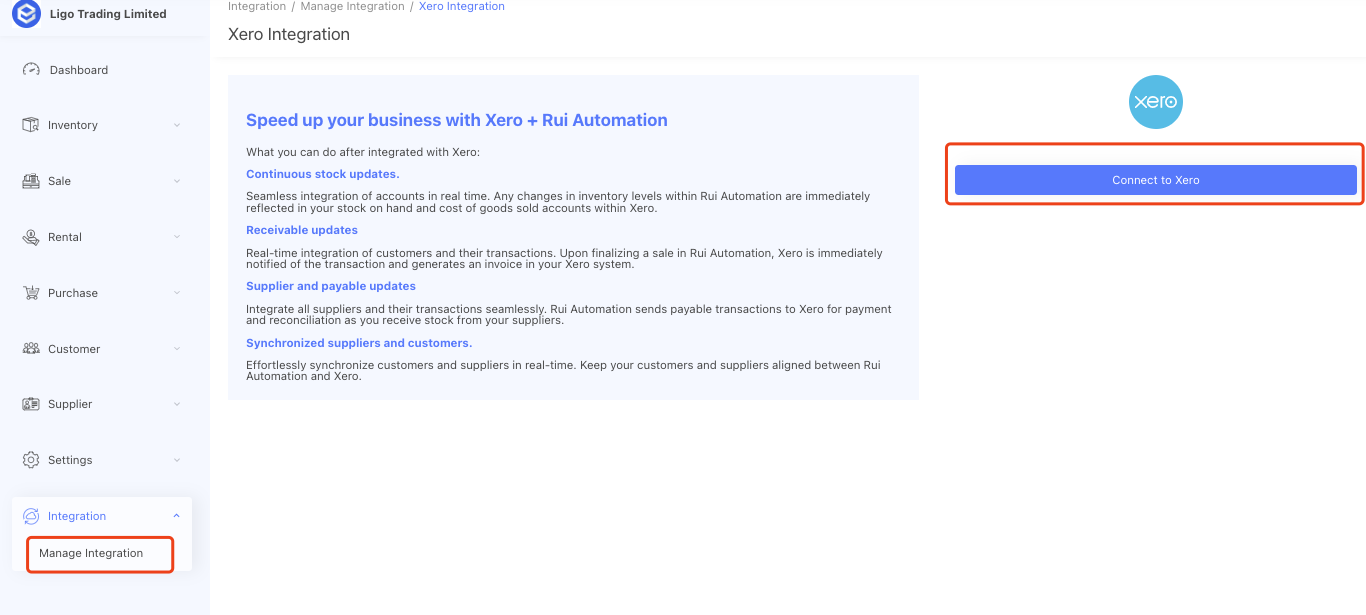
Click the [Connect to Xero] button, it will bring you to the Xero authentication process, after you allow access to StockUnify, you will be connected.

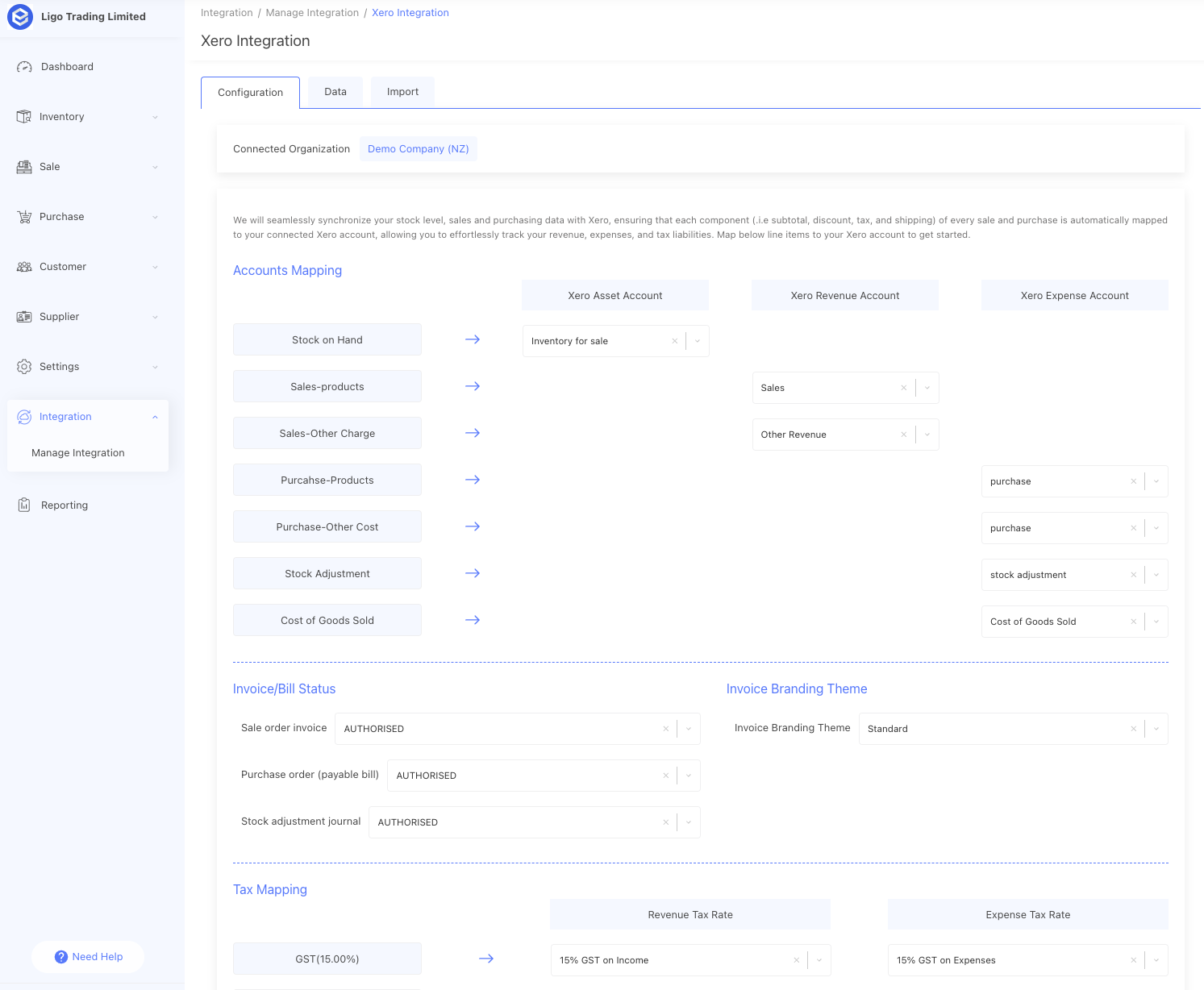
After you successfully connect with Xero, you will see the configuration screen. follow the How to map Xero account and migrate stock from Xero instruction to finish account mapping.