OverView
After configuring Xero accounts with StockUnify, you can easily import items from Xero into StockUnify. To do this, follow these steps:
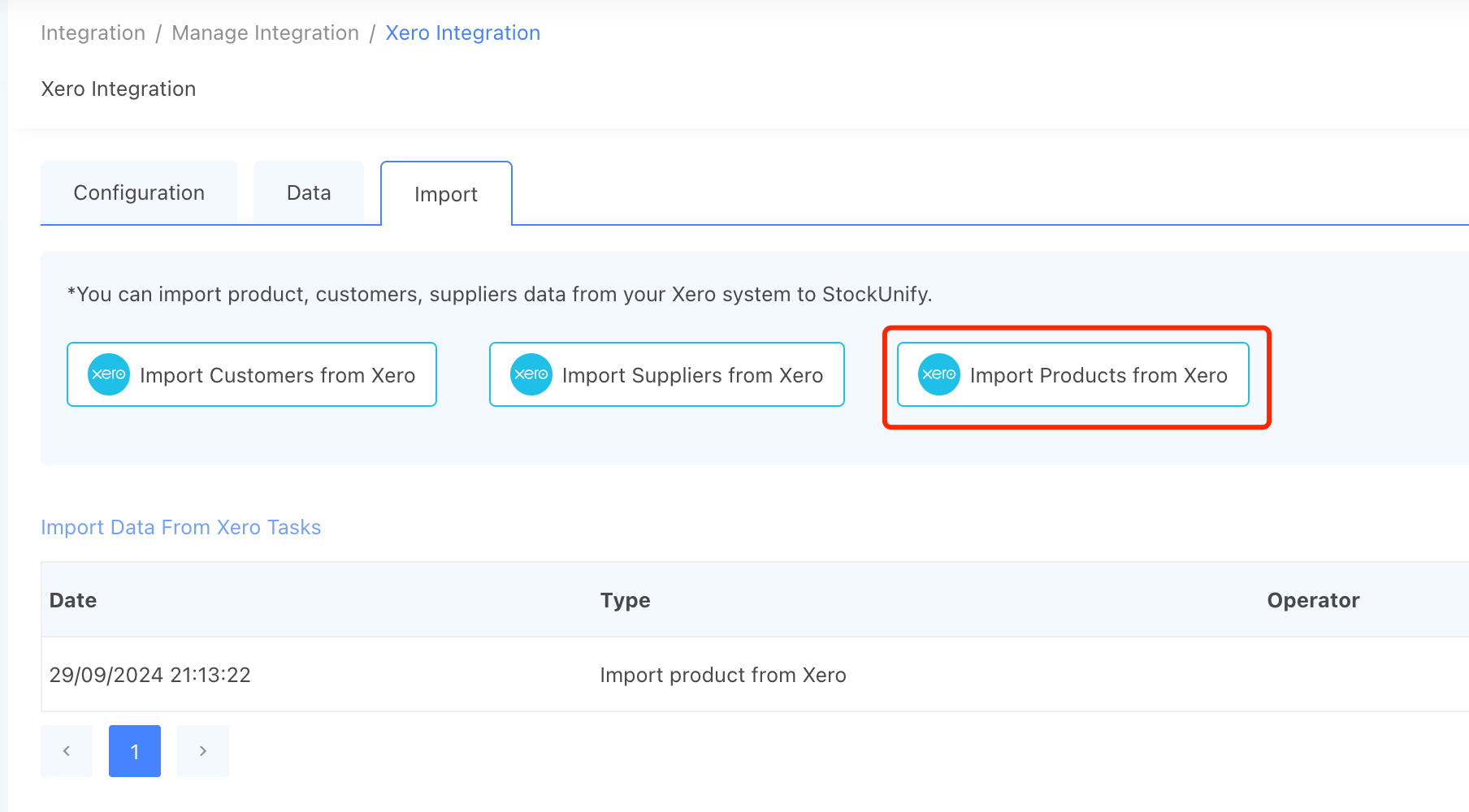
- Navigate to Integration → Xero Integration → Configuration → Import Tab.
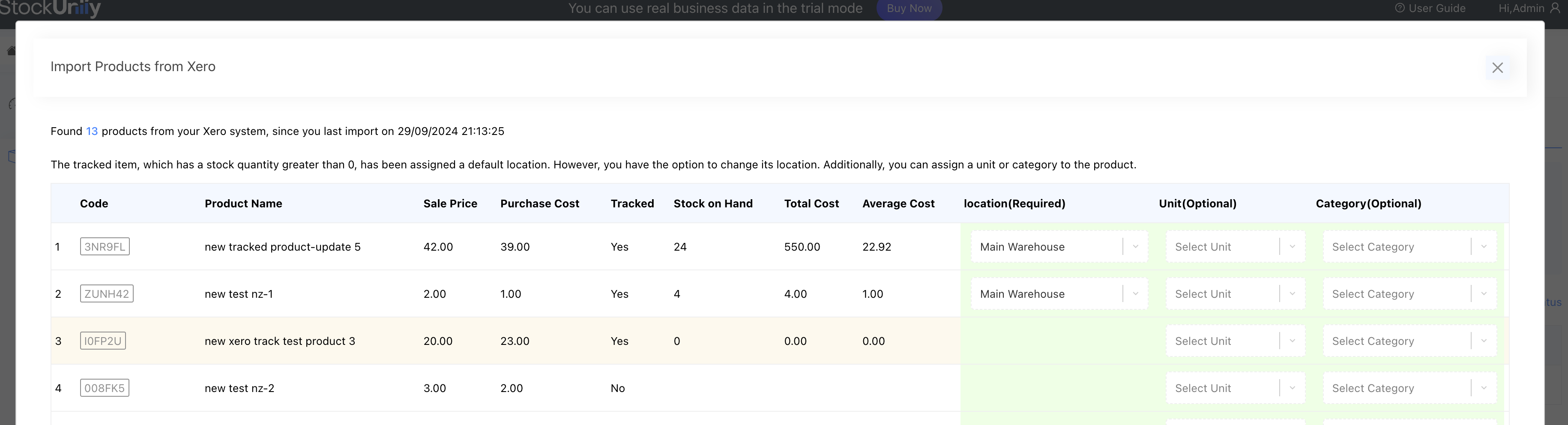
- Click the [Import Products from Xero] button. This will bring up a pop-up window displaying all the items from your Xero system.
- For items with stock on hand, a default location will be assigned automatically, though you can modify it if needed. You also have the option to assign a unit or category for the items, or you can leave these fields blank(location field is required).
- After entering the necessary information, click the [Import Products from Xero] button on the pop-up window to create an import task.
The import task typically takes 1-3 minutes to complete, but it may take longer if you have more than 5000 items.
Once the task is finished, you will see a summary indicating how many products were successfully imported and an error list showing any failed items.
After the import completes, go to the Manage Products page to view all the newly imported items.
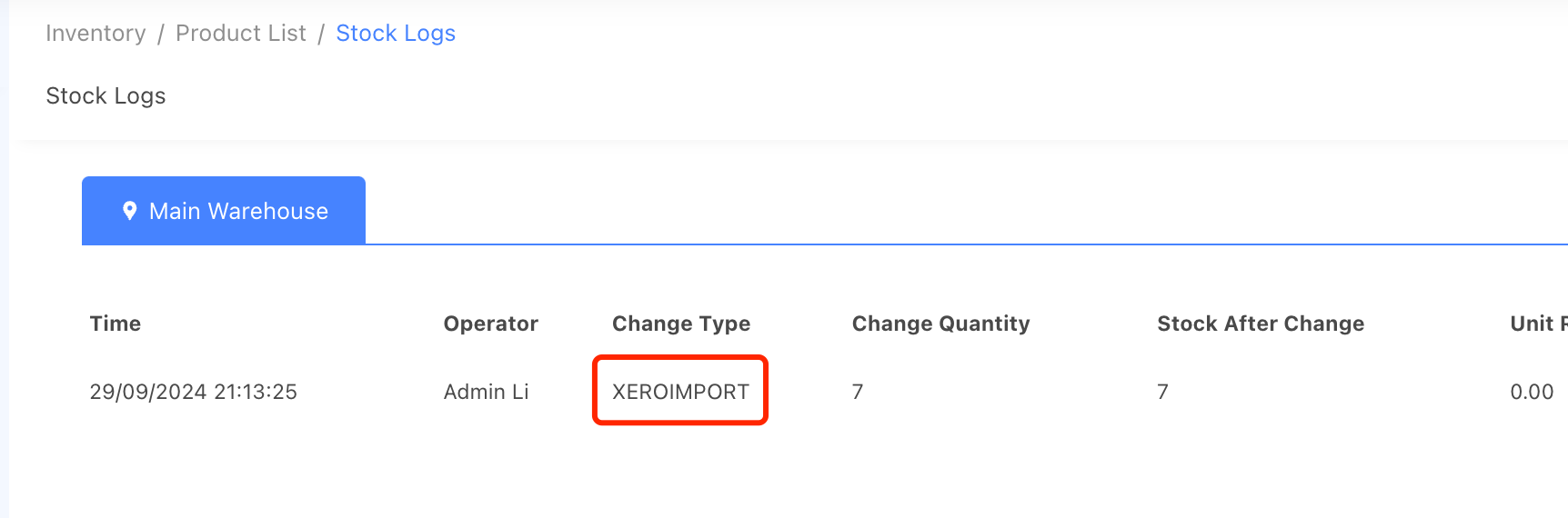
For items with stock on hand, you can view their stock logs, where you'll see a record with the type "XEROIMPORT", indicating that this stock quantity was imported from Xero.
Field Mappings: Xero to StockUnify
During the import process, StockUnify checks whether a Xero product is already mapped to a StockUnify product using the Xero-Item-ID. If a match is found, the product details are updated in StockUnify. If no match is found, a new product is created using the data from Xero.
The following table outlines how fields from Xero are mapped to their corresponding fields in StockUnify during the import process:
| Xero Field | StockUnify Field | Description |
|---|---|---|
| Code | Code | Saved as the product code in StockUnify. |
| Name | Name | Saved as the product name in StockUnify. |
| Track Inventory Item | Xero Managed Item | Saved as "Xero Managed Item" in StockUnify (see notes on "Xero Managed" status below). |
| Purchase Cost Price | Latest Cost | Saved as the latest product cost in StockUnify. |
| Sale Price | Sale price | Saved as the product sale price in StockUnify. |
| Sale description | product description | Saved as the product description in StockUnify. |
| Quantity on Hand | stock level |
Saved when creating a new product in StockUnify. (Only applicable for new products)
|
| Average Cost | Used when creating a new product with a Quantity on Hand. It will be used to evaluate stock value. | |
| Xero Item ID | - (System Info) | Saved in StockUnify but not visible to users. |
| InventoryAssetAccount | - (System Info) | Saved in StockUnify. Used when syncing purchase orders (bills)/sale orders (invoices) from StockUnify to Xero. (For Xero managed items) |
| Purchase Account | - (System Info) | Saved in StockUnify. Used when syncing purchase orders (bills) from StockUnify to Xero. (For non-Xero managed items) |
| COGSAccount Code | - (System Info) | Saved in StockUnify. Used when syncing purchase orders (bills)/sale orders (invoices) from StockUnify to Xero. (For Xero managed items) |
| SaleAccount | - (System Info) | Saved in StockUnify. Used when syncing sale orders (invoices) from StockUnify to Xero. |
| Purchase description | -- | Not used when importing items from Xero to StockUnify. |
| Purchase tax type | -- | Not saved in StockUnify. When creating a purchase order in StockUnify, the order's tax rate will be synced to Xero, overriding the item-specific tax rate. |
| Sale tax type | -- | Not saved in StockUnify. When creating a sale order in StockUnify, the order's tax rate will be synced to Xero, overriding the item-specific tax rate. |
Notes: "Xero Managed" Items
- If an item is marked as "Xero Managed" in StockUnify, it cannot be changed to "Non-Xero Managed" if there is stock on hand.
- Similarly, if an item is marked as "Non-Xero Managed" in StockUnify, it cannot be changed to "Xero Managed" if there is stock on hand.
Error Handling
- If a product with the same Code (product code) already exists in StockUnify, the import will fail for that item, and an error message will be displayed, indicating that the code is already in use.