Overview
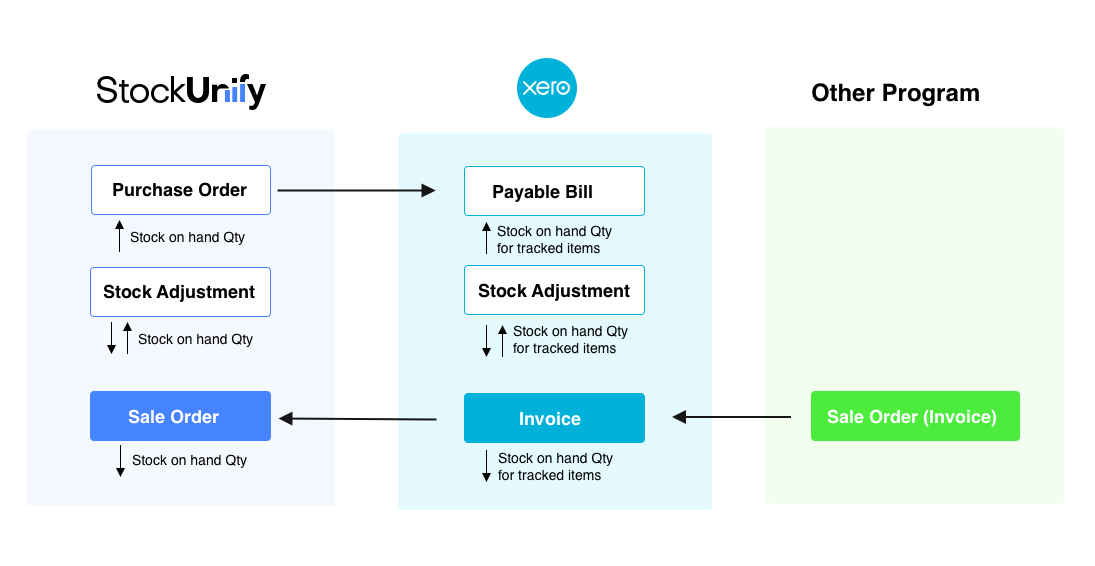
StockUnify supports two-way synchronization with Xero. If you would like to use other programs to manage your sales orders (invoices), but still want to use StockUnify to manage purchase orders and take control of your inventory. This can be an ideal way to achieve that.
The following diagram illustrates the workflow.
Enabling Xero Invoice Sync
To start using this feature, enable it in your StockUnify settings:
- Navigate to [Integration] → [Xero] → [Configuration] → [Settings].
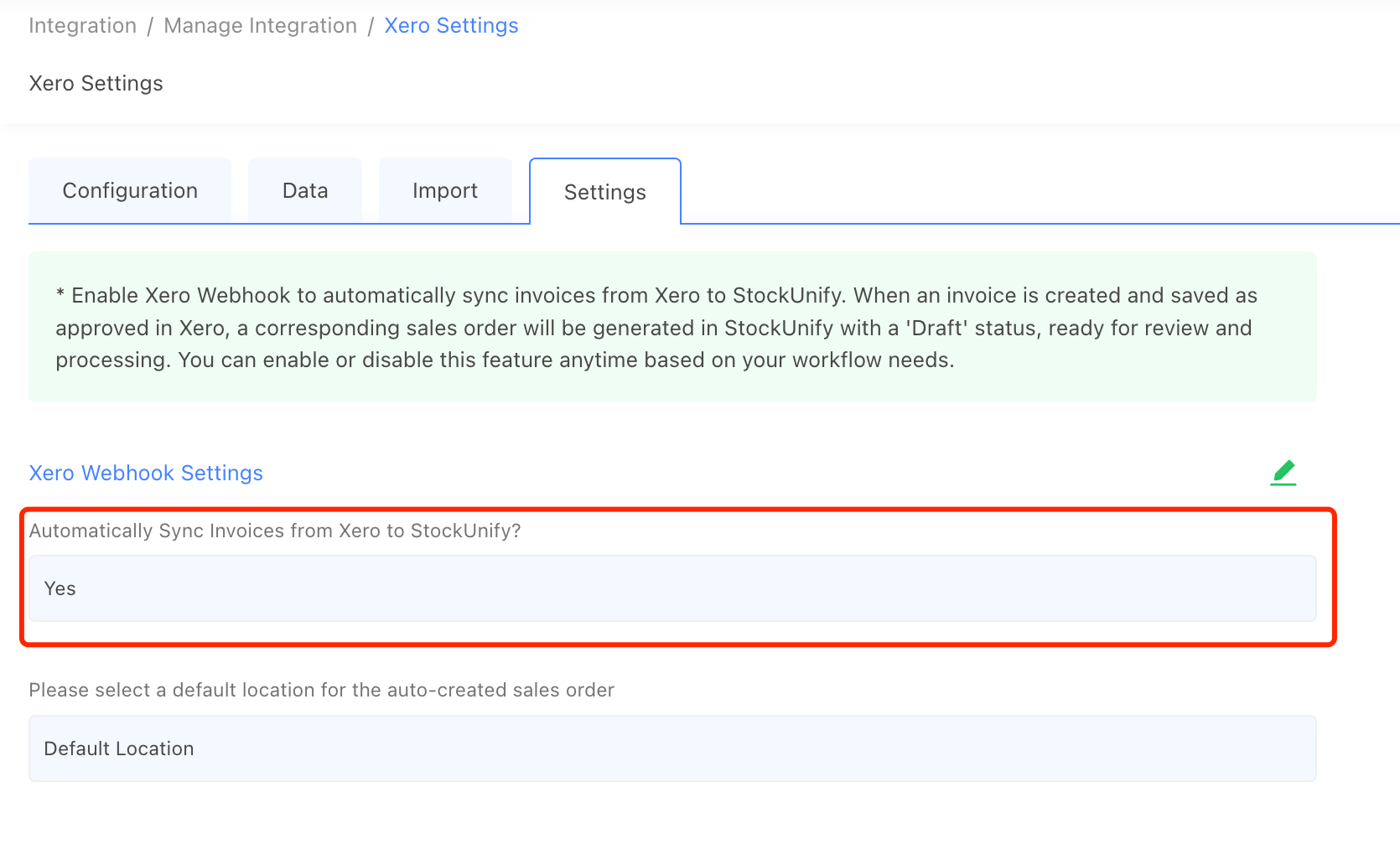
- Set "Automatically Sync Invoices from Xero to StockUnify?" to "Yes".
Once enabled, any invoices approved in Xero (that wasn’t originally created in StockUnify) will automatically generate a sales order in StockUnify.
You'll also need to set a default location for these synced orders, which can be adjusted when you approve the order.
How It Works
When a sales order (invoice) is approved in your other program, it is first sent to Xero. StockUnify listens for notifications from Xero, and upon receiving one, checks if the "Automatically Sync Invoices" setting is enabled. If it is, StockUnify will create a corresponding sales order in Draft status, ready for review. The order number in StockUnify will match the Xero invoice reference number, prefixed with “Xero_”.
Important Note: Stock levels remain unaffected until the sales order is approved in StockUnify.
Reviewing the Sales Order in StockUnify
For the sales order generated from Xero, you will need to:
- Confirm the sale location (if you have more than one location)
- For items that are batch-tracked or serialized, select the appropriate batch or serial numbers.
While you still can edit items in this order, we recommend not making changes here, any edits made at StockUnify will not sync back to Xero. For updates like price or quantity, make adjustments directly in your original program before approving the sales order in StockUnify. Any changes made in your other program will automatically update in StockUnify as long as the order is still in Draft status.
Once you approve the sales order in StockUnify, further updates from the original program will no longer sync. Be sure all items are confirmed before final approval.
If you need to make adjustments after approval (e.g., for refunds), use StockUnify’s Stock Adjustment feature to maintain accurate inventory records.
Additionally, When matching items from Xero invoices, StockUnify uses product codes to link items. If an invoice contains an item code not found in StockUnify, it will be added to the Additional Charges field.