Overview
After connecting StockUnify with Xero, it's important to map the appropriate Xero accounts to the corresponding accounts in StockUnify. This guide will walk you through the process of mapping accounts, setting default invoice/bill status, and mapping tax rates between StockUnify and Xero.
Step 1: Connecting Xero with StockUnify
- Navigate to the Integration menu in StockUnify.
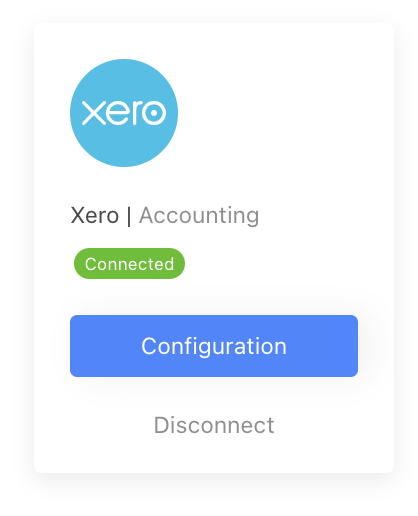
- You should see that Xero is connected. Click the [Configuration] button to open the configuration screen.

Step 2: Account Mapping
In the configuration screen, you will map the Xero accounts to the appropriate StockUnify accounts. This ensures that when data is synced between StockUnify and Xero (e.g., products, invoices, purchase orders), the correct account codes are used.
| StockUnify Account | Xero Account | How StockUnify Uses the Xero Account Code |
|---|---|---|
| Stock on Hand | Inventory Account (e.g. Inventory) | Used when syncing a new product to Xero. If the product is "Xero Managed," this account code will appear as the Inventory Asset Account in Xero of that item. |
| Sales-Products | Revenue Account (e.g. Sales) | Used when syncing a sale order to Xero. This account will be used as the item's revenue account code on your Xero invoice. |
| Sales-Freight | Revenue Account (e.g. Other Revenue) | Used when syncing a sale order to Xero. This account will be used as the item's revenue code for additional charges like freight on your Xero invoice. |
| Purchase-Products | Direct Cost Account (e.g. Purchases) | Used when syncing a purchase order to Xero. This account will be used as the item's cost account code on your Xero bill. |
| Purchase-Freight | Direct Cost Account (e.g. Purchases) | Used when syncing a purchase order to Xero. This account will be used for additional charges like freight in purchase orders on your Xero bill. |
| Stock Adjustments | Direct Cost Account (e.g. Stock Adjustments) | Used when syncing a stock adjustment order to Xero. (Only applicable for "Xero Managed" items). |
| Cost of Goods Sold | Direct Cost Account (e.g. COGS) | Used when syncing a new product to Xero. If the product is "Xero Managed," this account will appear as the COGS account in Xero of that item. |
Notes: If you cannot find the appropriate account in Xero, you may need to create a new account in Xero. The account names provided in the table are suggestions, and you can use your preferred naming conventions.

Step 3: Default Invoice/Bill Status
Next, you can select the default status for invoices and bills when they are synced to Xero.

Options for Default Status:
- AUTHORISED: Invoices, purchase orders, and stock adjustment orders will be automatically approved in Xero.
- SUBMITTED: The documents will appear as "Submitted" in Xero, awaiting approval.
- DRAFT: The documents will appear as "Draft" in Xero, allowing further edits before approval.
Choose the appropriate default status based on your business workflow.
Step 4: Tax Rate Mapping
You will also need to map the tax rates between StockUnify and Xero. The mapped tax rates will be used when syncing sales orders or purchase orders between the two systems.

What Happens When Xero Accounts Are Mapped with StockUnify?
Once the accounts are mapped, StockUnify will sync data to Xero seamlessly.
1. Sync Product Information with Xero
- When a new product is created or existing product details are updated in StockUnify, they will automatically be synced to Xero.
2. Sync Sales Orders(Xero Invoices)
- When a new sale order is created in StockUnify, an invoice will be automatically created in Xero. If the item is "Xero Managed," the stock level in Xero will be deducted accordingly.
3. Sync Purchase Orders(Xero Bills)
- When a new purchase order is received in StockUnify, a payable bill will be automatically created in Xero. If the item is "Xero Managed," the stock level in Xero will be increased.
4. Sync Stock Adjustments
- When stock for a Xero Managed item is adjusted (received or deducted) in StockUnify, the stock level change will be synced to Xero.