Overview
Once you have configured your Xero account with StockUnify, whenever a new product is added (marked as “Approved”) or an existing product is updated in StockUnify, it will automatically sync to Xero. Upon saving a product in StockUnify, a sync task will be created, and the product details will be updated in Xero accordingly.
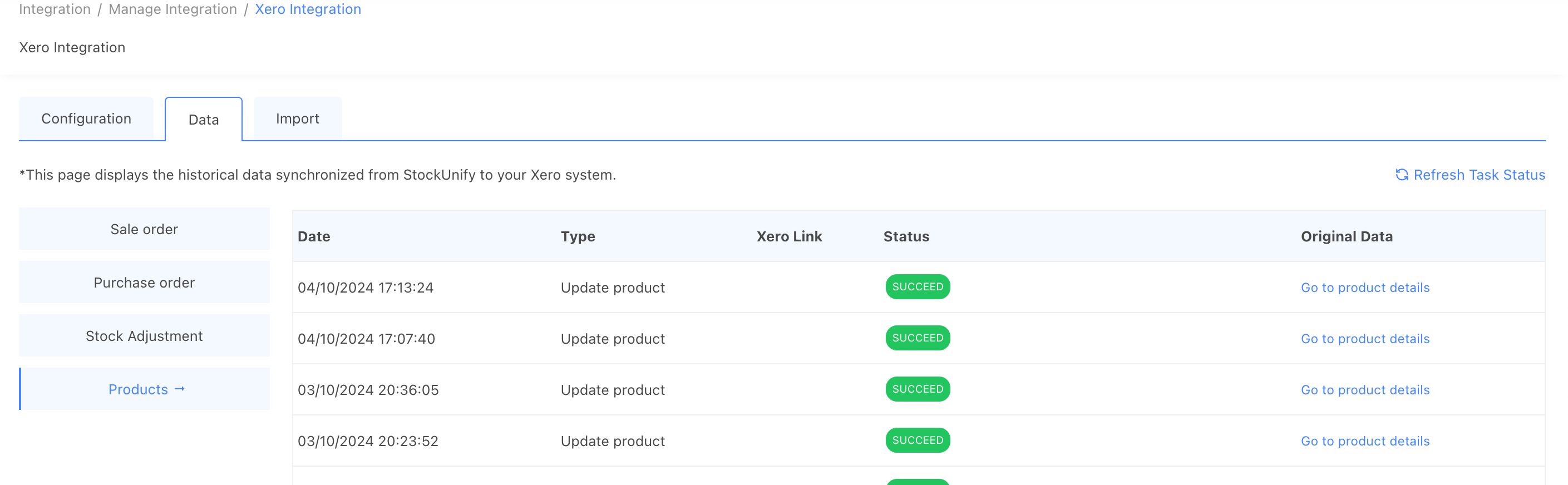
Product Mapping: StockUnify to Xero
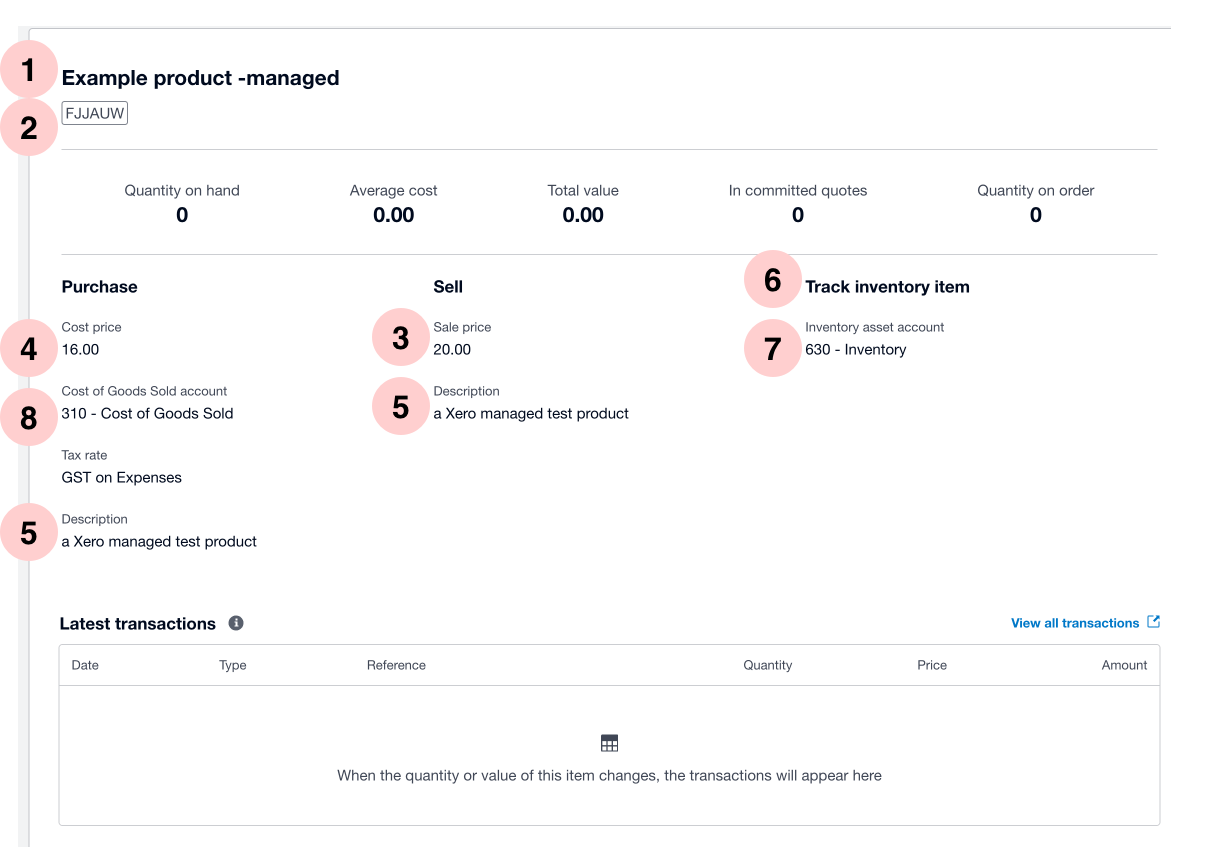
When syncing a product between StockUnify and Xero, the following fields are mapped:
| The product in StockUnify | The product in Xero |
|---|---|
 |  |
| # | StockUnify Field | Xero Field | Range |
|---|---|---|---|
| 1 | Name | Name | Applicable for new product and updated product |
| 2 | Code | Code | Applicable for new product and updated product |
| 3 | Sale Price | Sale price | Applicable for new product and updated product |
| 4 | Latest Cost | Purchase Cost Price | Applicable for new product and updated product |
| 5 | Product description | Sale description && purchase description | Applicable for new product and updated product |
| 6 | Xero Managed Item | Track Inventory Item |
Applicable for new product and updated product. Once a product is tracked, it cannot be reverted to non-tracked. |
| 7 | Inventory Asset Account | Mapped stock on hand account | Only applicable for new Xero-managed products |
| 8 | COGS Account | Mapped COGS account | Only applicable for new Xero-managed products |
When syncing a product, Xero checks the Product Code to determine whether to create a new product or update an existing one.
- If the Product Code does not exist in Xero, a new product will be created.
- If the Product Code exists in Xero, the existing product will be updated with the new details from StockUnify.
For update item in Xero:
Case 1: Product Exists in Xero (Non-Tracked) and New Product from StockUnify is Non-Tracked
- Outcome: The existing product in Xero will be updated with the new details from StockUnify (name, description, sale price, purchase cost).
- Account Information: The existing product's account information in Xero will remain unchanged.
Case 2: Product Exists in Xero (Non-Tracked) and New Product from StockUnify is Tracked
- Outcome: The existing product in Xero will be updated with the new details (name, description, sale price, purchase cost) from StockUnify. Additionally, it will be converted to a tracked inventory item in Xero.
- Account Information: The Inventory Asset Account and COGS Account provided by StockUnify will be applied to the existing product.
Case 3: Product Exists in Xero (Tracked) with Stock On Hand, and New Product from StockUnify is Non-Tracked
- Outcome: The product in Xero will remain tracked (even if the new product from StockUnify is non-tracked) and only the details like name, description, sale price, and purchase cost will be updated.
- Account Information: The existing account information in Xero will remain unchanged. No error will occur.
Case 4: Product Exists in Xero (Tracked) with No Stock On Hand, and New Product from StockUnify is Tracked
- Outcome: The product details (name, description, sale price, purchase cost) will be updated, and the account information (Inventory Asset and COGS accounts) will be overridden with the details provided from StockUnify.
- Account Information: The Inventory Asset Account and COGS Account will be updated based on the new sync from StockUnify.
Case 5: Product Exists in Xero (Tracked) with Transactions, and New Product in StockUnify is Tracked
- Outcome: The sync will fail, and an error will be triggered.
- Error Message: "Cannot change Inventory Asset Account once item is tracked."
- Explanation: Xero does not allow changing the Inventory Asset Account if the product has transactions associated with it. Therefore, the sync will fail in this scenario.