Overview
In StockUnify, if you buy from overseas suppliers or sell to overseas customers, you will need to add a foreign currency before you create a foreign currency sales order or purchase order.
Add a New Currency
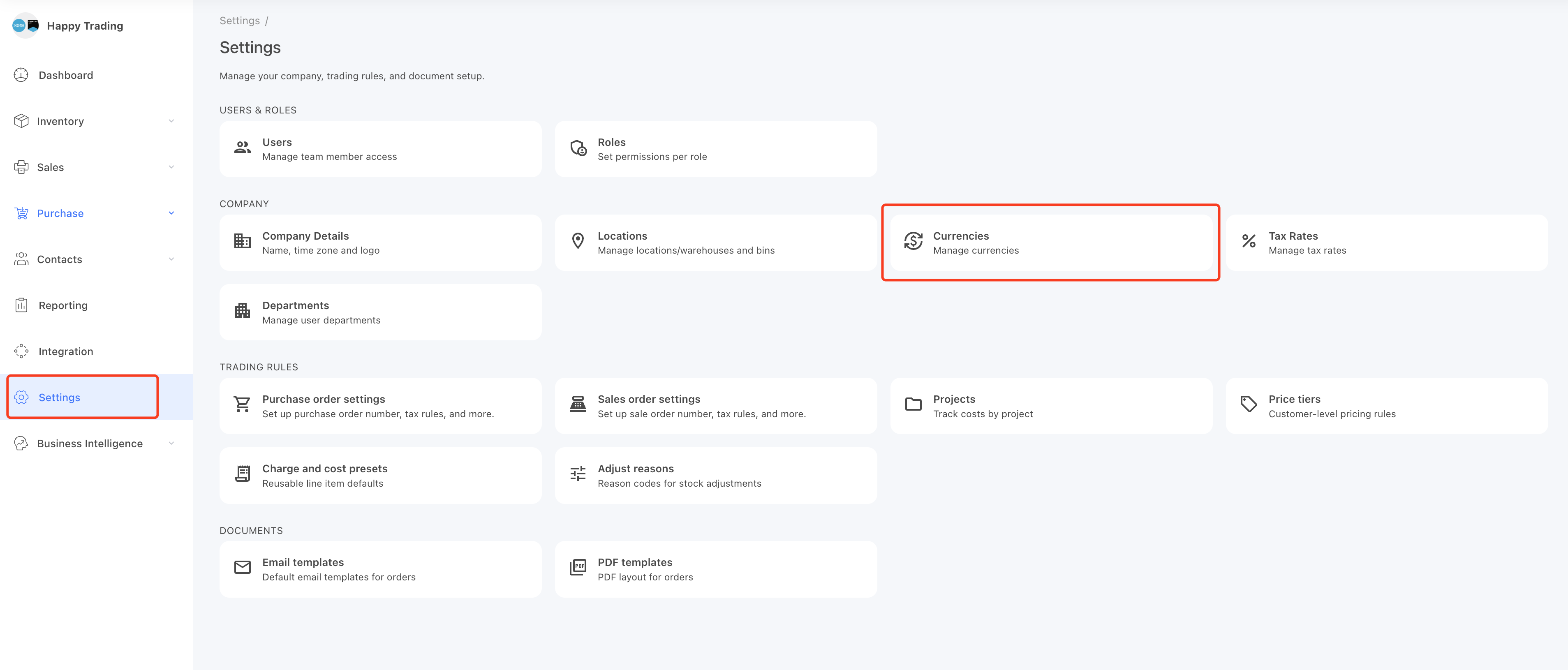
To add a new currency, navigate to the Settings page. Click the Currencies, then a pop-up window will open.
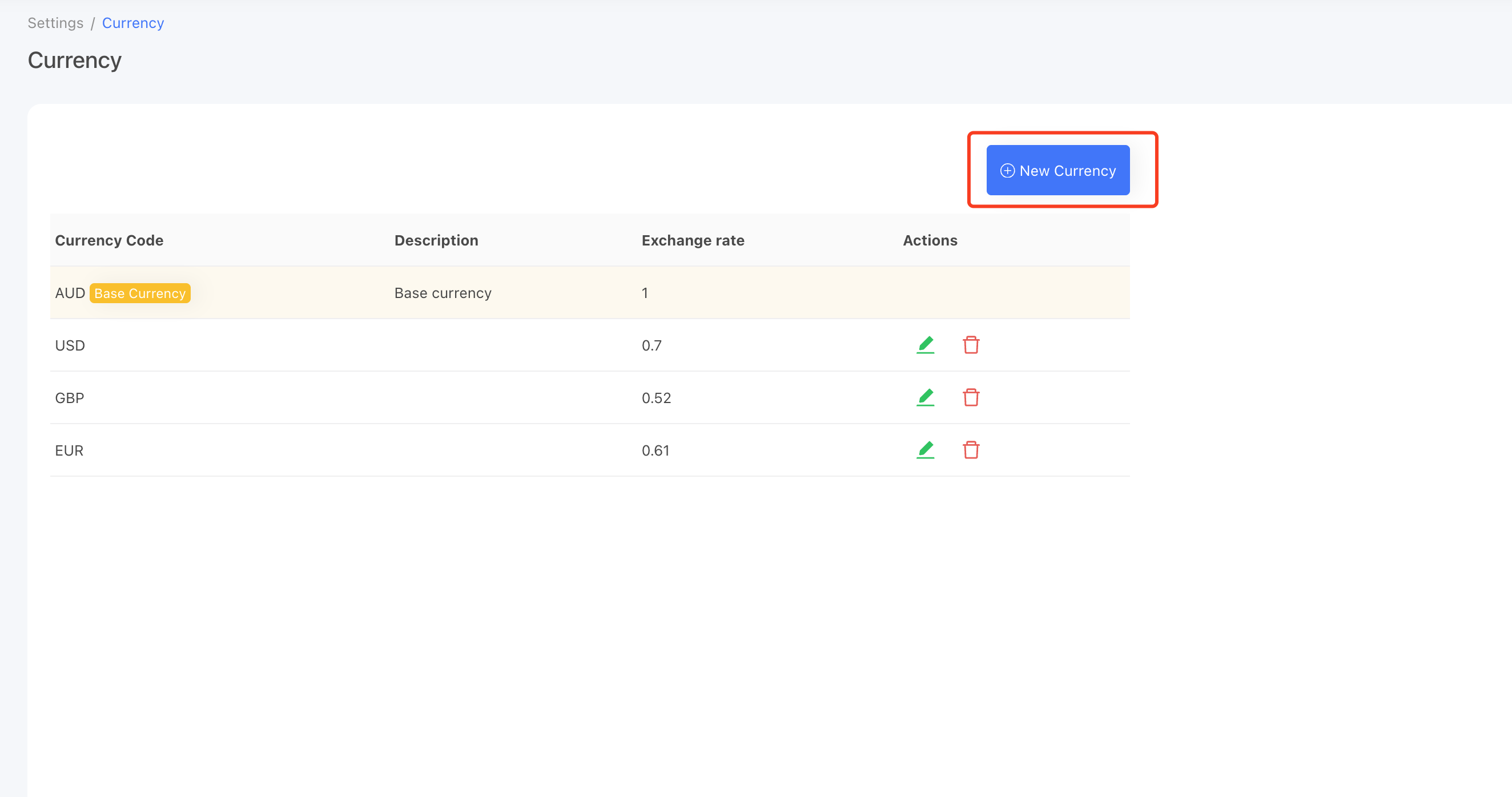
On the currency page, click the New Currency button, then a pop-up window will open.
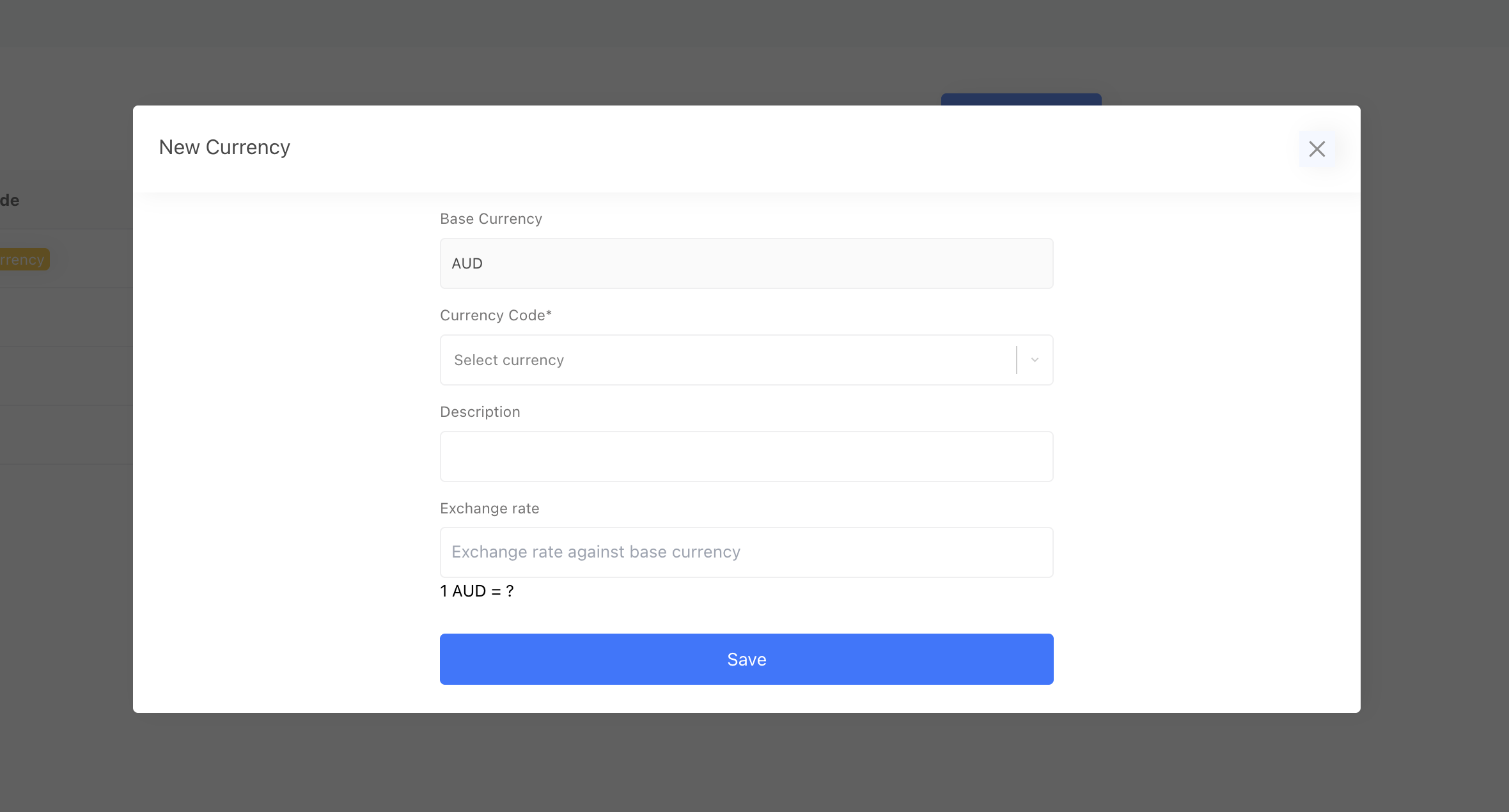
In the pop-up window, enter the following details:
- Currency Code — the three-letter ISO code, e.g. EUR
- Exchange Rate — the rate against your base currency (e.g. 0.61, meaning 1 AUD = 0.61 EUR)
You can update the exchange rate here at any time. Each order can also use its own rate — see below.
Assign a Foreign Currency to a Supplier or Customer
After you create the foreign currency, you can assign it to a supplier or customer. Open the supplier or customer, click Edit, and select the currency in the Currency field.
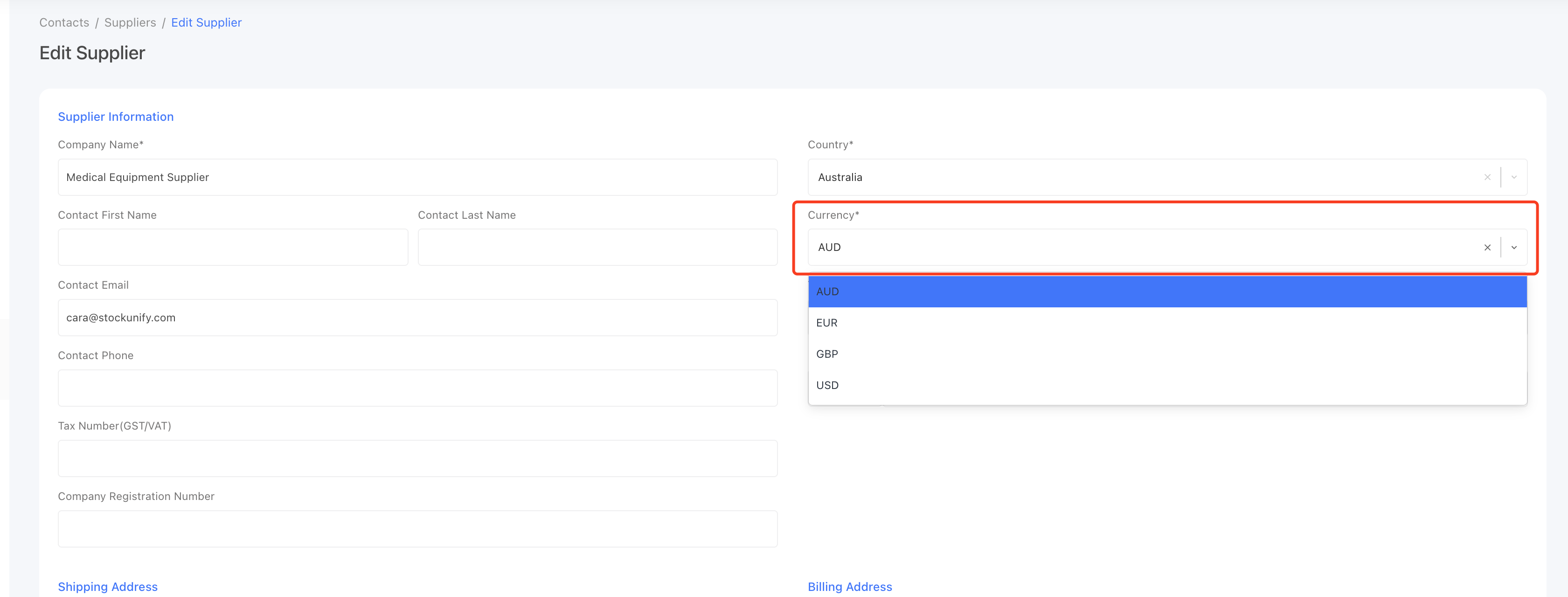
Once assigned, all sales orders and purchase orders for this supplier or customer will use the assigned currency.
Create Foreign Currency Transactions
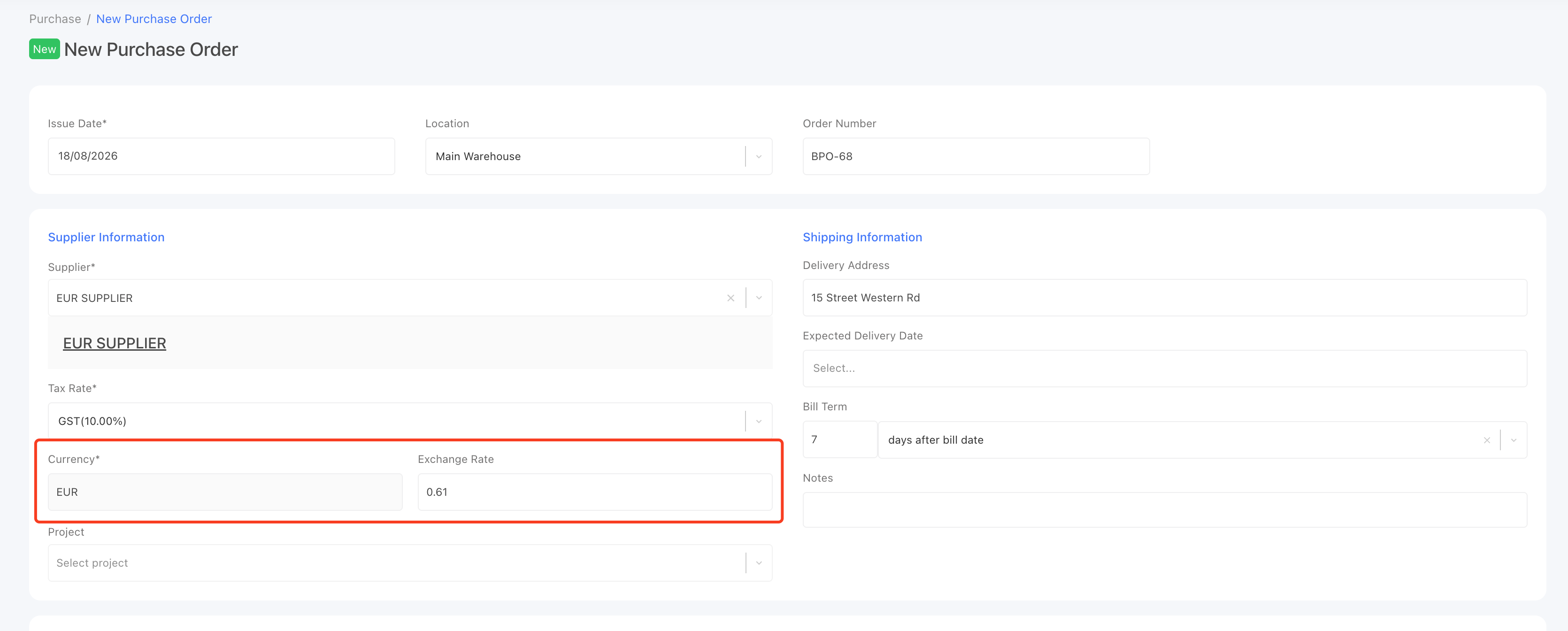
When you create a purchase order or sales order, if the supplier or customer is assigned a foreign currency, you will see an Exchange Rate field on the order page. It defaults to the rate saved in Settings, and you can overwrite it for this order.