Overview
The Bulk Import Product Bins feature allows you to quickly assign or update bin locations for multiple products at once using a CSV file. This is the fastest way to set up bin locations when you have a large number of products.
Download the CSV Template
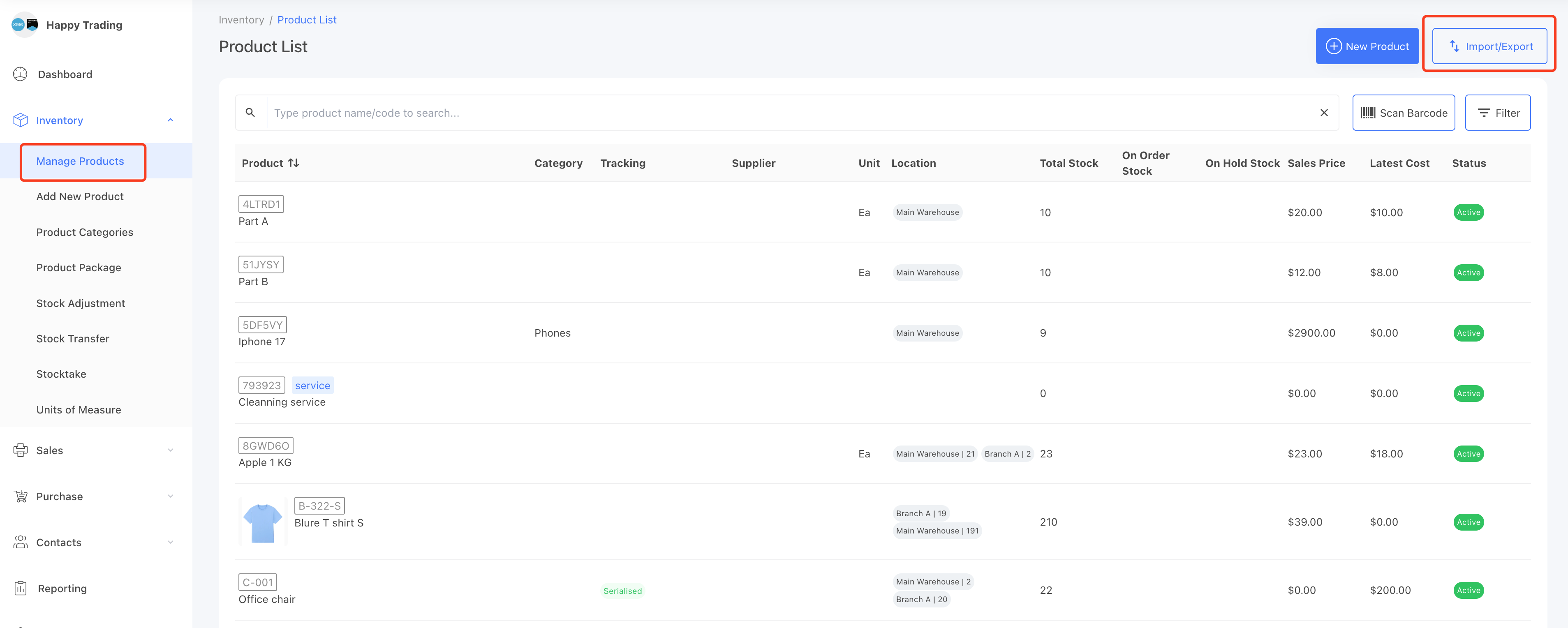
Go to the [Inventory] → [Manage Products] page.
On the right corner, click the Import/Export button.
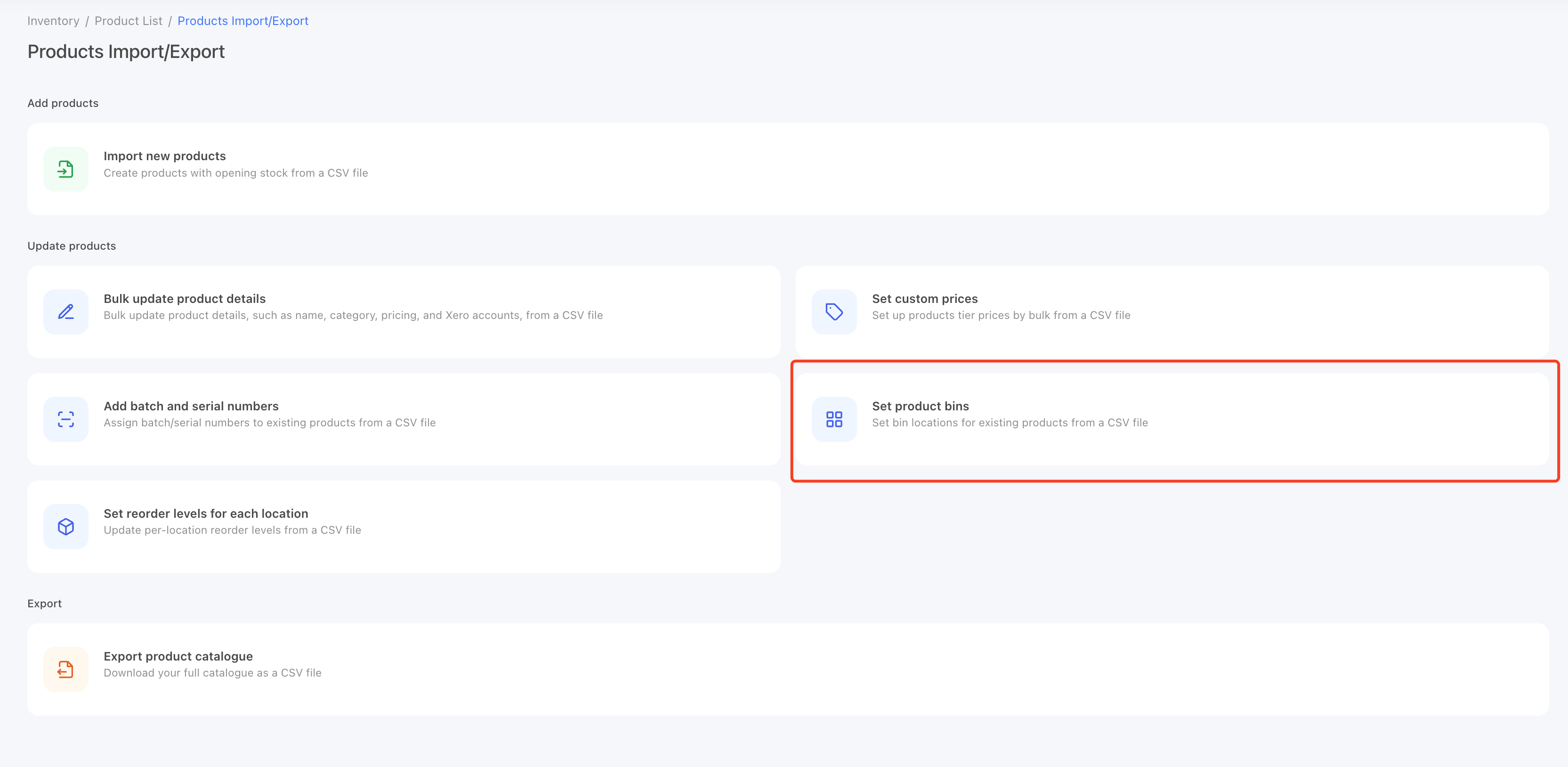
On Import/Export page, select the Set product bins.
On the Bulk Import Product Bins page, download the CSV template, fill it in with the required information, and upload it to the system.
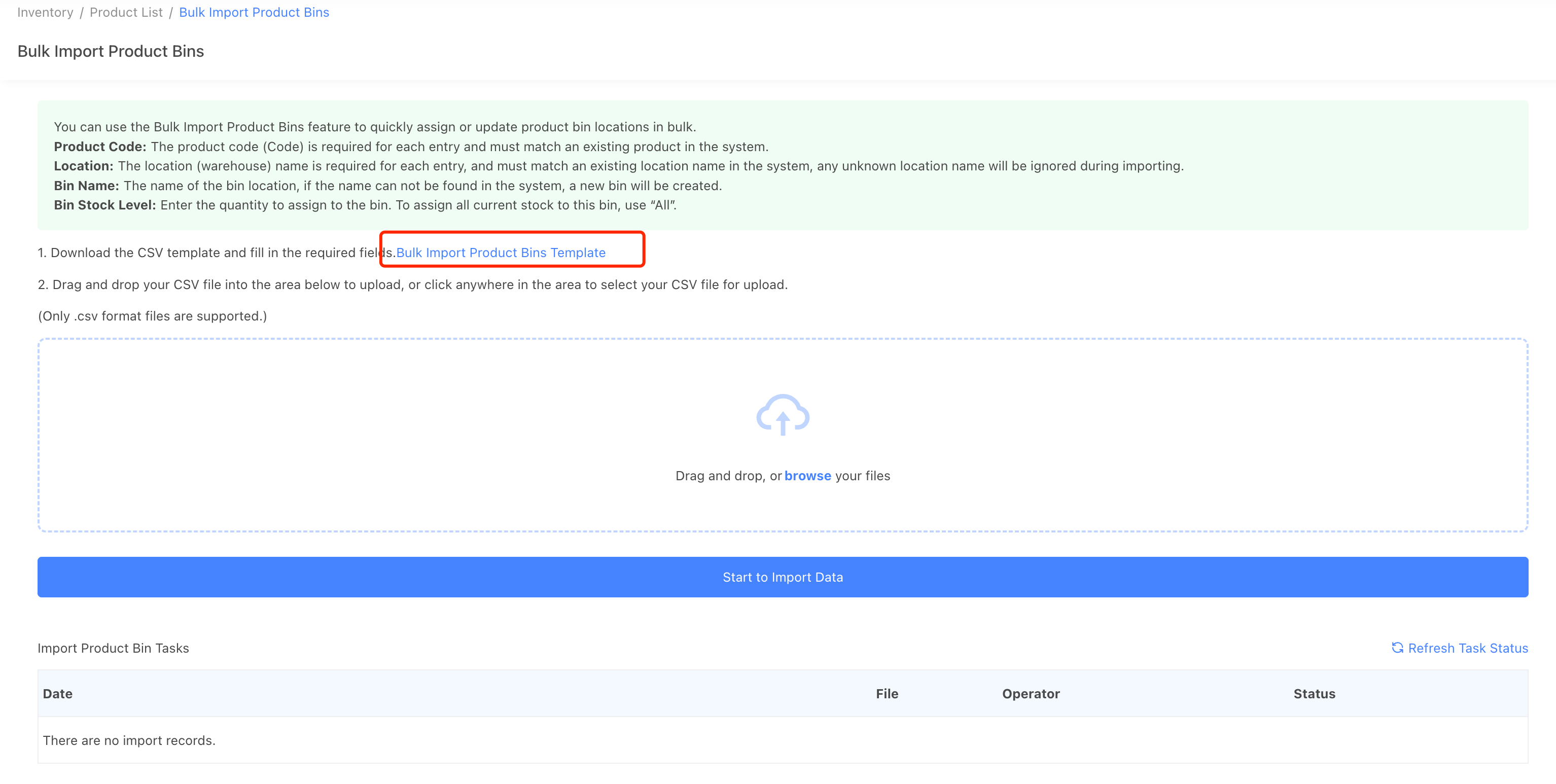
CSV Template Fields
- Product Code: The product code (SKU) is required for each entry and must match an existing product in the system.
- Location: The warehouse name is required for each entry and must match an existing location in the system. Any unknown location names will be ignored during import.
- Bin Name: The name of the bin location. If the bin name does not exist in the system, a new bin will be automatically created.
-
Bin Stock Level: Enter the quantity to assign to the bin.
To assign all current stock to this bin, use
All. To leave the bin empty, use0.

Importing the File
Once your CSV file is ready, return to the Bulk Import Product Bins page and upload it to import the data into the system.
After the import is completed, you can view the assigned bin locations under each product’s details page.
Common Import Errors
- Invalid Product Code: The product code does not exist in your database.
- Unknown Location Name: The specified location name does not match any existing record.
-
Invalid Bin Stock Level: Only numeric values or
Allare accepted. Empty values will cause an error. To specify a zero quantity, use0. - File Encoding Error: Ensure your file is in valid CSV format and includes the correct header columns.