Overview
This guide explains how to set up custom prices for a product.
Manage Price Tiers
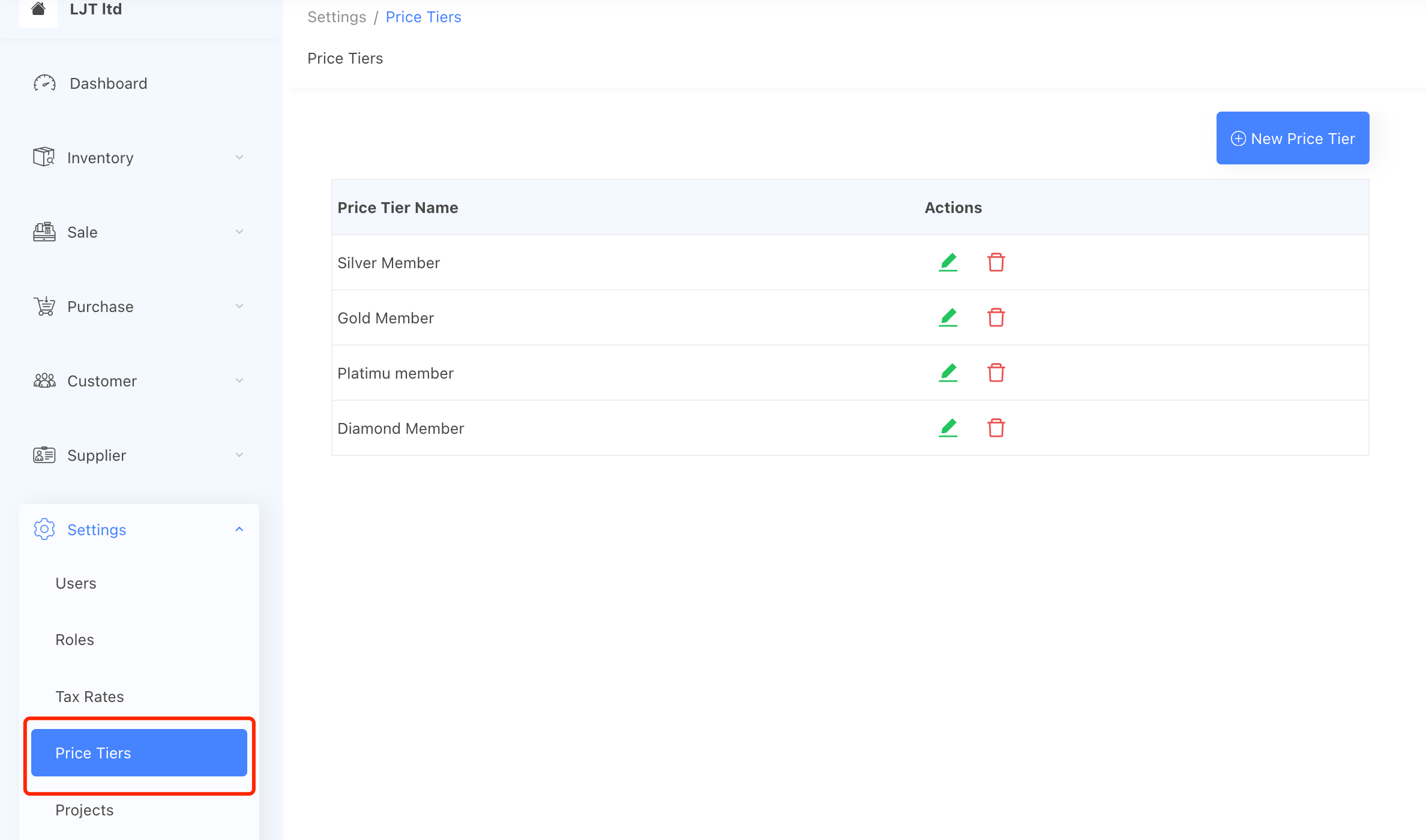
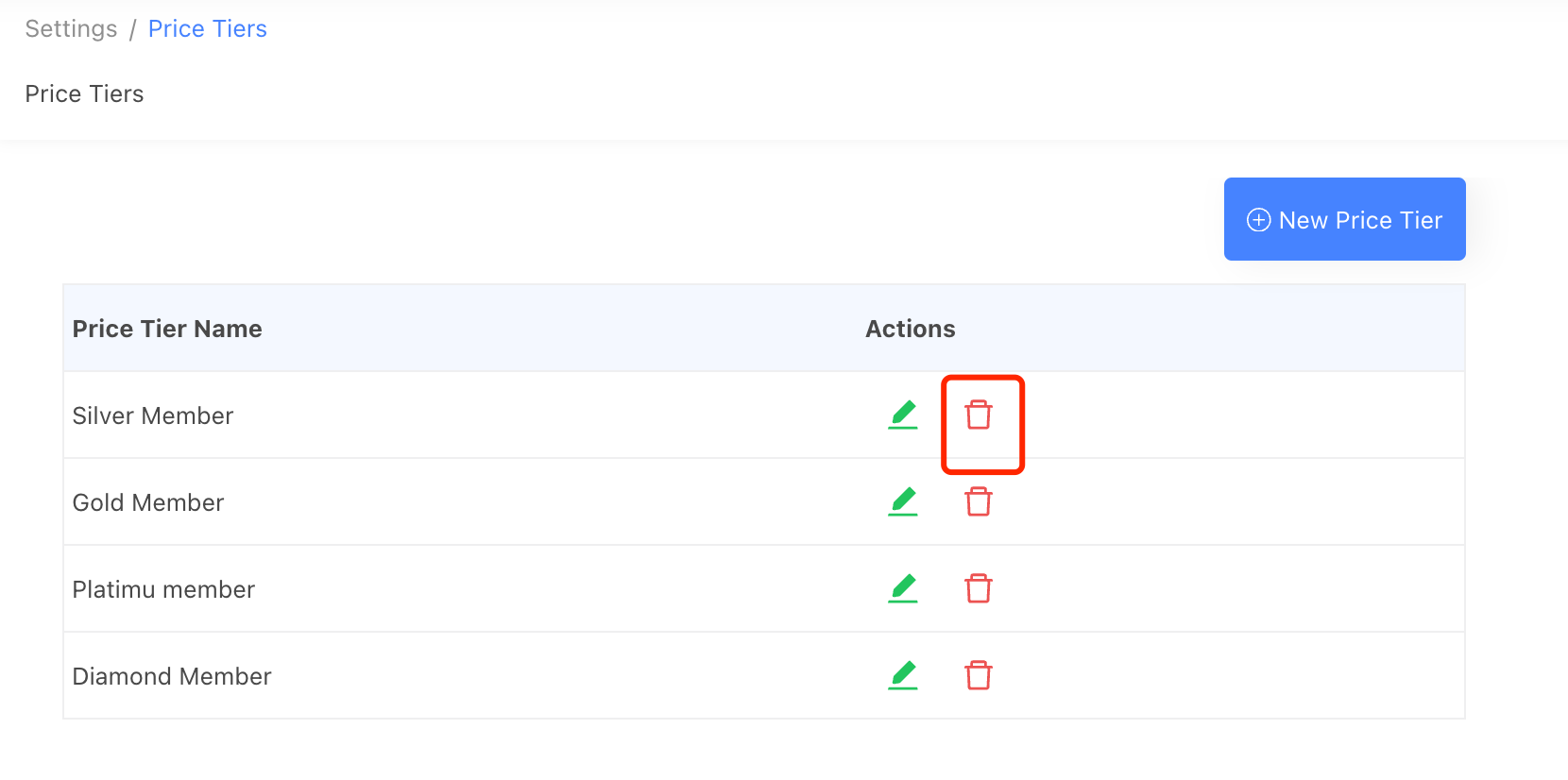
Navigate to [Settings] → [Price Tier] to view and manage all price tiers. Ensure the price tiers you need are set up before proceeding to configure custom prices for products.
Set up custom price for a product
Go to [Inventory] → [Manage Products]. Use the search field to type in keywords and find the product you want to update. Click on the product name to open the Product Details page.
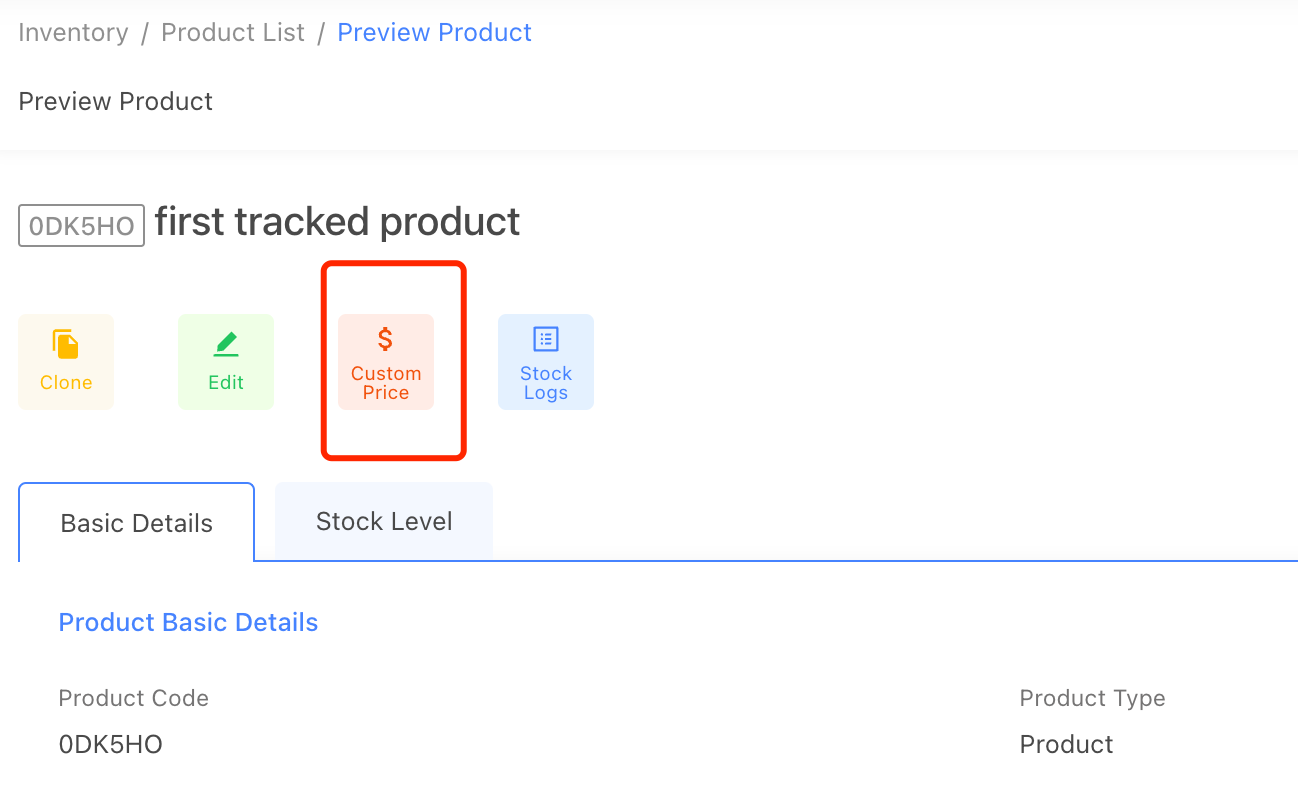
On the Product Details page, click the [Custom Price] button to navigate to the custom price setup page.
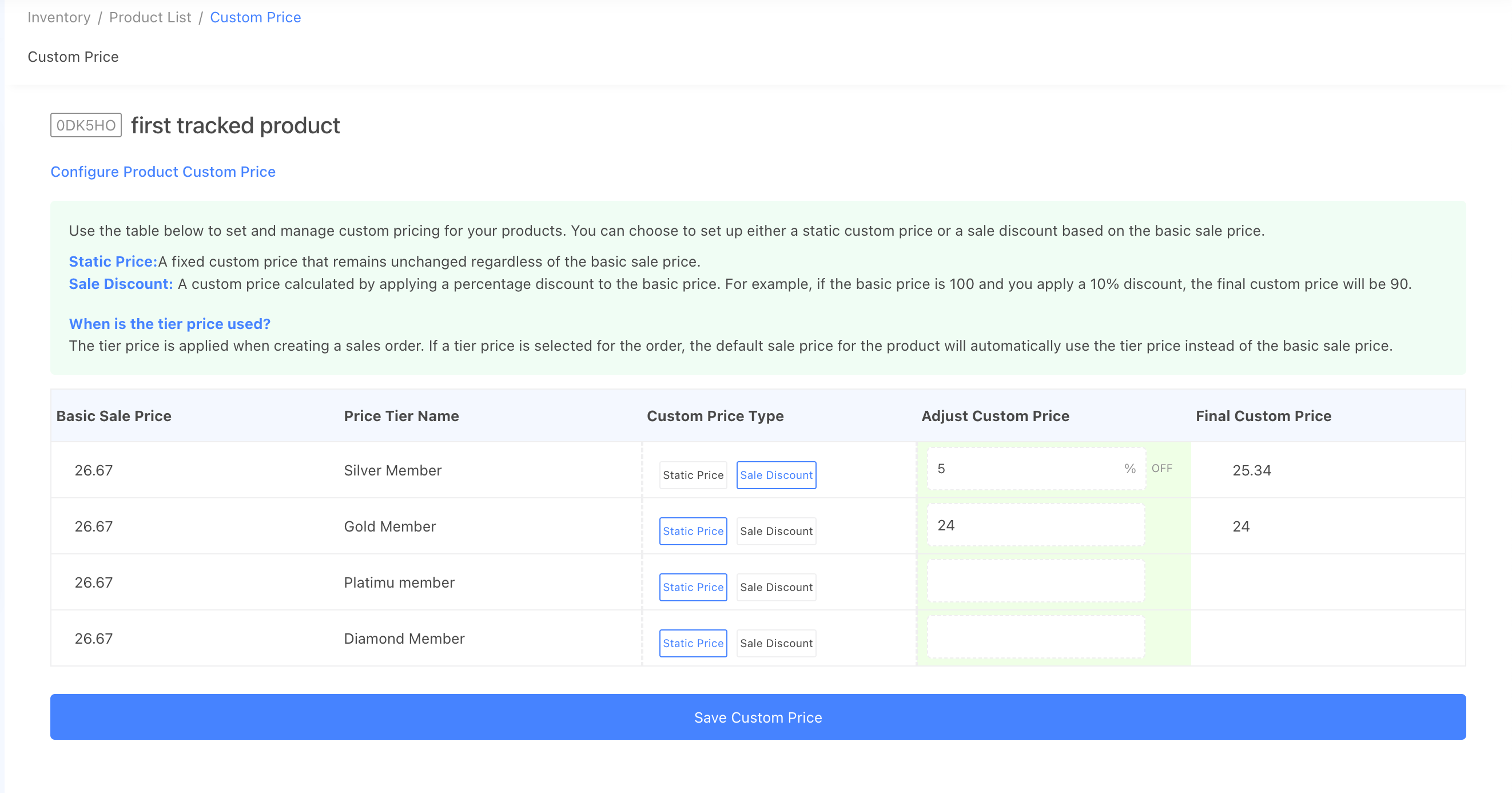
You can choose to set up either a static custom price or a sale discount based on the basic sale price.
Static Price: A fixed custom price that remains unchanged regardless of the basic sale price.
Sale Discount: A custom price calculated by applying a percentage discount to the basic price. For example, if the basic price is 100 and you apply a 10% discount, the final custom price will be 90.
After you enter the values, click [Save Custom Price] button. The product’s custom price will now be applied to the system.
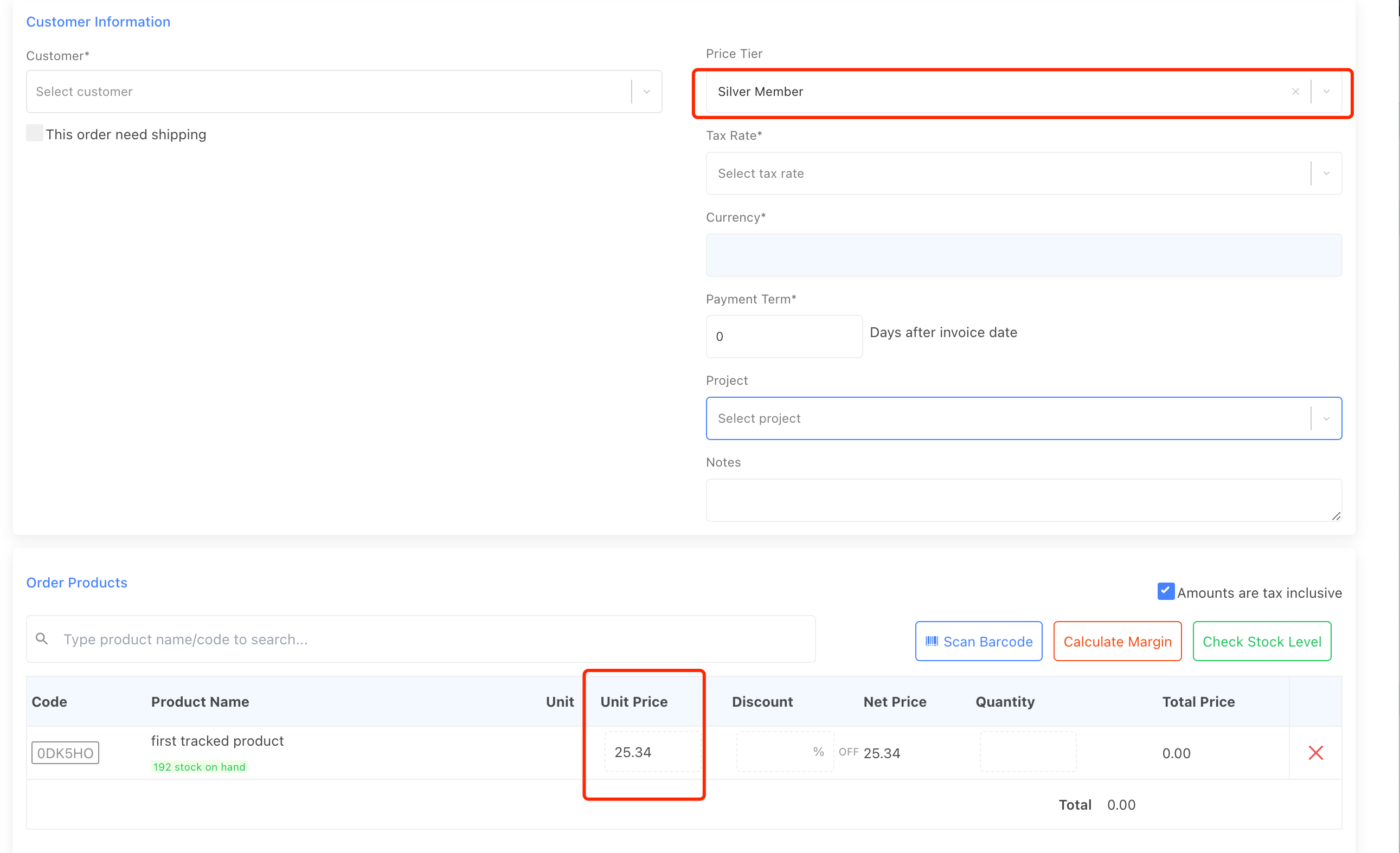
When is the Custom price used?
The custom price is applied when creating a sales order. If a tier price is selected for the order, the default sale price for the product will automatically use the tier price instead of the basic sale price.
Can I delete a Custom Price?
Yes, you can delete the price tier from the Price Tier page, Once you delete the price tier, all custom prices associated with this price tier will also be deleted.
Can I update Custom Price by bulk?
Yes, please follow the bulk import custom price guide here.