The bulk import feature allows you to update custom prices for multiple products at once using a CSV file. This is particularly useful for initializing the system or performing bulk updates to custom prices efficiently.
1. Download the Template
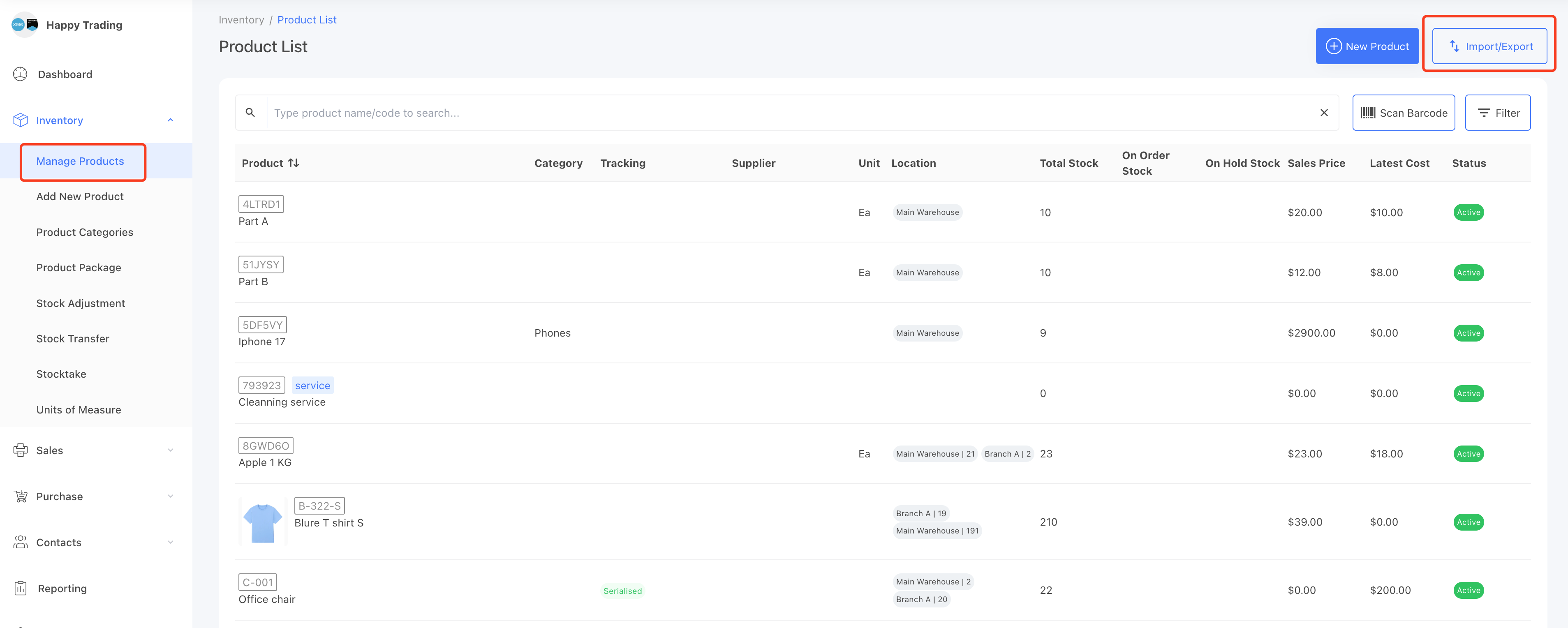
Go to the [Inventory] → [Manage Products] page.
On the right corner, click the Import/Export button.
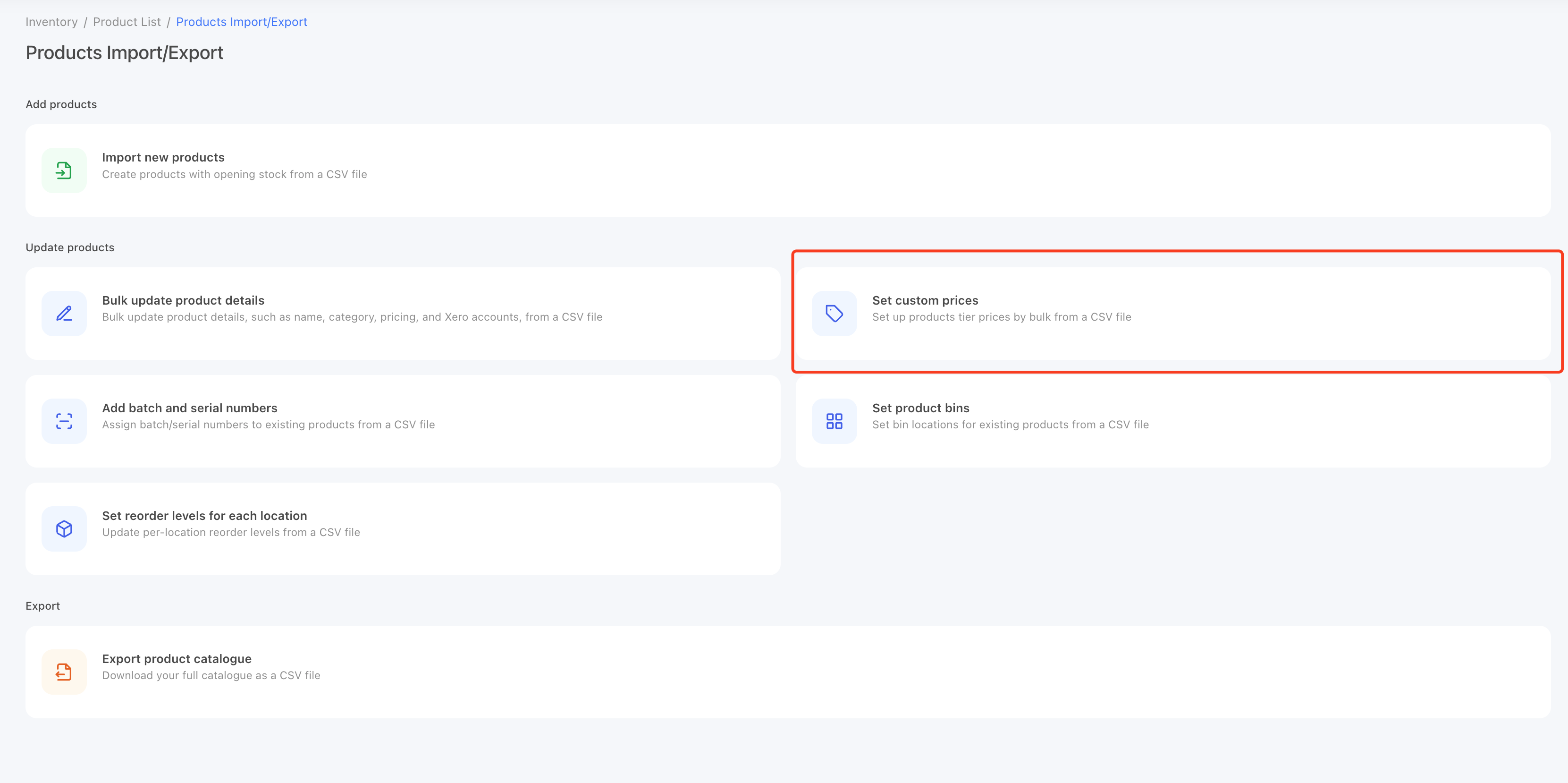
On Import/Export page, select the Set custom prices.
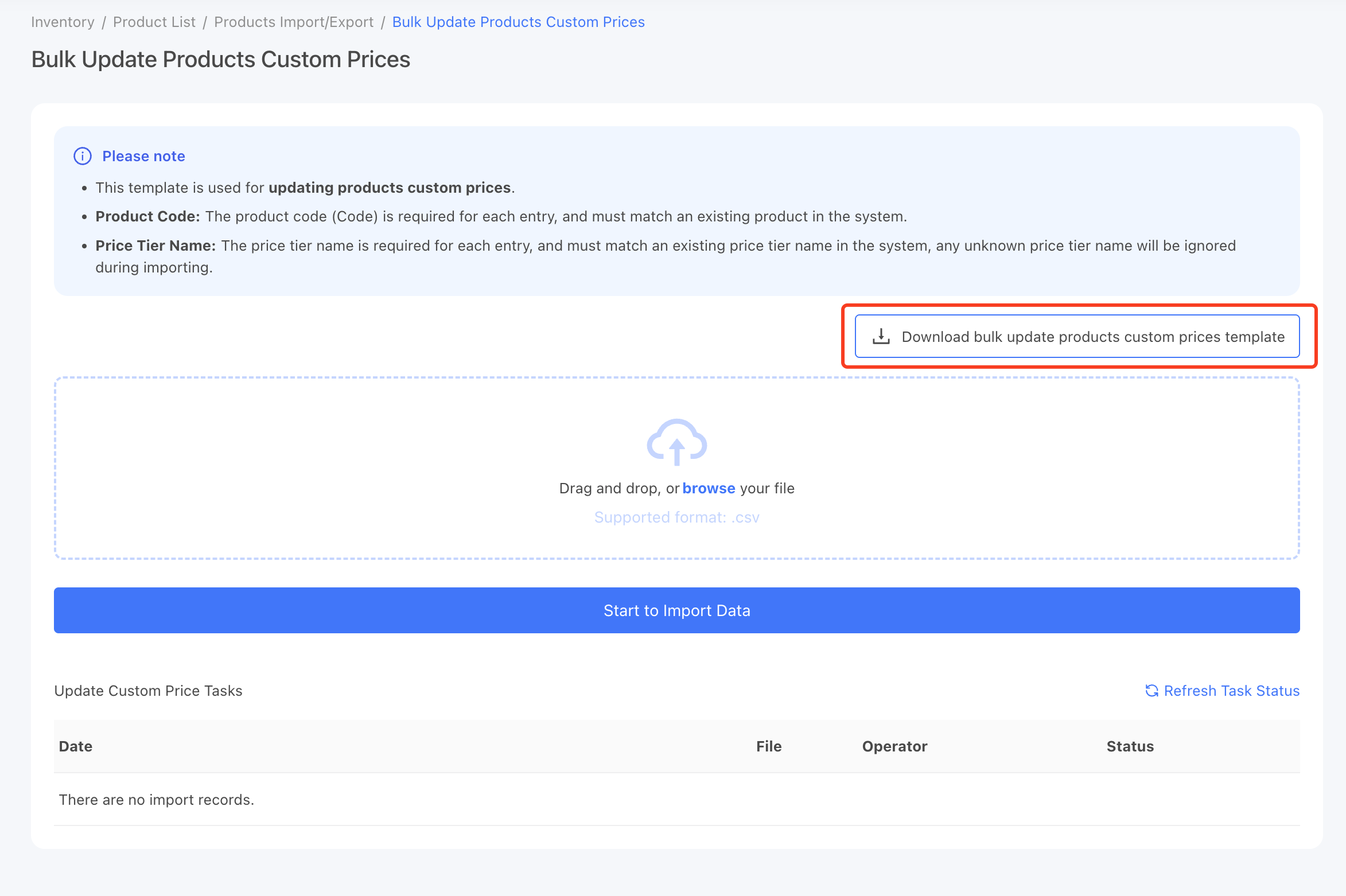
On the Bulk Update Products Custom Prices screen, click the[Bulk Update Products Custom Prices Template] button to download the template.
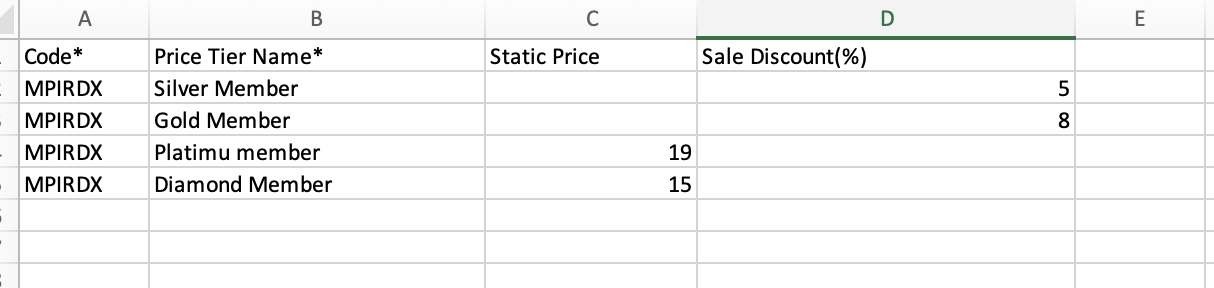
2. Fill in the CSV File
Fill in the following fields:
- Code*: Enter the product code (mandatory).
- Price Tier Name*: Enter the price tier name (e.g., "Gold Member")(mandatory)
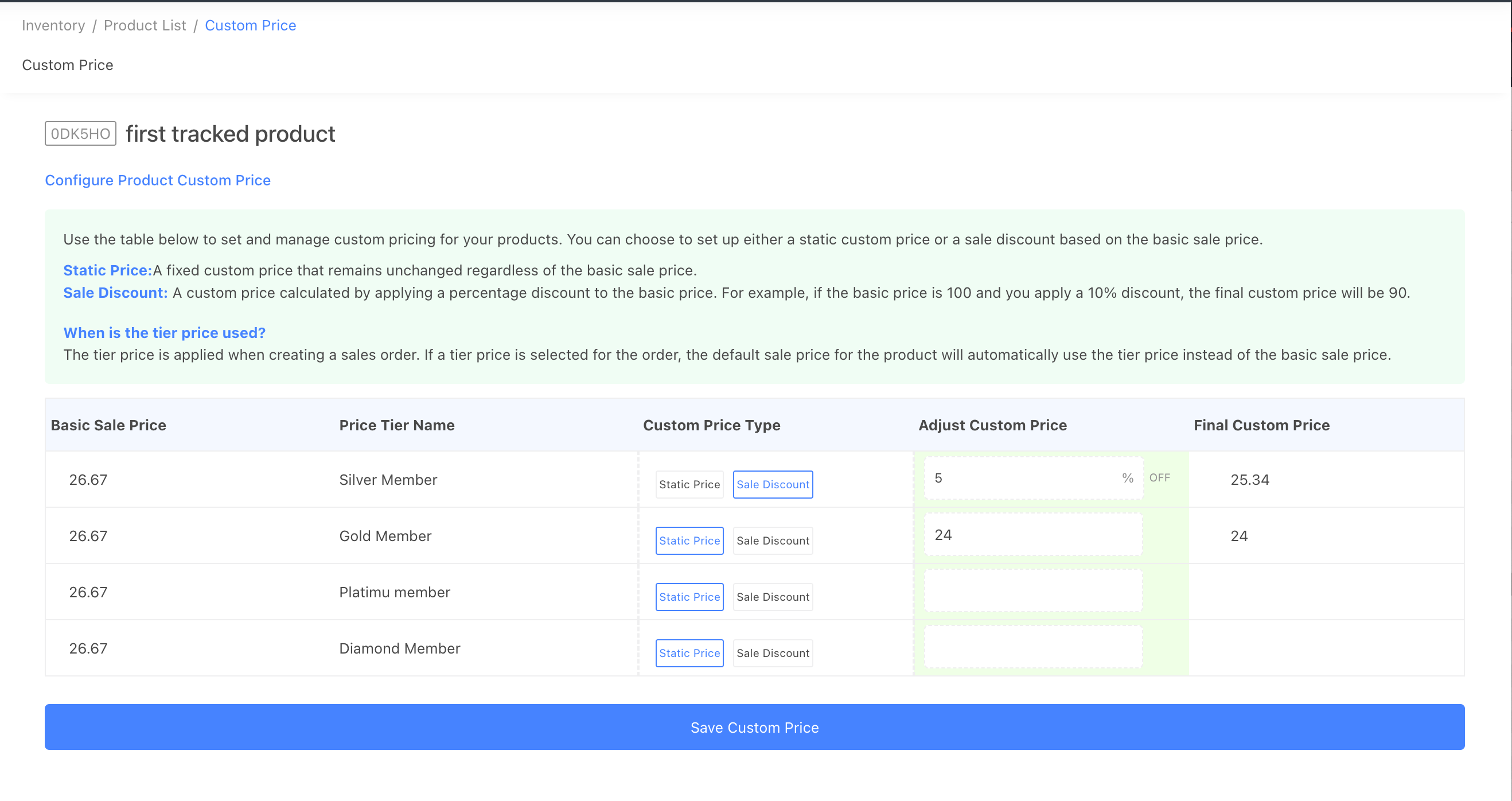
- Static Price: A fixed custom price that will remain unchanged regardless of the base sale price.
- Sale Discount(%): A percentage discount applied to the basic sale price. For example, to apply a 10% discount, enter
10. The value can range from0to100, and decimal values (E.g. 10.5 or 8.26) are acceptable.
3. Upload the CSV file
- Add the CSV file to the upload field.
- Click [Start to Import Data] to create an import task.
- Once the new task is created successfully, you can check the import status from the tasks table.
- Click the [Refresh Task Status] button to check the task status.
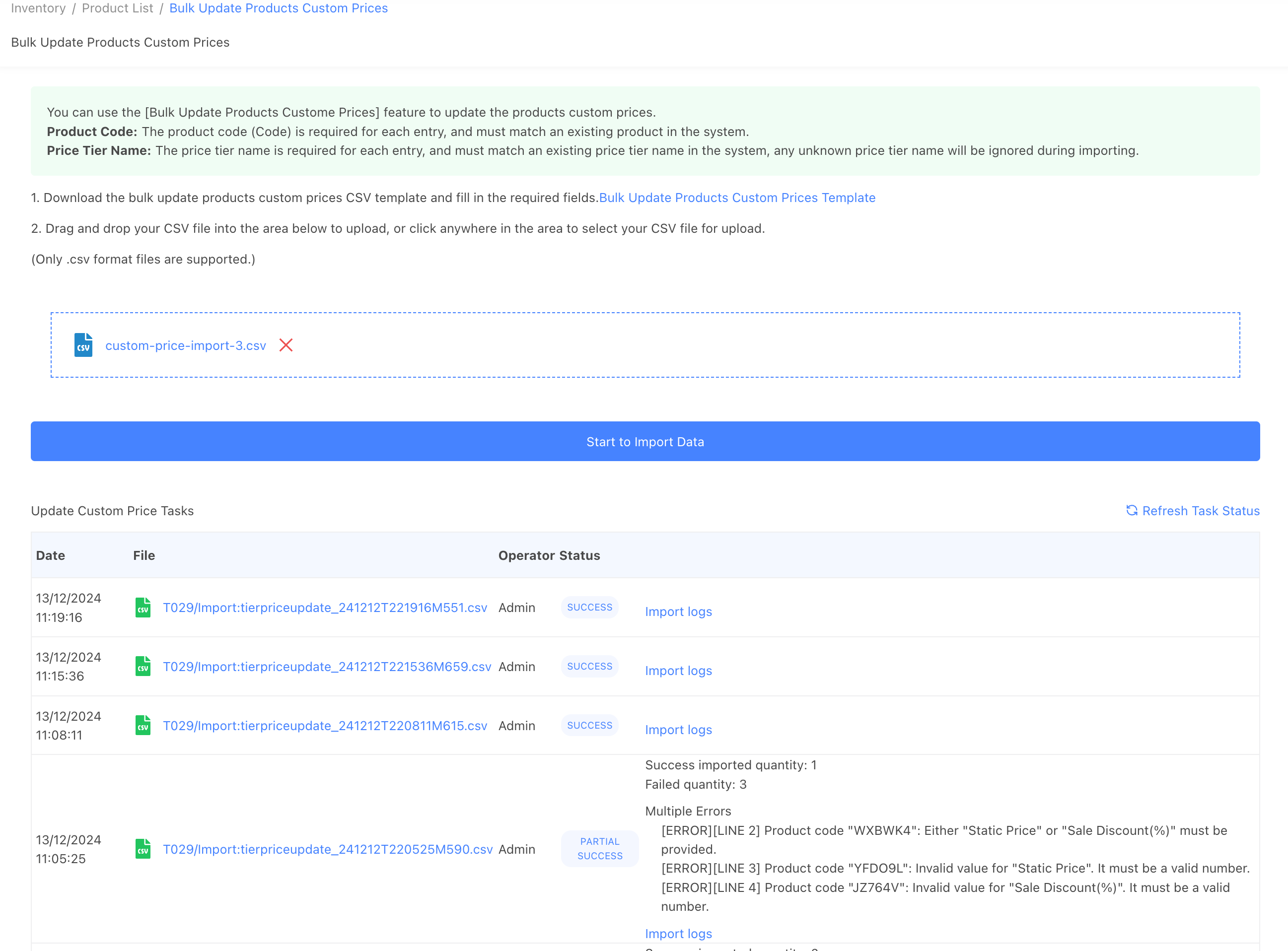
If the task fails, you will see an error message indicating the cause of the error.
If you see a "SUCCESS" status, it means all the data has been imported successfully. You can check the customer price from the product details page by click the [custom price] button.
Tips for Preparing the CSV File
- StockUnify matches products by the product code. You cannot create new products or materials with this template; you can only add custom prices for existing products.
- StockUnify matches price tiers by the price tier name. You cannot create new price tiers with this template; you can only use existing price tier names.
- Rows with no Static Price or Sale Discount(%) value entered will be skipped. Empty rows will also be skipped.
- Only one value, either Static Price or Sale Discount(%), should be provided for each row.
- If both Static Price and Sale Discount(%) are provided, the Static Price will be applied, and the sale discount value will be ignored.
- Only numeric values are accepted in the Static Price and Sale Discount(%) fields.Non-numeric values (e.g., "aa") will cause errors.
- If there are multiple rows with the same product code and price tier name, the system will use the values from the last row.