Overview
Bin Locations help you track where each product is stored within a warehouse. This feature is useful when you need to manage inventory by bins, shelves, racks, or physical zones within the same location.
Before you can allocate stock to a bin location, you must first create bin locations for each warehouse and assign them to products. Once bin locations are assigned, you’ll be able to receive or issue stock directly from specific bins (e.g., when receiving a purchase order).
You can also bulk update product bin locations using a CSV file for faster setup. Bulk import product bins
Update Product Bin Locations
Each product can be linked to one or multiple bin locations under the same warehouse. You can also set a default bin for each product. When receiving or dispatching stock, the default bin will be automatically selected, but you can change it if needed.
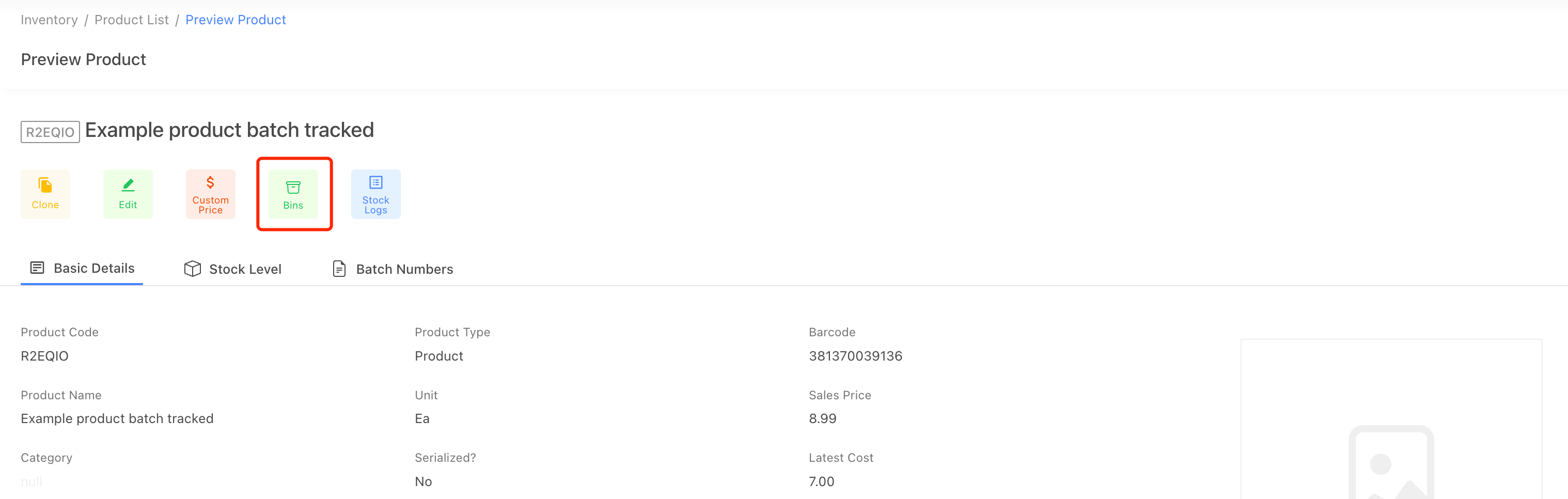
You can assign bin locations to a product by editing its bin settings from the product details page.
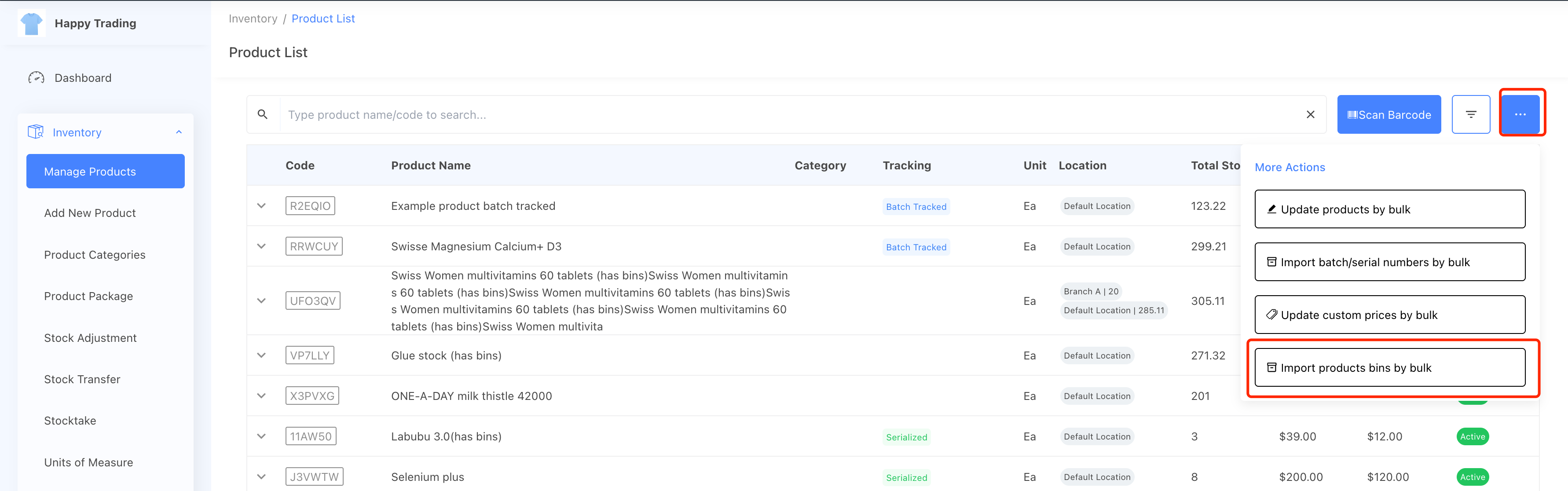
Or, You can by update products' bin locations by bulk via a CSV import. Bulk import product bins
View Stock Levels by Bin Location
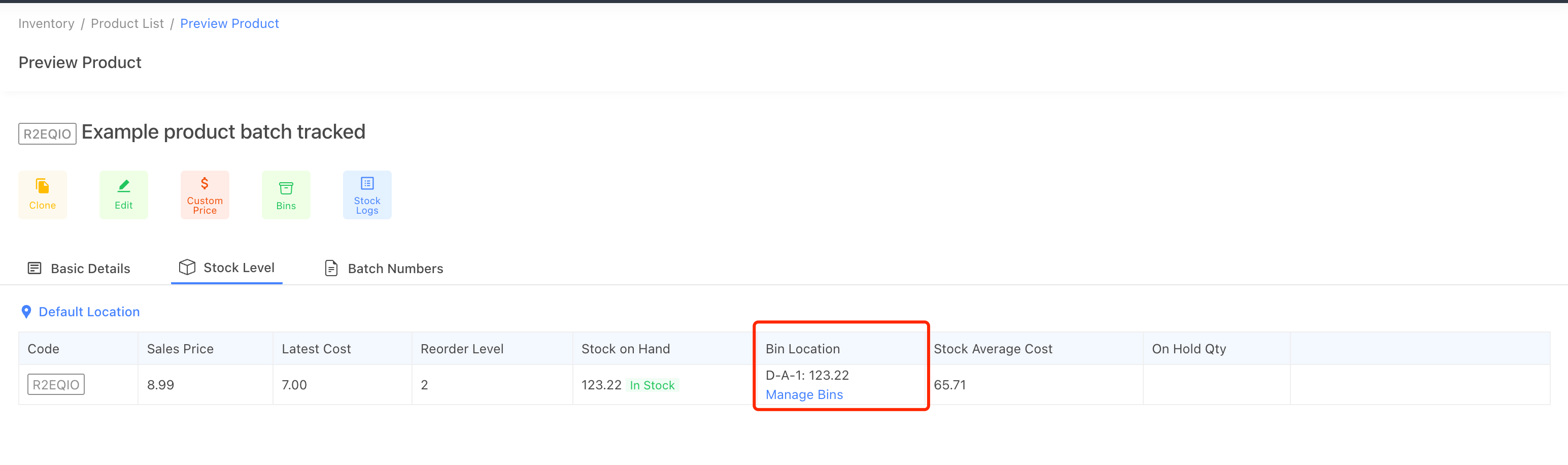
Once bin locations are configured for a product, you can view the stock quantities of each bin directly from the product details page.
When creating a sales order, StockUnify also displays available stock levels per bin location, helping you select where to fulfill orders from.
Bin Locations in Orders
1. Sales Orders
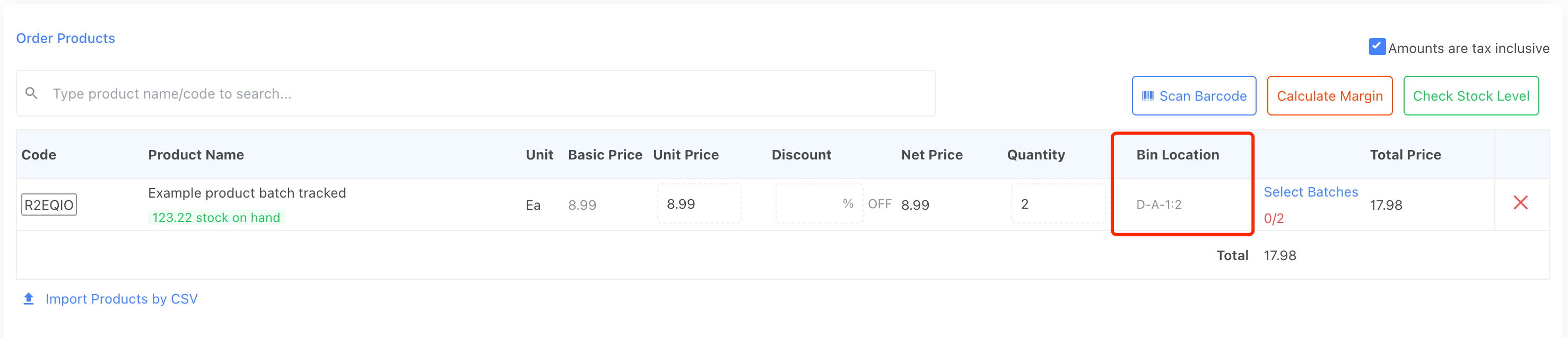
When adding items to a sales order, StockUnify displays the bin locations linked to each product. By default, the system will use the product’s default bin as the source of stock, but you can choose a different bin if needed. StockUnify also supports taking stock from multiple bins when fulfilling an order.
2. Purchase Orders
When receiving a purchase order, if the product has bin locations configured, the stock will be received into those bins. The default bin will be used automatically, but you can manually reassign received quantities to other bins. StockUnify supports receiving stock into multiple bins as well.

3. Stock Adjustment Orders
When performing stock adjustments, you can specify the bins where the adjustment applies, ensuring accurate tracking of stock movement within the warehouse.

Bin Locations in Document Templates
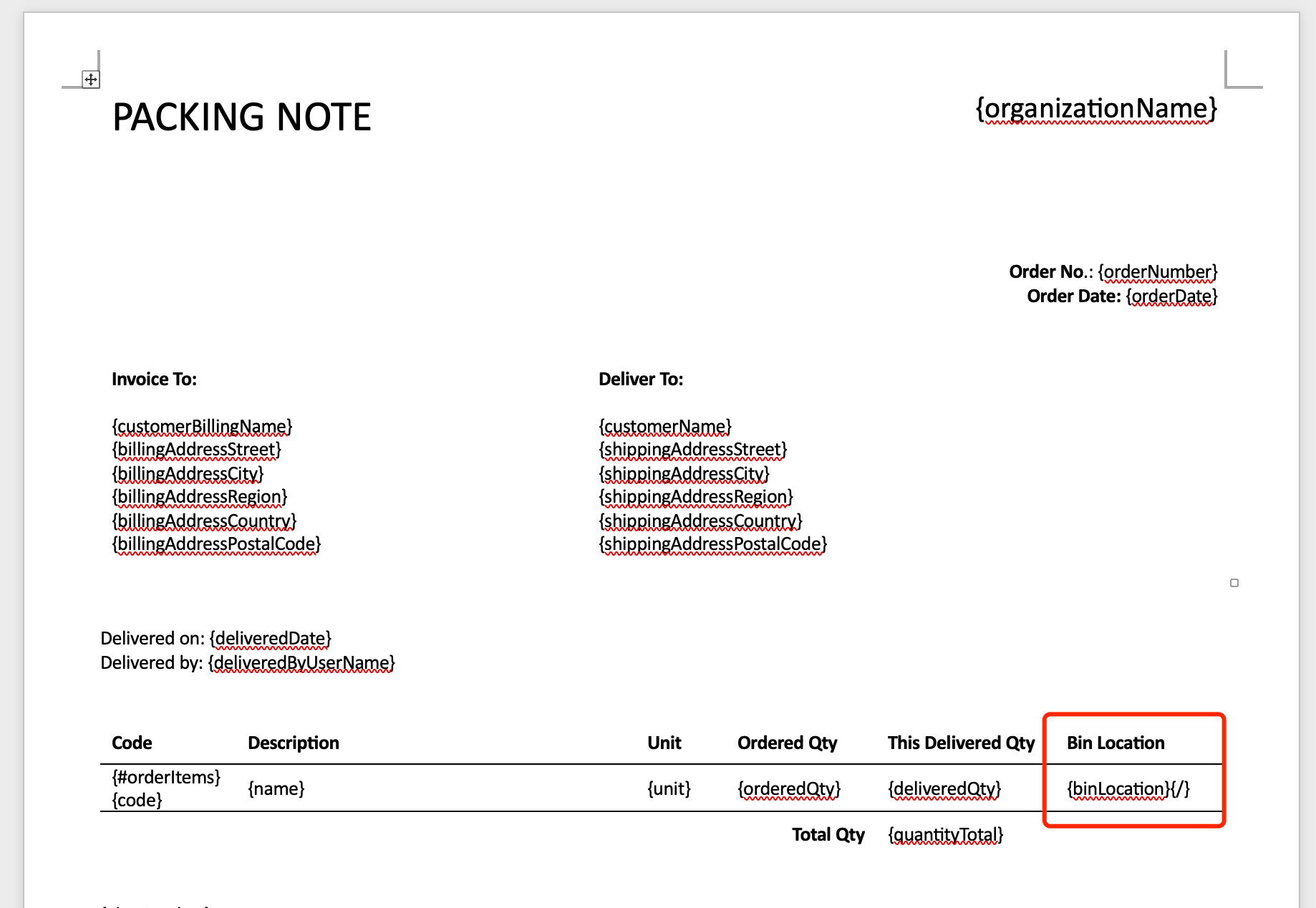
You can include bin location information in your document templates (such as
packing slips or picking notes) to help warehouse staff quickly locate
products during picking and packing. Simply insert the
{binLocation} placeholder into your template to use it.