If you track batch or serial numbers for products and have this information available outside of StockUnify (such as on a spreadsheet or another system), you can use our import template to bulk import your batch/serial numbers into StockUnify.
1. Download the Template
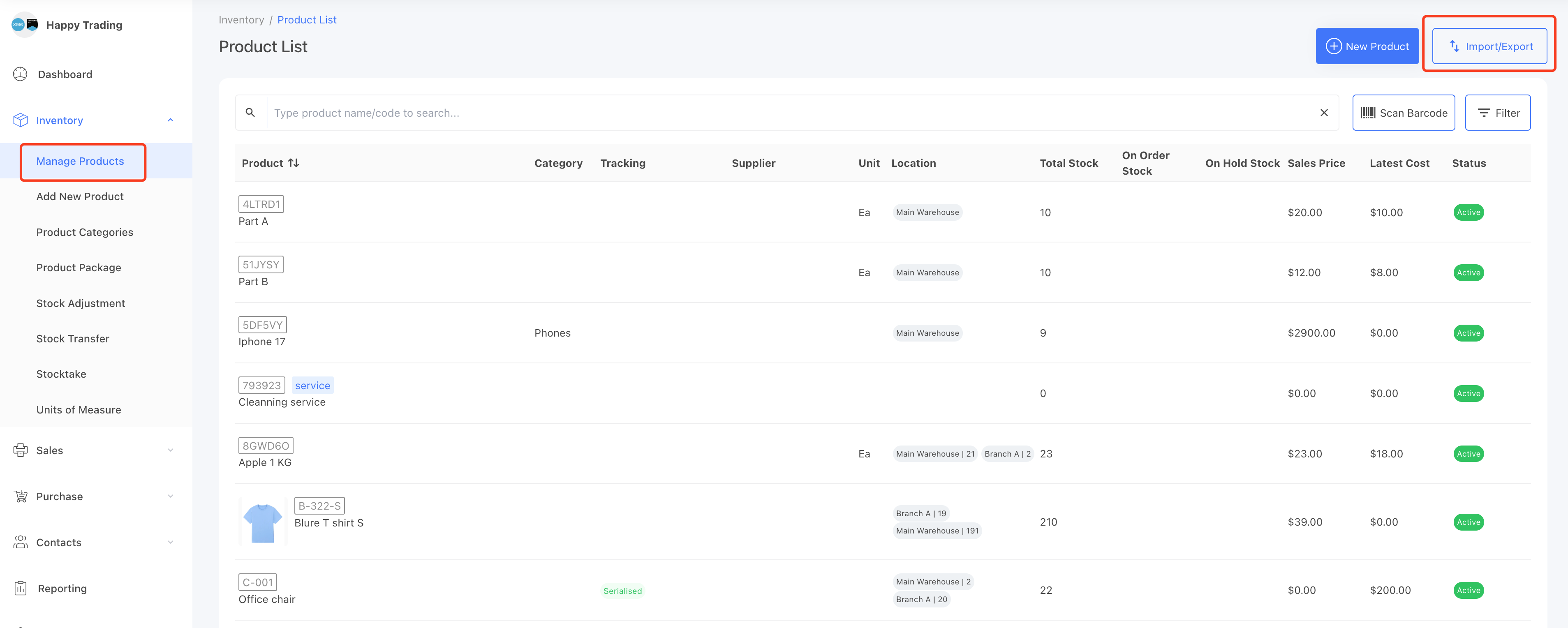
Go to the [Inventory] → [Manage Products] page.
On the right corner, click the Import/Export button.
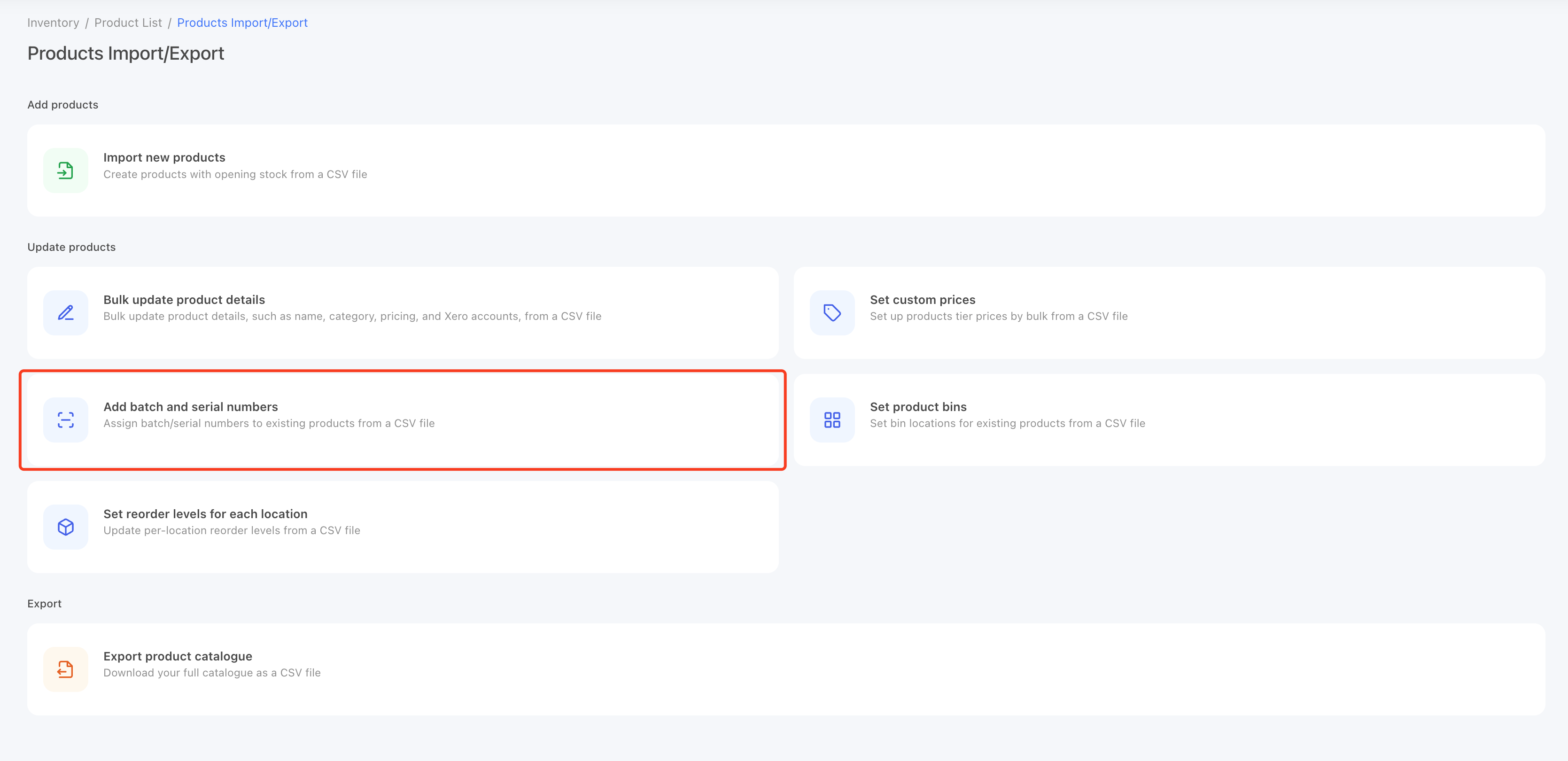
On Import/Export page, select the Add batch and serial numbers.
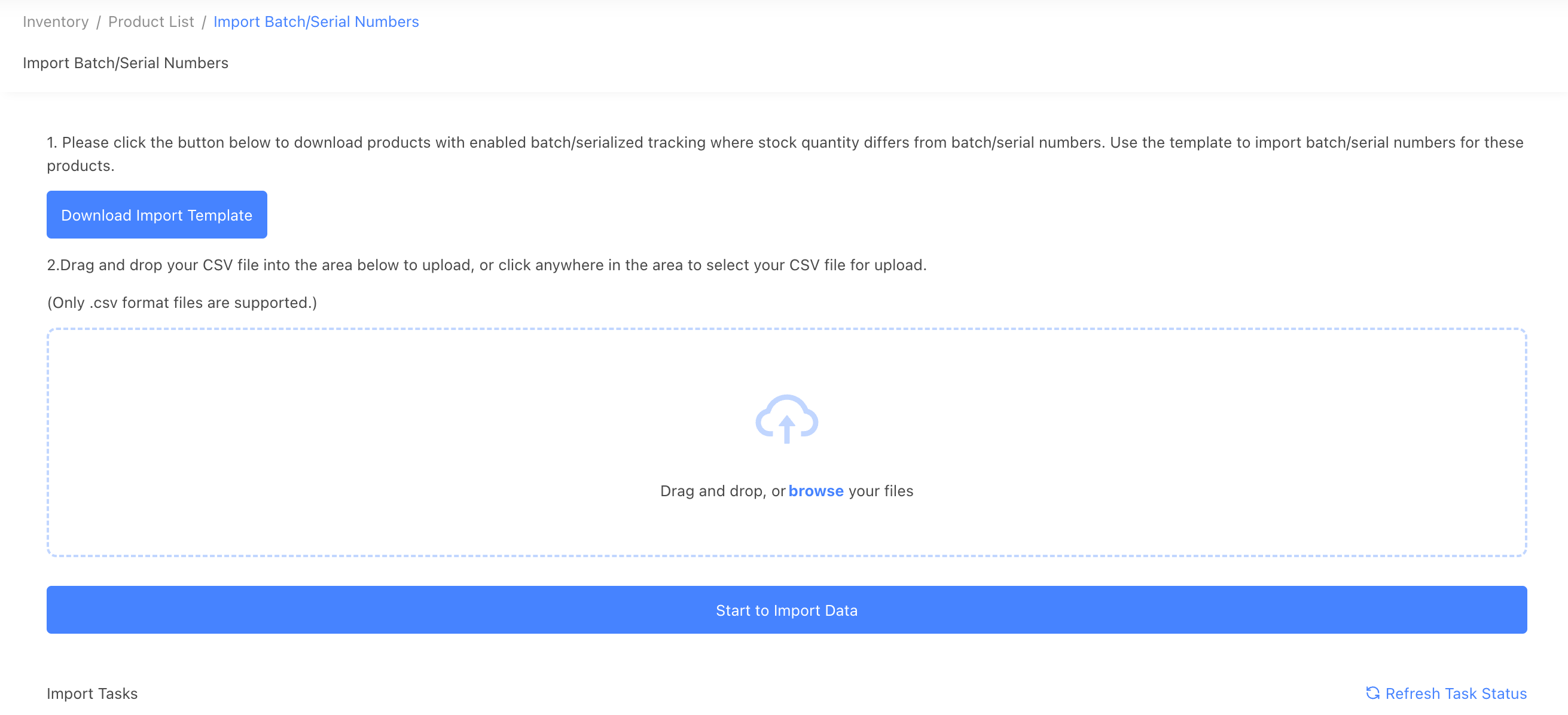
From the Import Batch/Serial Numbers screen, click the [Download Import Template] button to download a template listing products with enabled batch/serialized tracking where the stock quantity differs from the batch/serial numbers. Use this template to import batch/serial numbers for these products.
2. Adding Batch/Serial Number Data to the Template
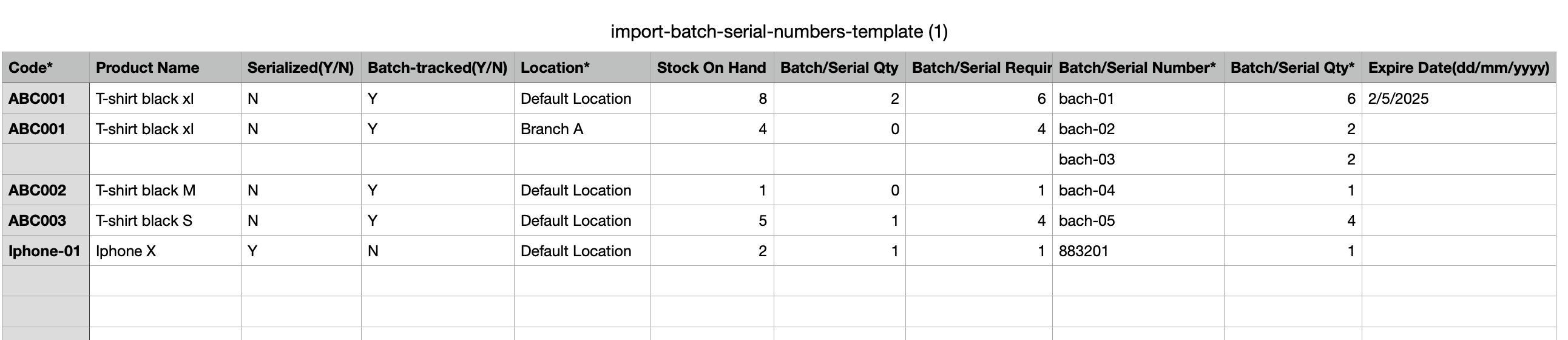
After downloading the template, you will see the required quantity for each product. Fill in the following fields:
- Batch/Serial Number* (Required): The batch number or serial number of this product.
- Batch/Serial Qty* (Required): The quantity of the batch/serial number.
- For serialized products, the quantity should be 1. Entering another number will cause an error.
- For batch-tracked products, the quantity must be greater than 0 and can support up to two decimal places (e.g., 10.25).
- If you have multiple batches for a product, add a new row for each batch. The total quantity should be less than or equal to the required quantity.
- Expire Date (Not Required): The expiration date of each batch, only dd/mm/yyyy format is accepted.
3. Upload the CSV file
- Add the CSV file to the upload field.
- Click [Start to Import Data] to create an import task.
- Once the new task is created successfully, you can check the import status from the tasks table.
- Click the [Refresh Task Status] button to check the task status.
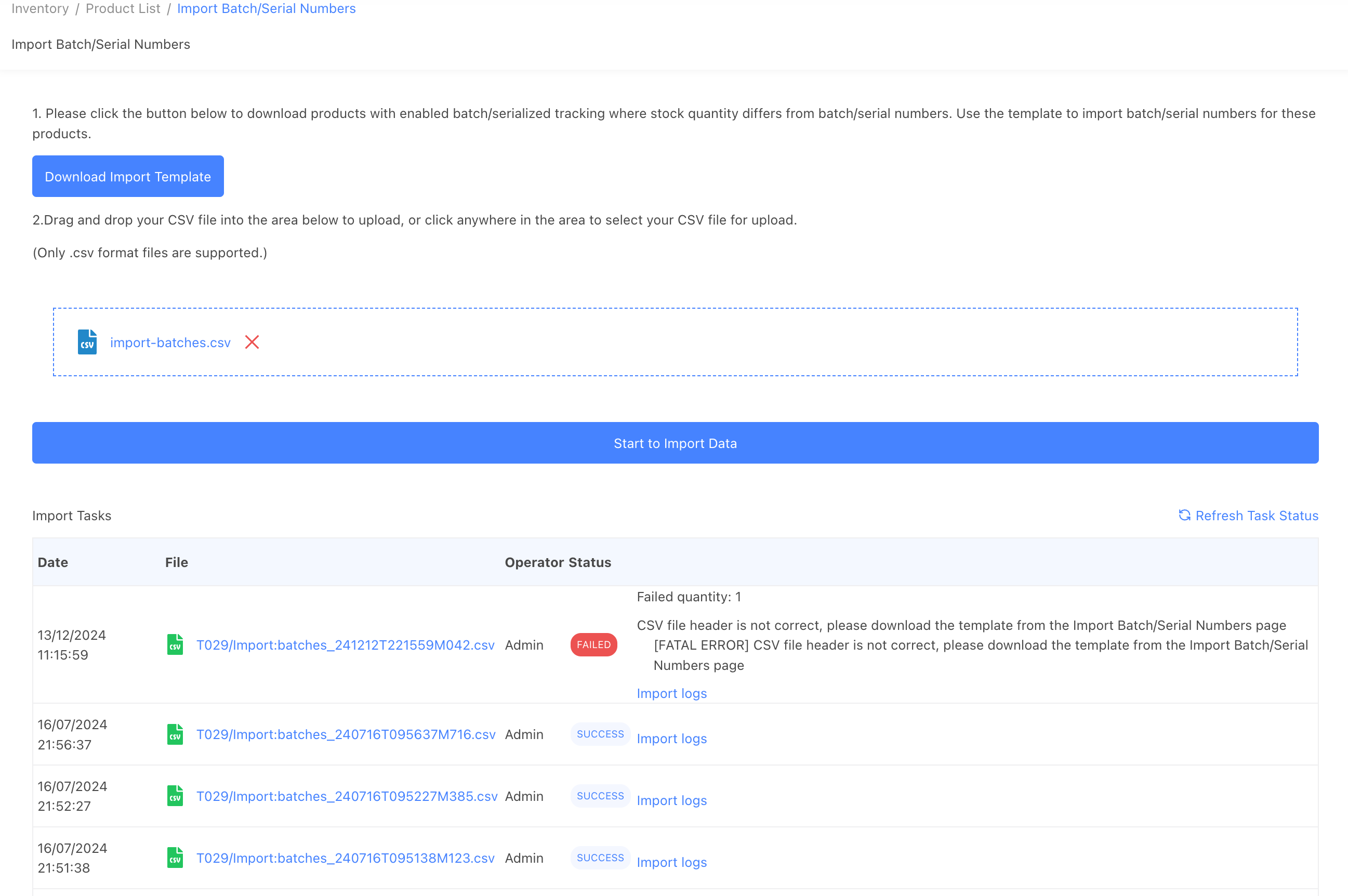
If the task fails, you will see an error message indicating the cause of the error.
If you see a "SUCCESS" status, it means all the data has been imported successfully. You can check the batch/serial numbers from the product details page.
Tips for Preparing the CSV File
- StockUnify matches products by the product code. You cannot create new products or materials with this template; you can only add batches for existing products that are batch-tracked/serialized and whose batch/serial numbers are not equal to the stock on hand.
- Rows with no batch/serial number and quantity entered will be skipped. Empty rows will also be skipped.
- If the location name cannot be found in the system, an error will occur.
- If the product is batch-tracked/serialized but has no stock on hand, you cannot use this template to update the stock level.
- Only dd/mm/yyyy format is accepted for the expire date field. For example, 01/05/2025 is valid, but 01/05/25 will cause an error.