Overview
In StockUnify, you can update the details of many products at once by uploading a CSV file, instead of editing products one by one. This is useful when you need to update sale prices, barcodes, or Xero accounts across a large number of products.
Please note that bulk update is for updating existing products only — it cannot create new products or change stock levels.
Step 1: Download the Template
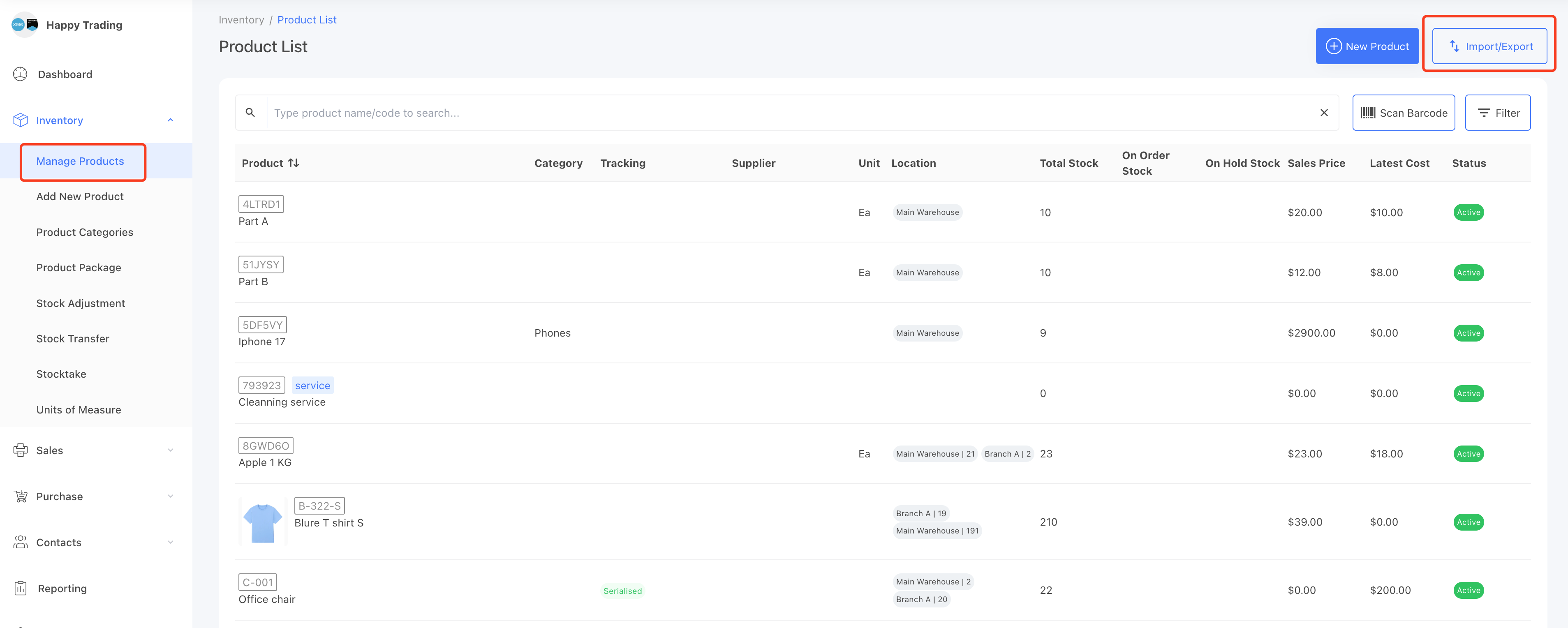
Go to the [Inventory] → [Manage Products] page.
On the right corner, click the Import/Export button.
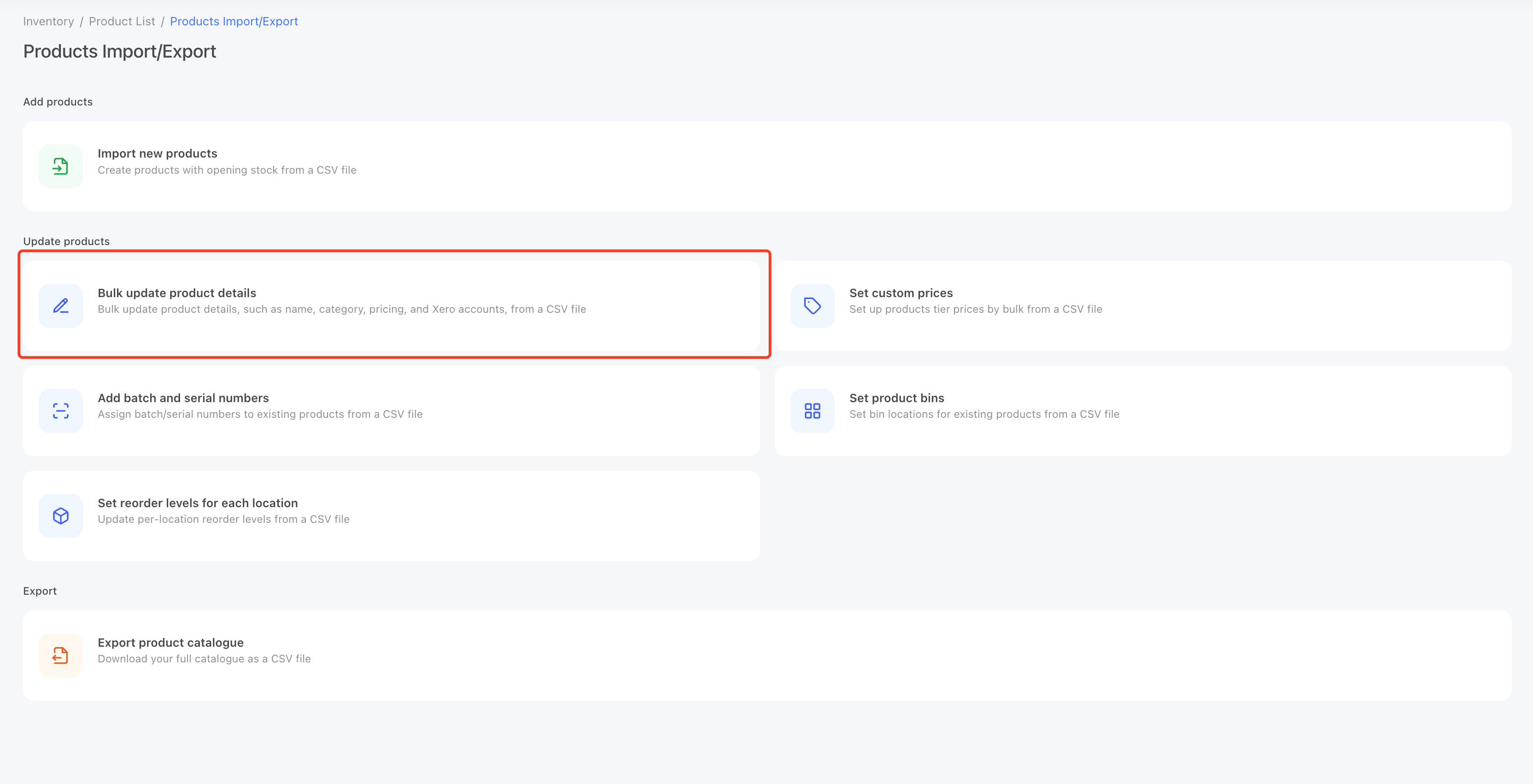
On Import/Export page, select the Bulk update product details.
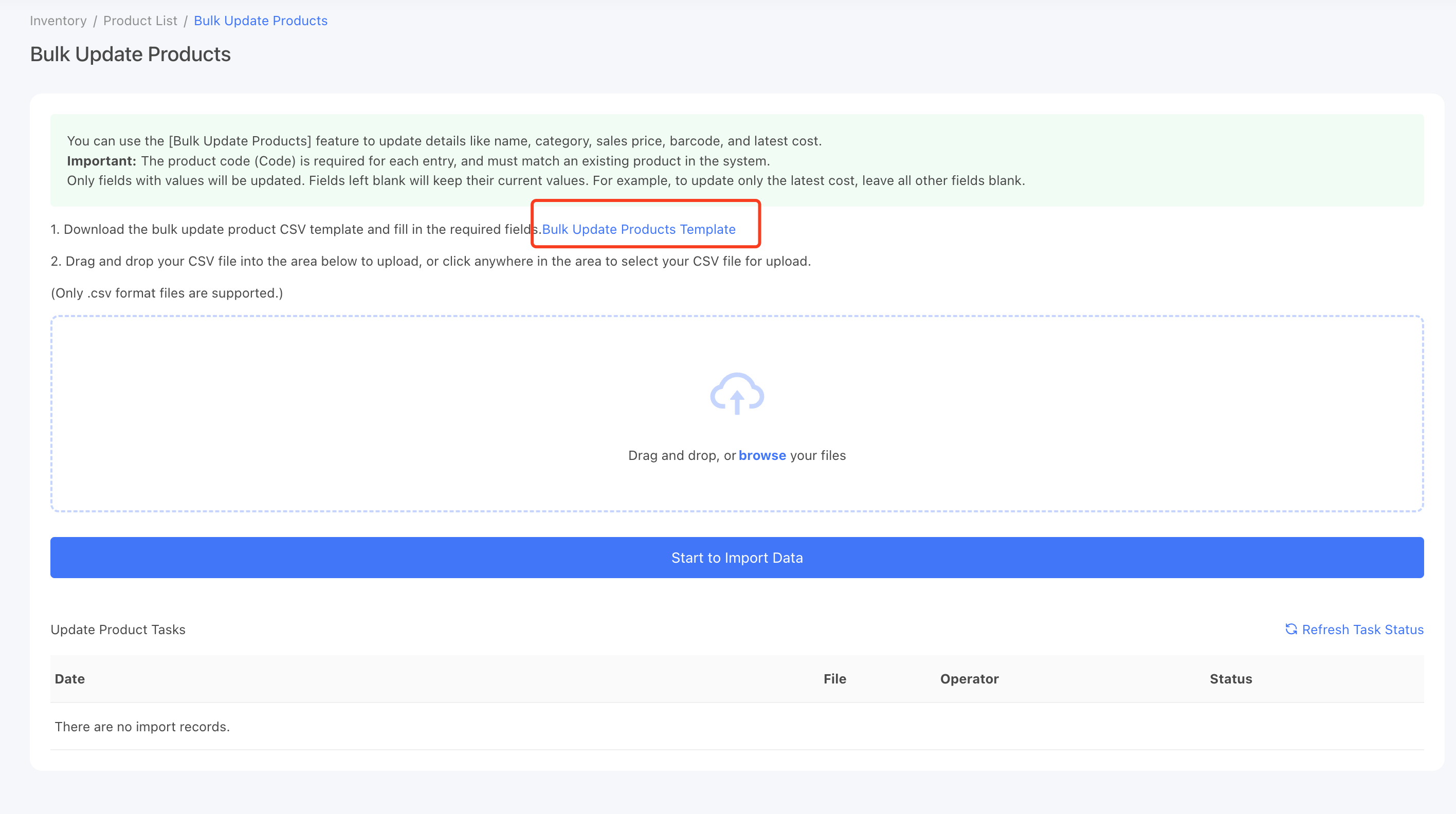
On the Bulk Update Products page, click the Bulk Update Products Template link to download the template.
Step 2: Fill in the Template
The only required column is Code. It is used to find the matching product in StockUnify, so the code must already exist in your account.
You only need to fill in the columns you want to update. Any cell you leave blank will be ignored — the product's existing value will not be changed.
For example, if you only want to update the sale prices of your products, fill in the Code and Sale Price columns, and leave all other columns blank.

The template supports the following columns:
- Code* — the product code, used to match the product. Must already exist in StockUnify.
- Product Name
- Category
- Unit
- Supplier Name
- Description
- Reference
- Internal Notes
- Barcode
- Re-order Level
- Sale Price
- Latest Cost
- Xero Sales Account
- Xero Inventory Account
- Xero COGS Account
- Xero Purchase Account
Tips
-
If a supplier name or category name cannot be found in the system, a new one will be created automatically. Please make sure the names in your file exactly match the existing names in StockUnify, otherwise a duplicate supplier or category will be created.
-
For the Xero account columns, please use the Xero account code (e.g. 200), not the account name.
-
The Re-order Level, Sale Price, and Latest Cost columns only accept numbers, e.g. 12.23. Please do not include a currency symbol.
Step 3: Upload the File
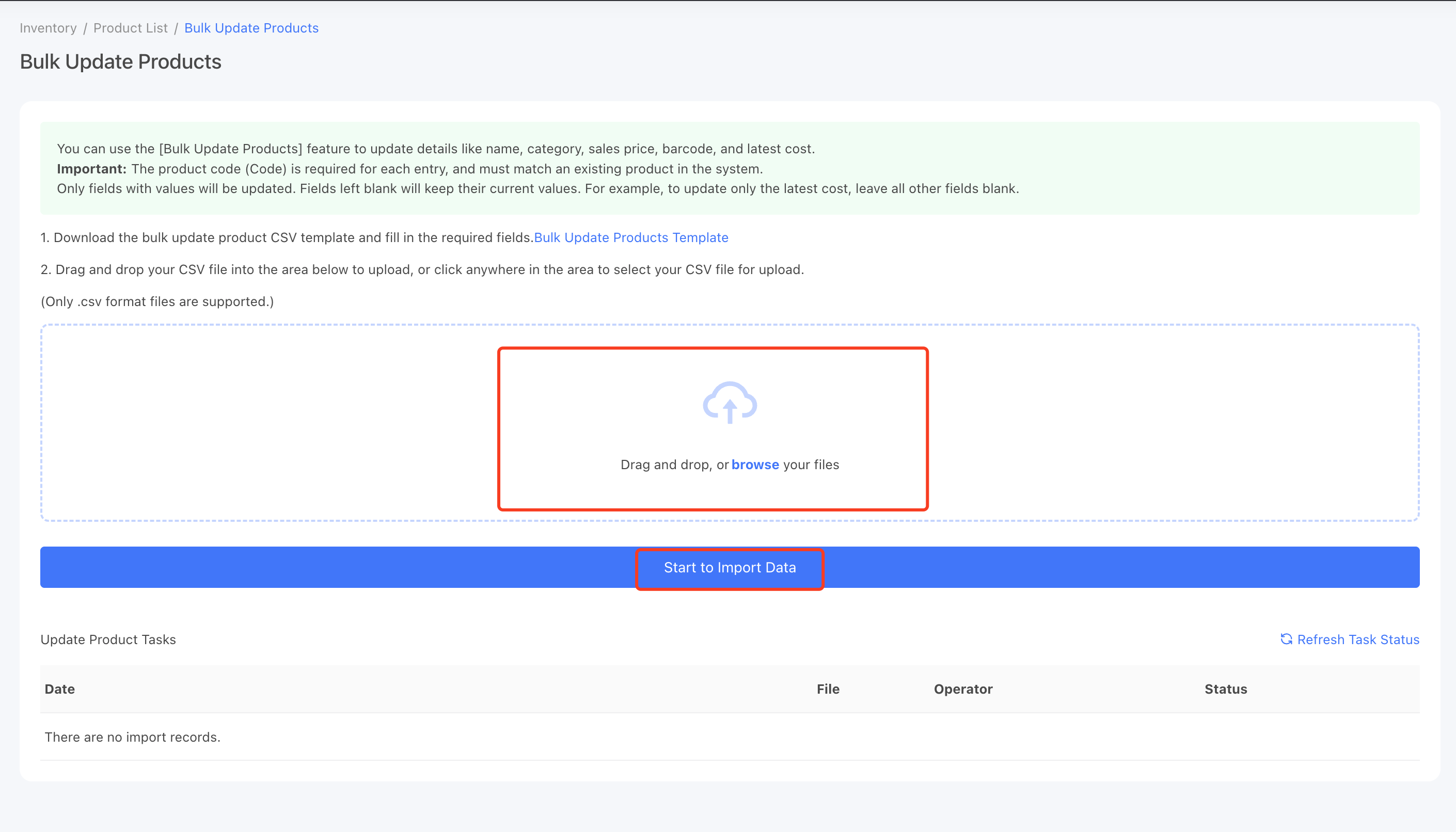
Go back to the Bulk Update Products page (where you downloaded the template). Select or drag your CSV file into the upload field, then click the Start to Import Data button.
Frequently Asked Questions
What happens if a code in my file does not exist in StockUnify?
That row will be skipped. The other rows will still be updated.
How do I clear a field (e.g. remove a barcode)?
Leaving a cell blank does not clear the field — blank cells are ignored. To clear a field,
please edit the product directly in StockUnify.
Can I undo a bulk update?
No, bulk updates cannot be undone. We recommend exporting your products first as a backup before uploading
your changes.
Can I update stock levels this way?
No. Bulk update cannot change stock levels. To adjust stock, please use a stock adjustment instead.
Can I add new products this way?
No. Bulk update cannot create new products. Every product in your file must already exist in StockUnify —
rows are matched by the Code column.